Review queue
Review and decide approval requests that need a human.
The review queue is where you look at actions agents want to take and decide whether they should go ahead. Each request shows the proposed action, so you can check it before approving or denying it. The agent waits for a decision.
How requests enter the queue
An agent instance sends a request to withHuman. Approval pipelines check it first. If it needs a human decision, an escalation path decides who to contact. If you are eligible to review the request, then it will appear in your review queue.
Loading diagram…
Diagram source
flowchart TD
    instance[Agent request] --> pipelines[Approval pipelines]
    pipelines -->|Approve or deny| result[Decision returned to the agent]
    pipelines -->|Human review needed| path[Escalation path selects reviewers]
    path --> queue[Review queue]
    queue -->|Reviewer approves or denies| result
Your permissions and organization policies determine which requests you can see. Being able to see a request doesn't always mean you can decide it. You also need permission to review it and to be one of its eligible reviewers. The Permissions guide explains review access and emergency decisions outside routing.
Only requests needing human approval will show up in the review queue. Automatically approved or denied requests are visible in the audit log.
Request review
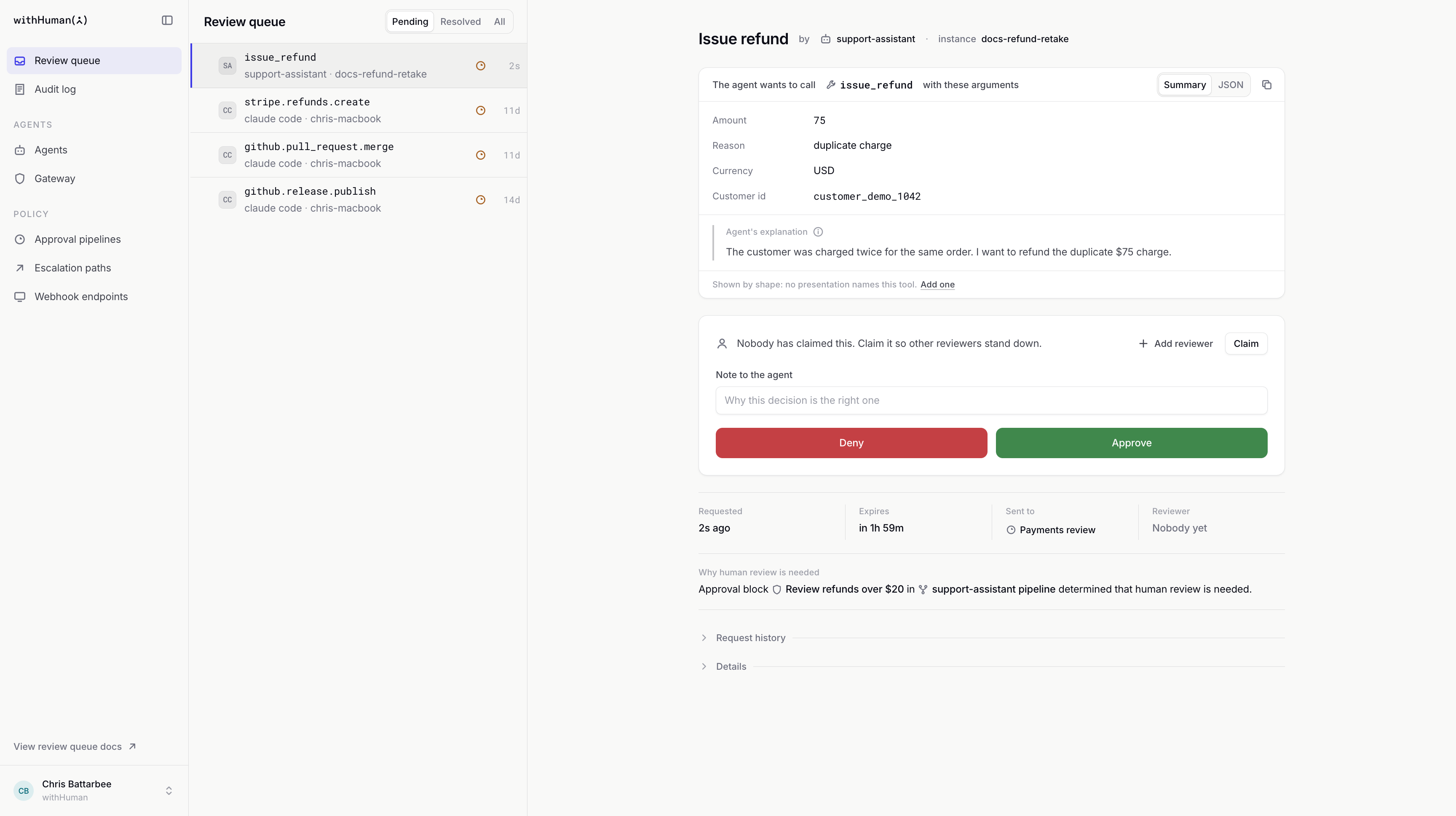
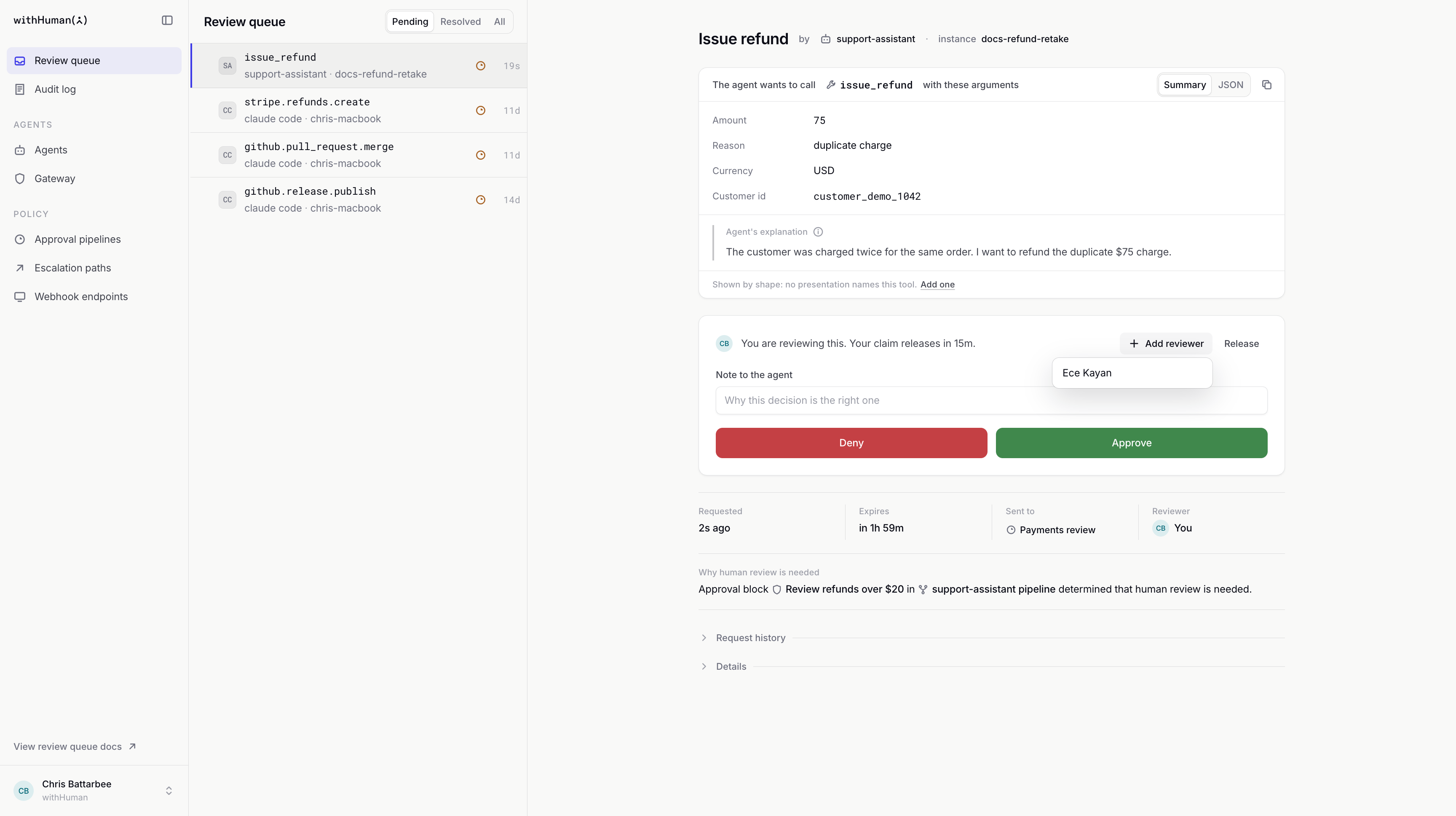
Let's follow a $75 refund from our Support assistant. Its approval pipeline has sent the request to Payments review, and you're one of the reviewers.
Choosing what the queue shows
Open Review queue in the sidebar. The heading above the list names whose requests you're looking at. Select it to switch. Each choice includes the one before it:
- Sent to you shows the requests withHuman has asked you to review: the escalation path reached you, no path applied and every reviewer was told, or a colleague added you as a reviewer. This is the default.
- Yours to decide shows every request you could decide, including requests routed to you that haven't reached you yet. For example, if you're on the second level of a path and the first reviewer hasn't answered, the request is here before it's in Sent to you.
- All visible shows every request you can see, including requests other people decide. If your organization limits visibility to routed requests, this matches Yours to decide.
The control beside the heading narrows by status. Pending shows requests still waiting for a decision. Select a request to open its details beside the queue.
You can switch to Resolved to see requests that have ended, or All to see both pending and resolved requests.
Request details
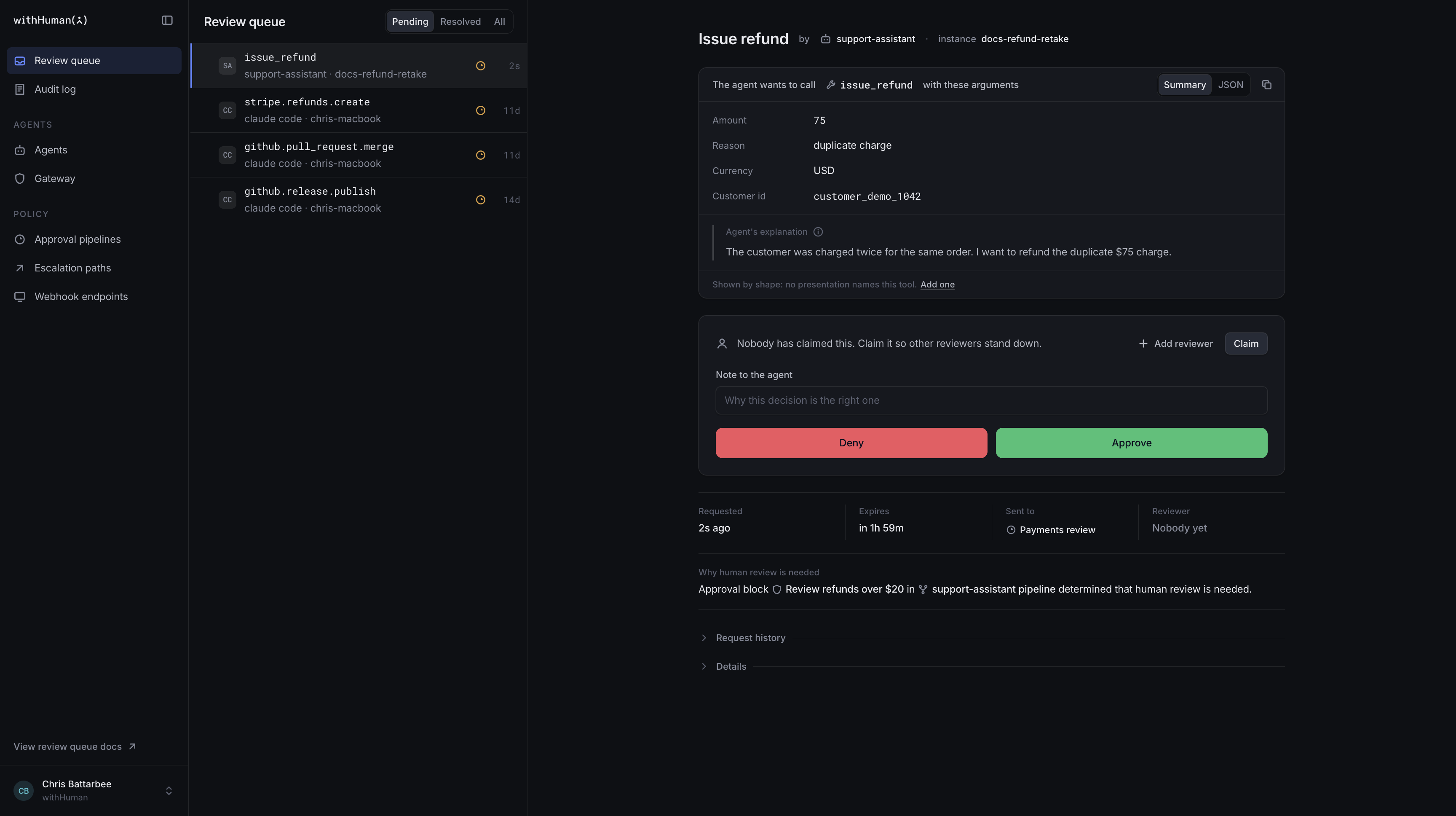
Start with the agent and instance at the top. Then look at the tool it wants to call and the arguments it will use. For this request, check the refund amount, currency and customer details.
Tool presentations give requests readable titles and format arguments as emails, commands or diffs. The original JSON remains available.
The Agent's explanation, when provided, gives you its reason for taking the action. This is the agent's own account, so check it against the proposed action rather than treating it as verification.
Check Expires to see how long you have to decide, and Sent to to see where the request was routed. If withHuman has a reason for asking a human, you'll see that too. Open Request history to follow what has happened to the request so far.
Request claims
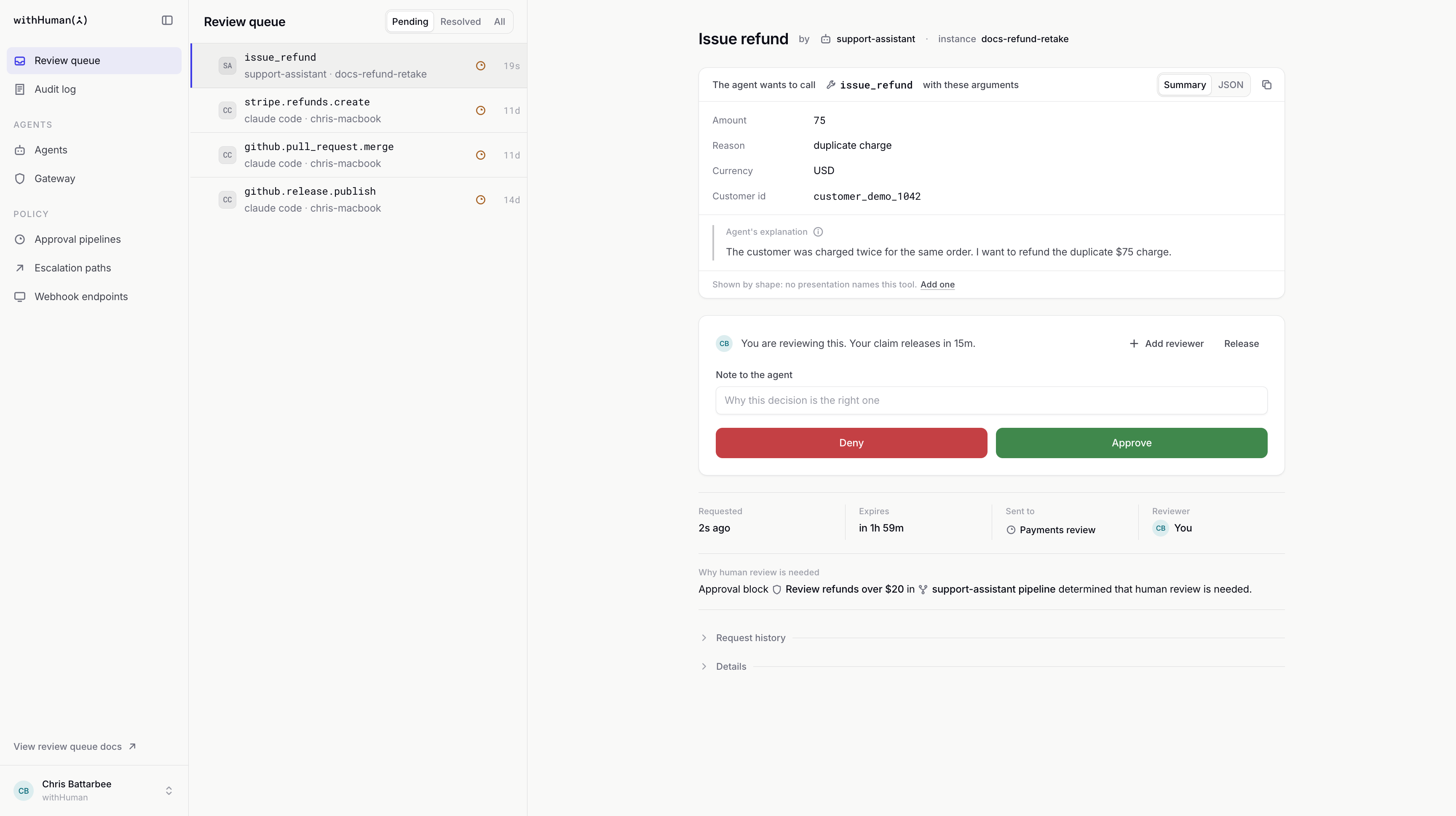
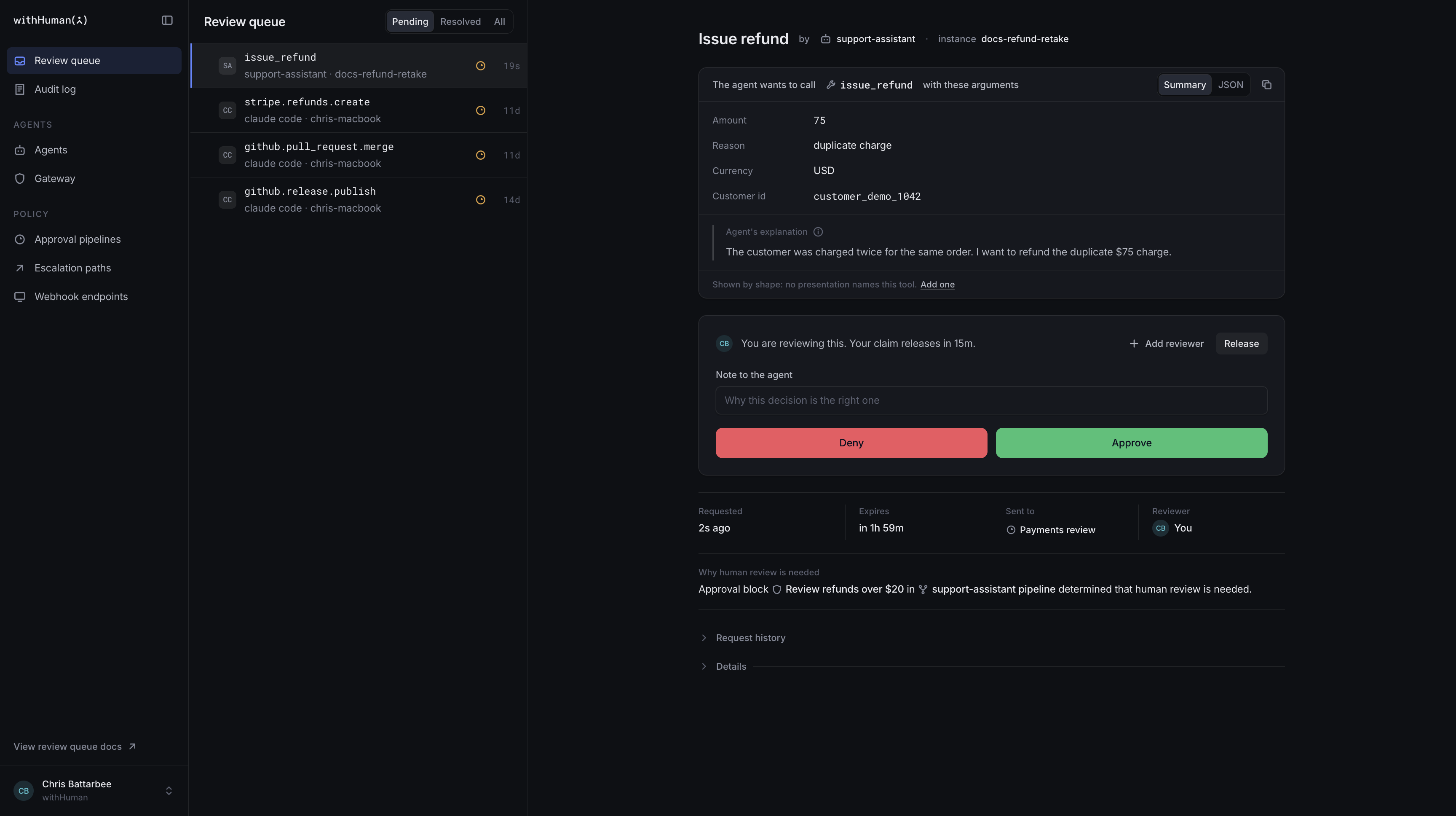
Select Claim to let other reviewers know you're looking at the request. Claiming is optional. You can approve or deny a request without claiming it first.
Claiming a request pauses the escalation path, so it won't contact the next reviewer while you're handling it. For example, suppose the finance lead is due to be contacted in two minutes. You claim the request and spend five minutes reviewing it. The finance lead isn't contacted during those five minutes. If you then release the claim without making a decision, they'll be contacted two minutes later.
Other eligible reviewers can still make a decision while you hold the claim. Select Release if you're handing it back, or let the claim expire. In either case, escalation resumes if the request still needs a decision.
The claim has its own countdown, set by Organization policies. By default, this is 15 minutes. After this time, the request will automatically be unclaimed.
Additional reviewers
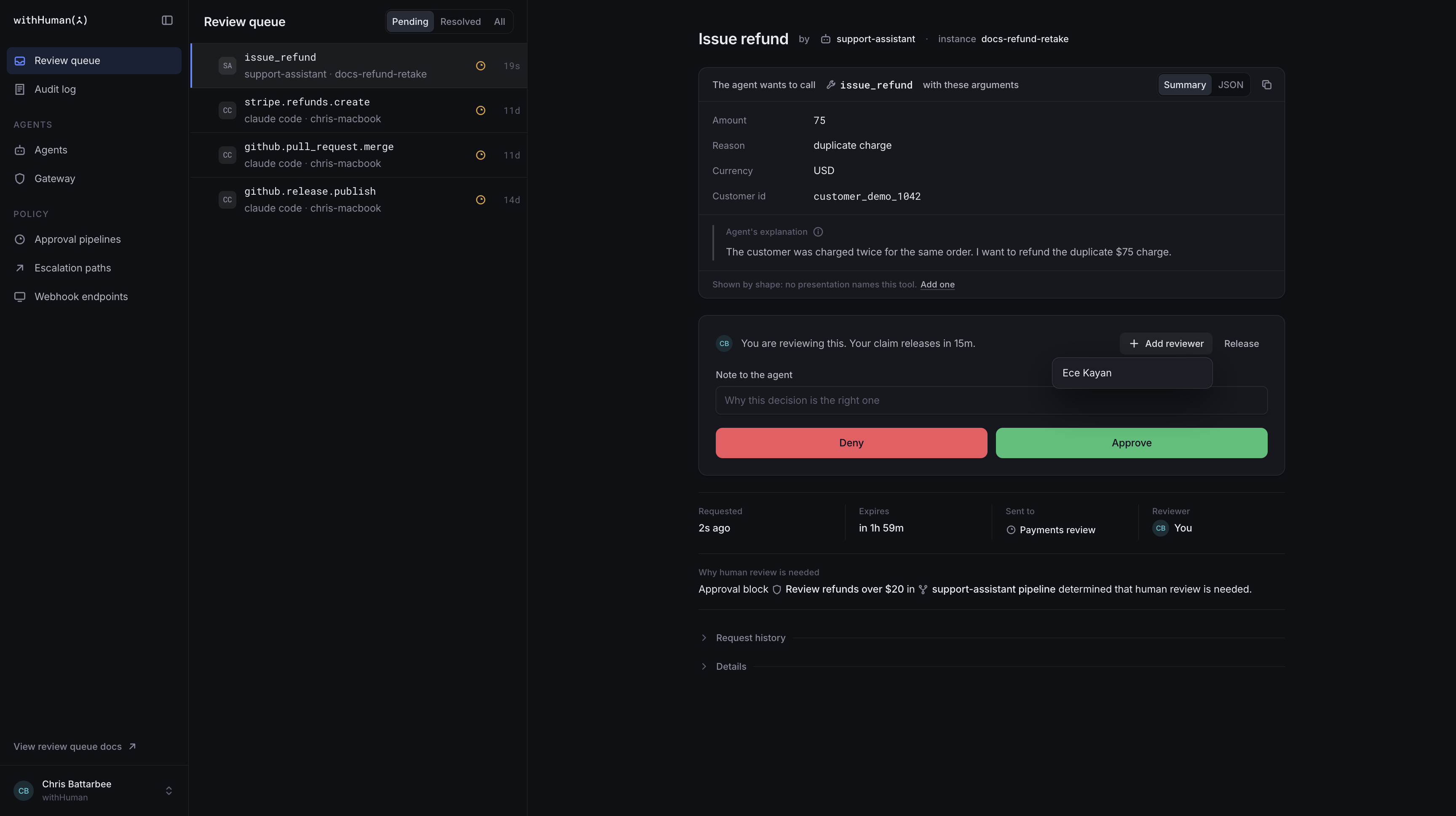
If you're one of the request's selected reviewers, use Add reviewer to ask a colleague to take a look. Search for their name and select them. The list includes people who have permission to decide requests.
Adding someone notifies them and makes them a reviewer for this request.
Approvals and denials
If the action should go ahead, select Approve. You can leave a Note to the agent first if there's something useful to tell it.
If it shouldn't go ahead, write a note explaining why, then select Deny. A note is required when denying a request, so the agent knows why it was stopped.
Selecting either button submits your decision. For our $75 refund, we'll leave a note and approve it.
Completed requests
The request now shows the decision, who made it and any note they left. withHuman sends the result back to the agent. Approval gives it permission to carry out the action; it doesn't confirm that the refund has happened.
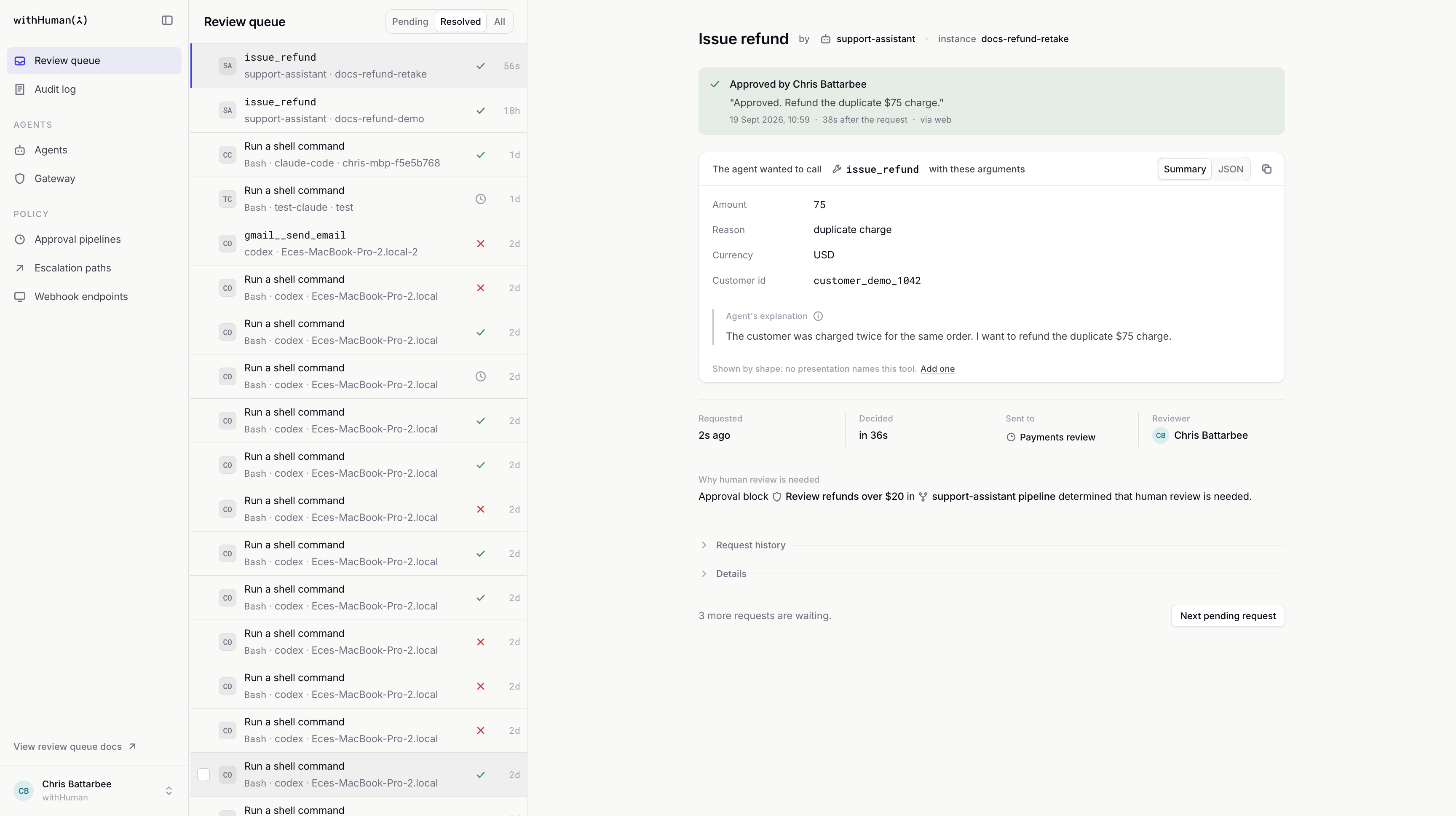
The request leaves Pending once it ends. You can find it again under Resolved or All for the same heading. Requests that expire or are cancelled also move out of Pending and can no longer be approved or denied.