Account
Manage your password and understand how you sign in to withHuman.
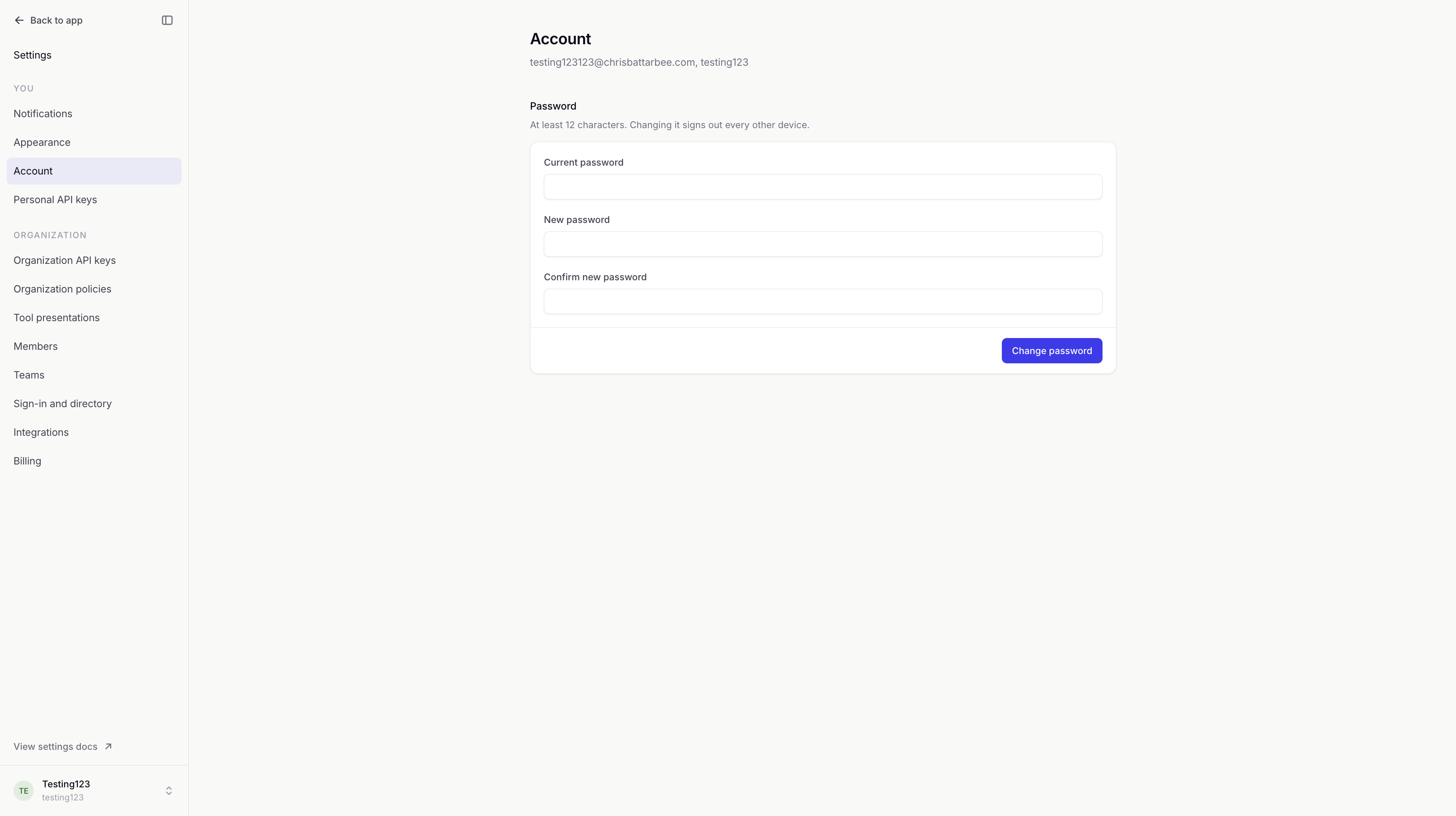
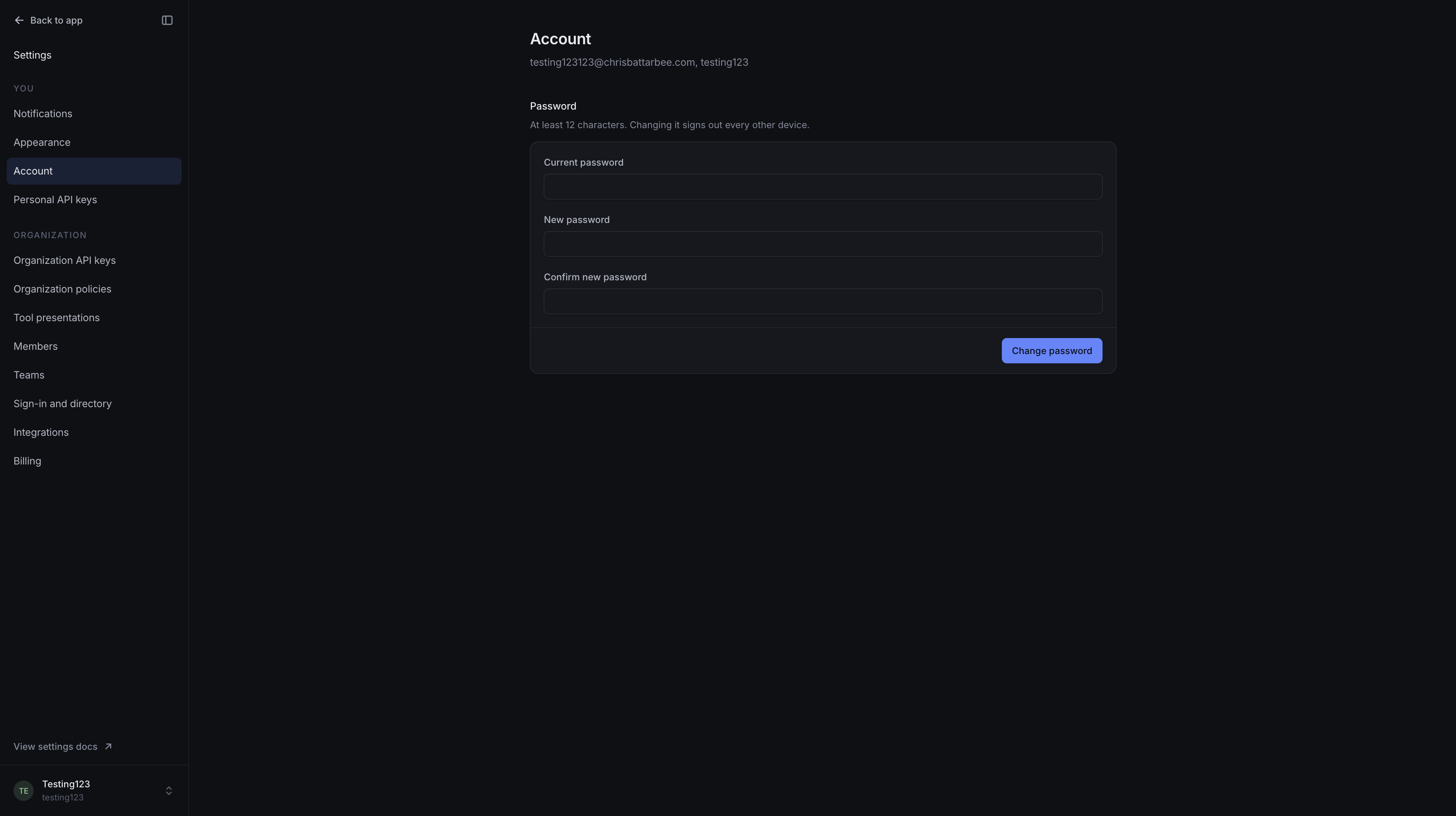
The Account page manages your withHuman password. It shows the email address you are signed in with and your current organization.
Password
Changing your password requires your current password. The new password must have at least 12 characters and be different from the old one.
The change signs out every other device. The browser where you changed it stays signed in. Your password belongs to your account, so the change applies across your organizations.
Password reset
Forgot your password? on the sign-in page sends a reset link to an account that has a password. The link works once and expires after one hour. Completing the reset signs you out everywhere, including this browser.
If the email does not arrive, check spam and confirm you used your account's email address. On a self-hosted deployment, the administrator also needs to have email delivery configured.
Provider sign-in
Accounts created through Google, GitHub or single sign-on may have no withHuman password. The Account page explains when this applies. Keep using your existing sign-in method; this page cannot add a password to that account.
Organizations with single sign-on require their identity provider for access. Manage that provider's password with the provider.
Your notification settings and personal API keys have their own pages.