Set up approval pipelines
Decide which of your agents' calls are approved automatically and which wait for a reviewer.
Approval pipelines let you decide what happens to your agents' calls automatically: approve them, deny them, or send them to a person. Every call goes through the entry pipeline first, one block at a time, until a block decides.
This guide writes rules for the Linear MCP server from Set up MCP Gateway. We'll approve calls made with the readonly scope automatically, and send calls made with the fullaccess scope for review.
There are two ways to set it up:
- Your coding agent writes the rules, using the withHuman skills, and checks them with you. See Have your coding agent write the rules.
- You write the rules yourself in the app. See Write the rules yourself in the app.
Before you start
You'll need:
- Permission to edit and activate the entry pipeline. Owners and admins have it.
Calls that wait for review go to your organization's default reviewers unless a rule names someone else. See Escalation paths to choose who that is.
Have your coding agent write the rules
Your coding agent writes the rules through the withHuman MCP server, as you.
-
Add the withHuman skills to your coding agent:
bashnpx skills add https://withhuman.ai -
Connect the withHuman MCP server, and sign in when asked. For Claude Code:
bashclaude mcp add --transport http withhuman https://app.withhuman.ai/api/mcp/v1For Codex:
bashcodex mcp add withhuman --url https://app.withhuman.ai/api/mcp/v1 -
Ask your agent to write the rules, for example:
textUse the withhuman-pipelines skill to write approval rules for the linear MCP server. Approve calls that use the readonly scope automatically, and send calls that use the fullaccess scope to me for review.
Write the rules yourself in the app
Open Approval pipelines from the side menu. The entry pipeline is at the top of the page. Open it, then select Edit pipeline.
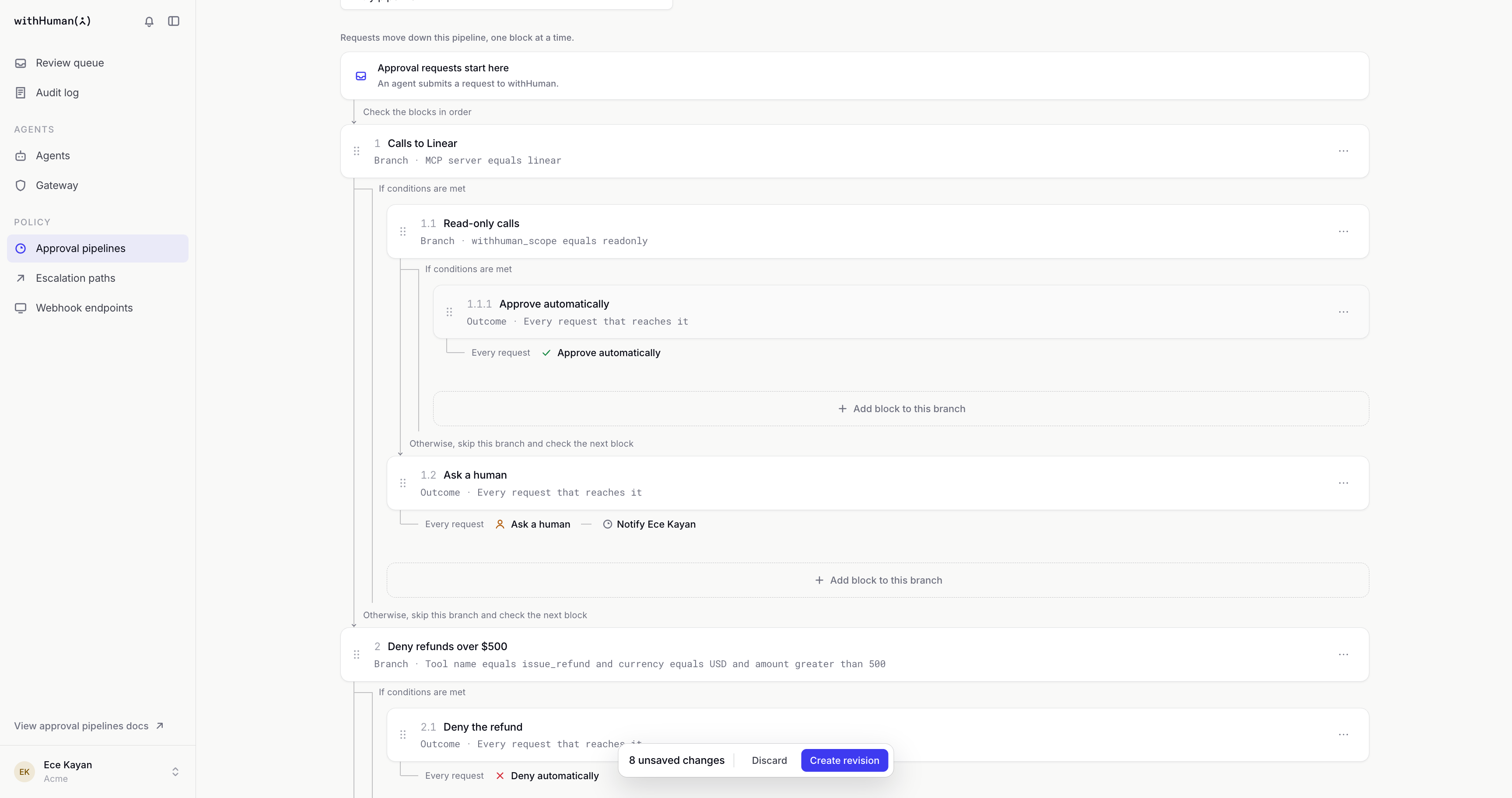
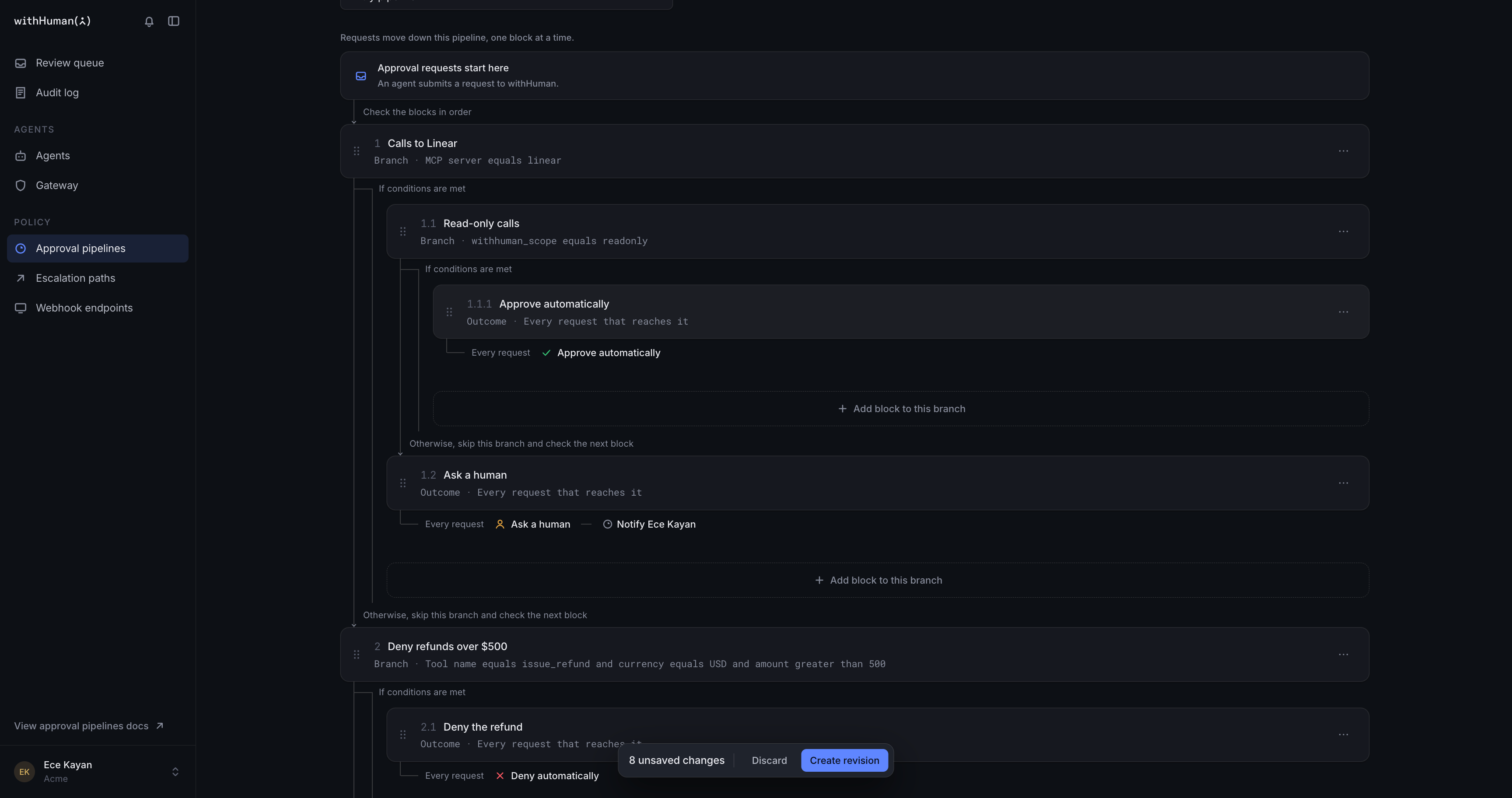
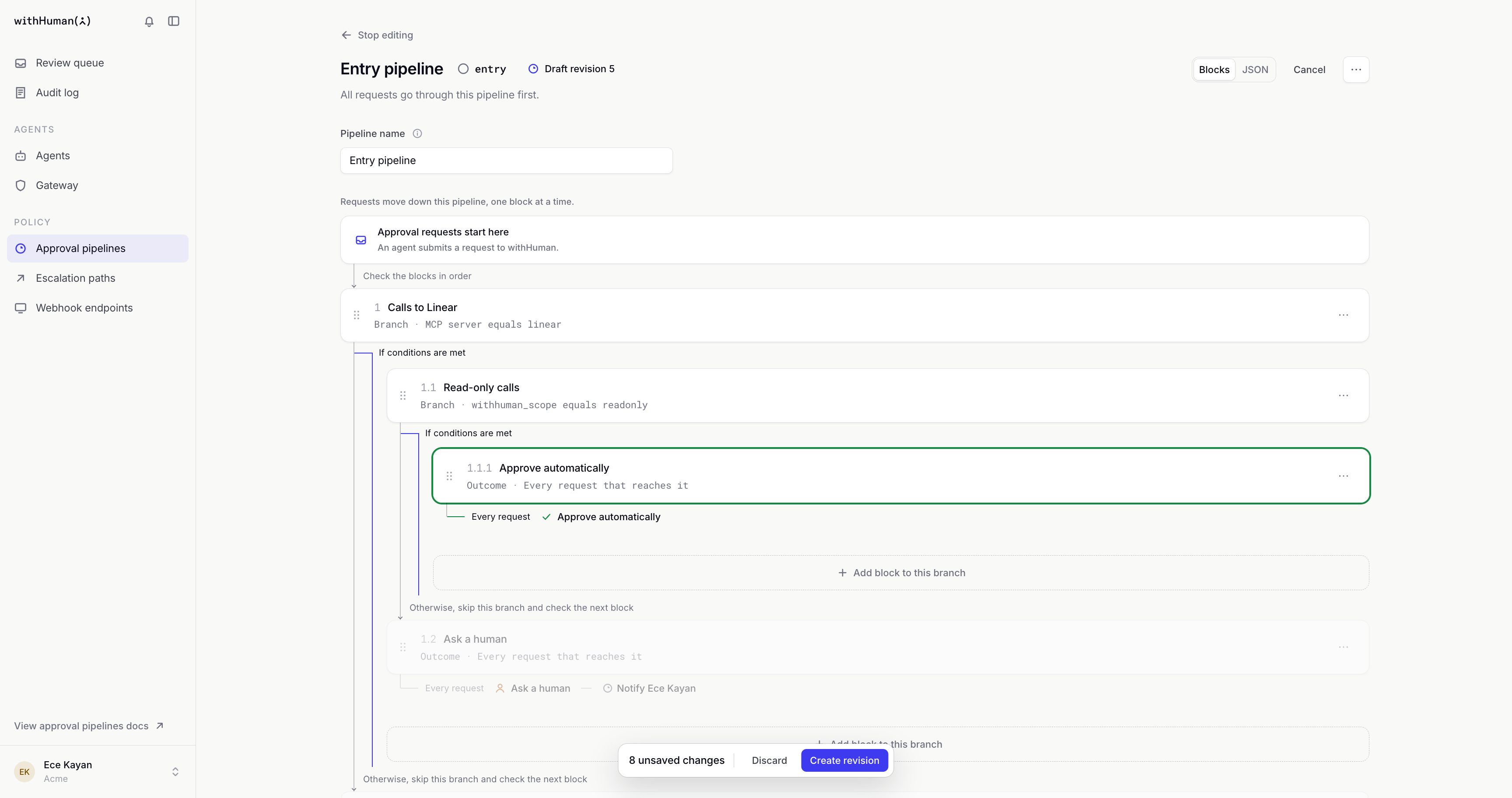
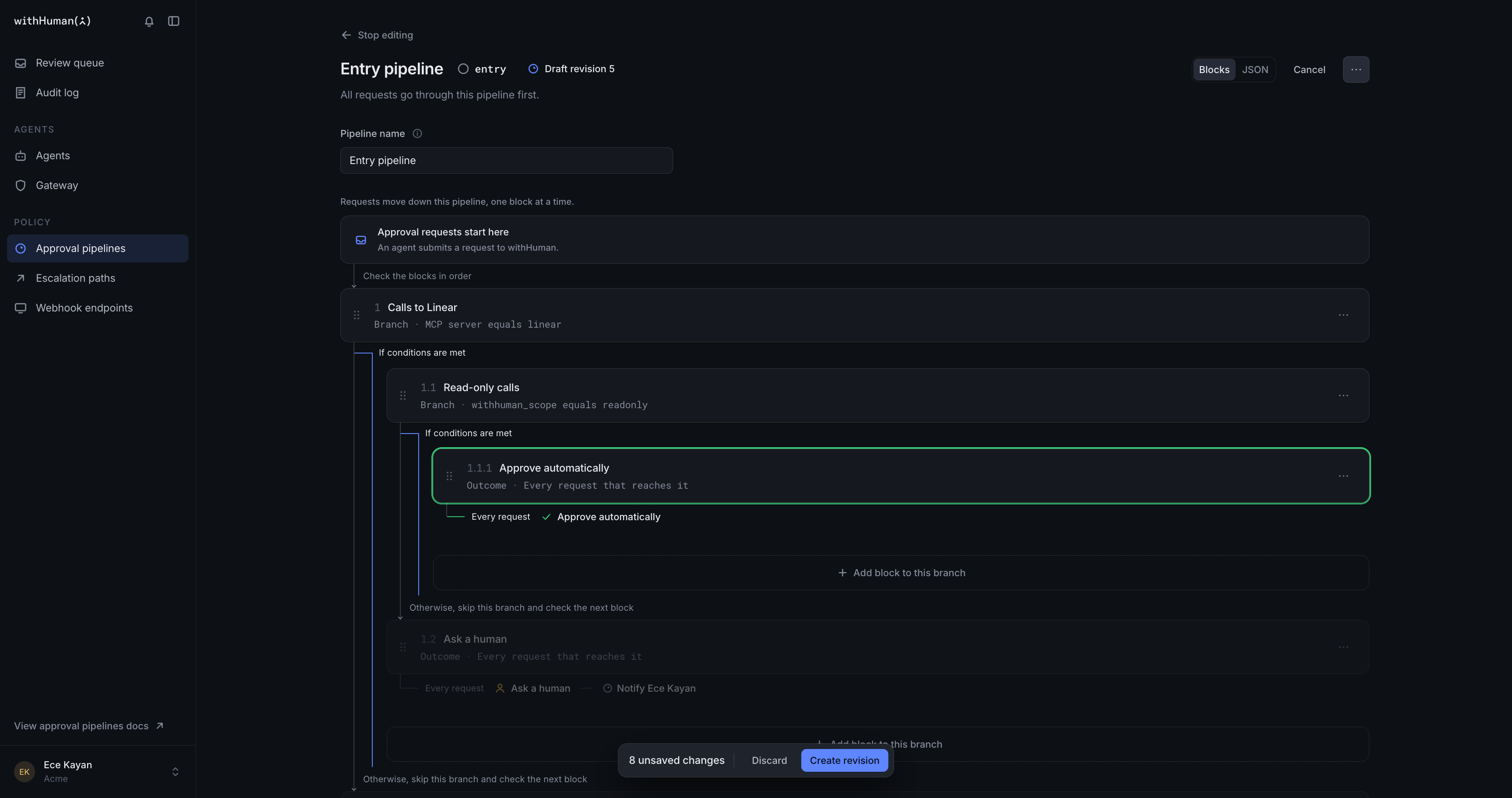
We'll build this rule:
Calls to Linear              (MCP server equals linear)
├─ Read-only calls           (withhuman_scope equals readonly)
│   └─ Approve automatically
└─ Ask a human               every other call to Linear
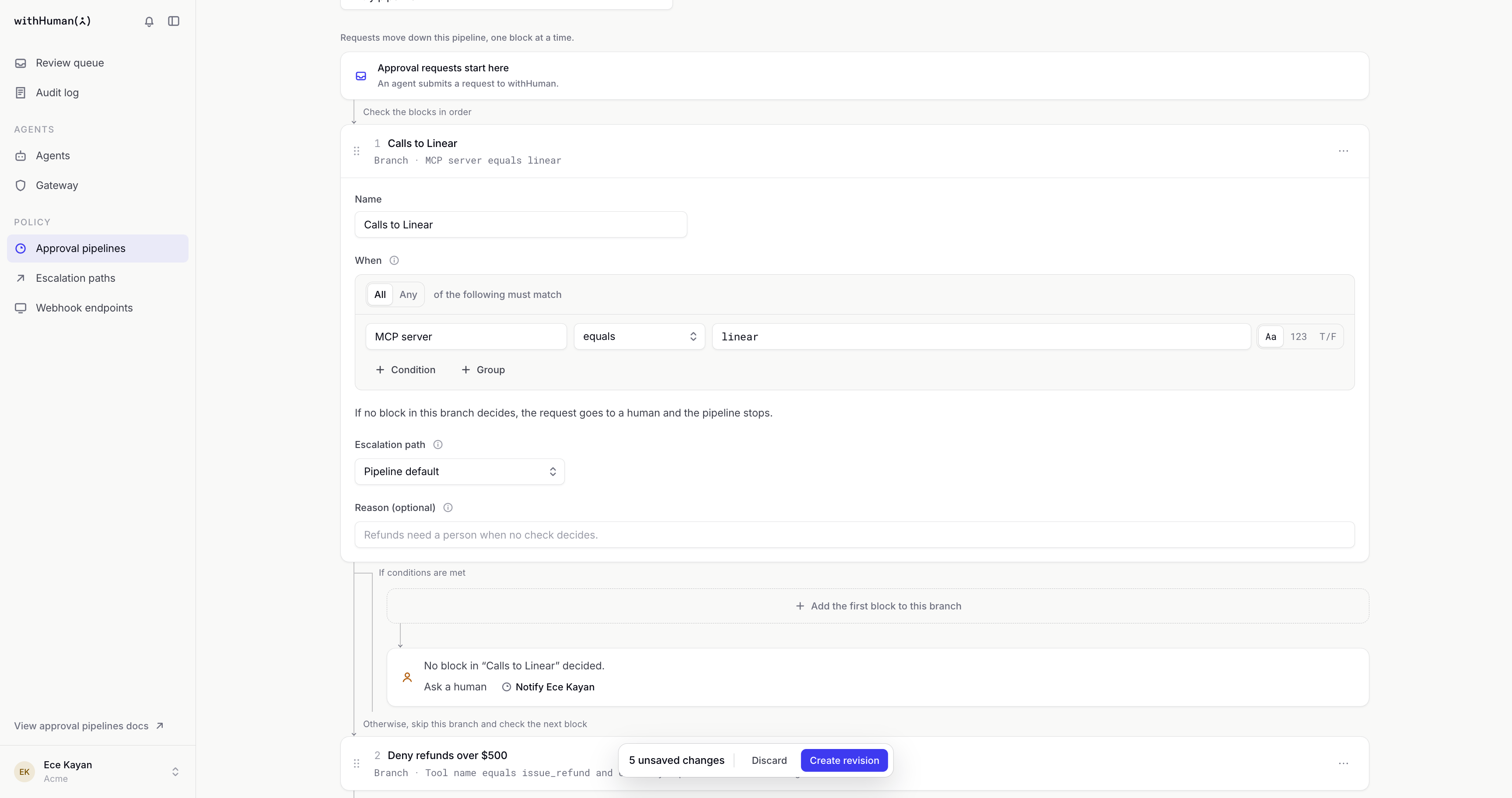
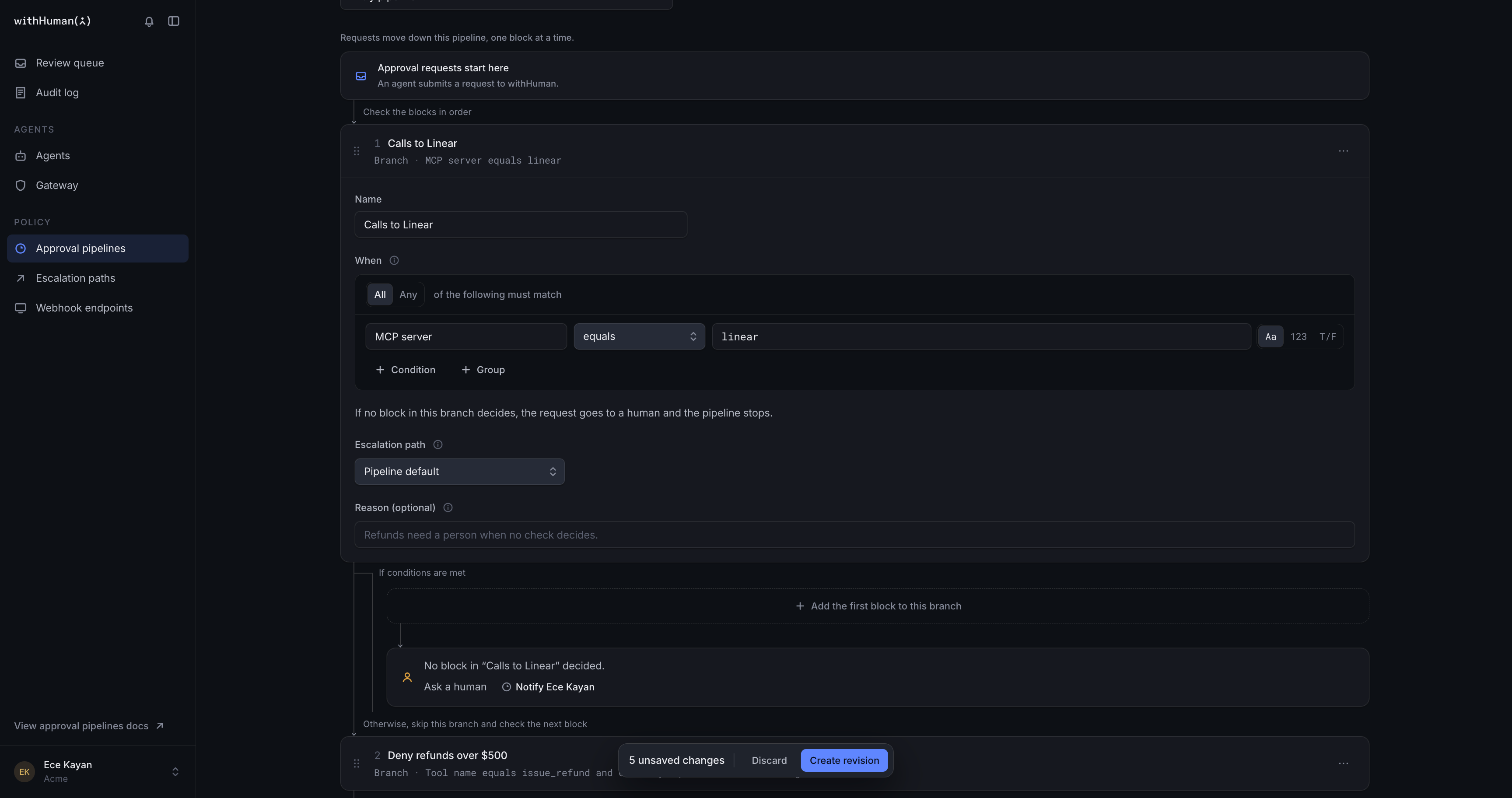
1. Add a branch for the server
Select Add block, then Branch. Name it "Calls to Linear". Under When, choose MCP server, equals, and linear.
Use the server's slug, not its name: linear, not "Linear". On the Gateway page, the slug is the part before __* under the server's name.
Only calls to Linear enter this branch. Every other call skips it and carries on to your other rules.
2. Approve calls with the read-only scope
Inside the branch, select Add block to this branch, then Branch. Name it "Read-only calls". Under When, choose the withhuman_scope argument, equals, and readonly.
Inside that branch, add an Outcome block and choose Approve automatically.
This rule goes by the scope's name, not by what it can do. If the readonly scope can actually make changes in Linear, this rule approves those changes too.
3. Send everything else for review
Back in Calls to Linear, after Read-only calls, select Add block to this branch, then Outcome block. Name it "Ask a human" and keep Ask a human.
Calls made with fullaccess, and any other call to Linear, now wait for a reviewer. To send them to someone in particular, choose an escalation path on the block.
4. Put the branch first
Drag Calls to Linear to the top of the entry pipeline.
Blocks run in order and stop at the first one that decides. A rule higher up, such as one that approves everything an agent does, would otherwise decide Linear calls before your branch sees them.
5. Test the rules
Select Test request from the pipeline's action menu and paste this sample call:
{
  "request": {
    "server": "linear",
    "tool": "list_issues",
    "arguments": { "withhuman_scope": "readonly" }
  },
  "agent": { "slug": "codex", "name": "Codex" }
}
The highlighted blocks show the route the call takes. Change readonly to fullaccess and test again:
withhuman_scope | Expected result |
|---|---|
readonly | Read-only calls approves it. |
fullaccess | Ask a human sends it for review. |
Testing doesn't create a request or notify anyone.
6. Save and activate
Select Create revision, then Make active. Your rules apply to new calls straight away. Calls already waiting for a reviewer keep waiting.
To see it working, have your agent call one of the server's tools, as in the Test step of Set up MCP Gateway.
Troubleshooting
| What you see | What to do |
|---|---|
| A Linear call was approved, or sent for review, by a different rule | Check that Calls to Linear is the first block in the entry pipeline. |
withhuman_scope isn't offered in the field picker | Type the field name yourself. The picker suggests fields from calls it has seen. |
| A test call skips Calls to Linear | Check the sample's server matches the server's slug exactly. |
| Your rules don't apply to real calls | Check you selected Make active. A revision kept as a draft doesn't run. |
The Approval pipelines guide explains every block and setting in detail.