Agents
Connect agents and manage their instances and credentials.
The Agents page is where you add agents, connect their instances and see what they've been asking to do. You can also pause their access or retire an agent when you're finished with it.
We'll use our Support assistant throughout this guide. It can run on a laptop and a server, with each instance following the same rules. If you need a reminder of how these fit together, take a look at the Agents concept.
Loading diagram…
Diagram source
flowchart TD
    laptop["Instance on a laptop"] --> agent["Support assistant"]
    server["Instance on a server"] --> agent
    agent --> pipeline["Approval pipelines"]
Agent inventory
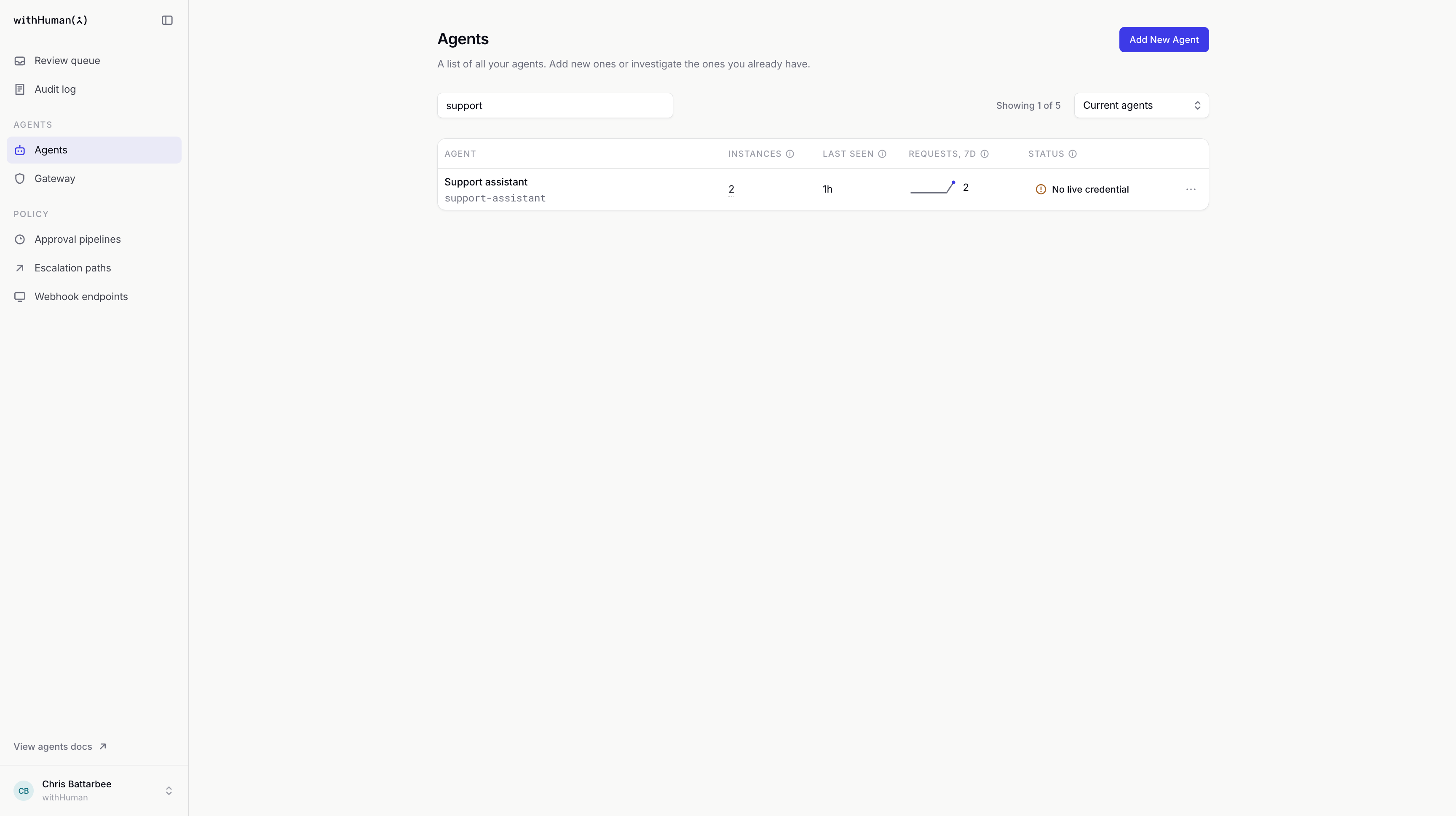
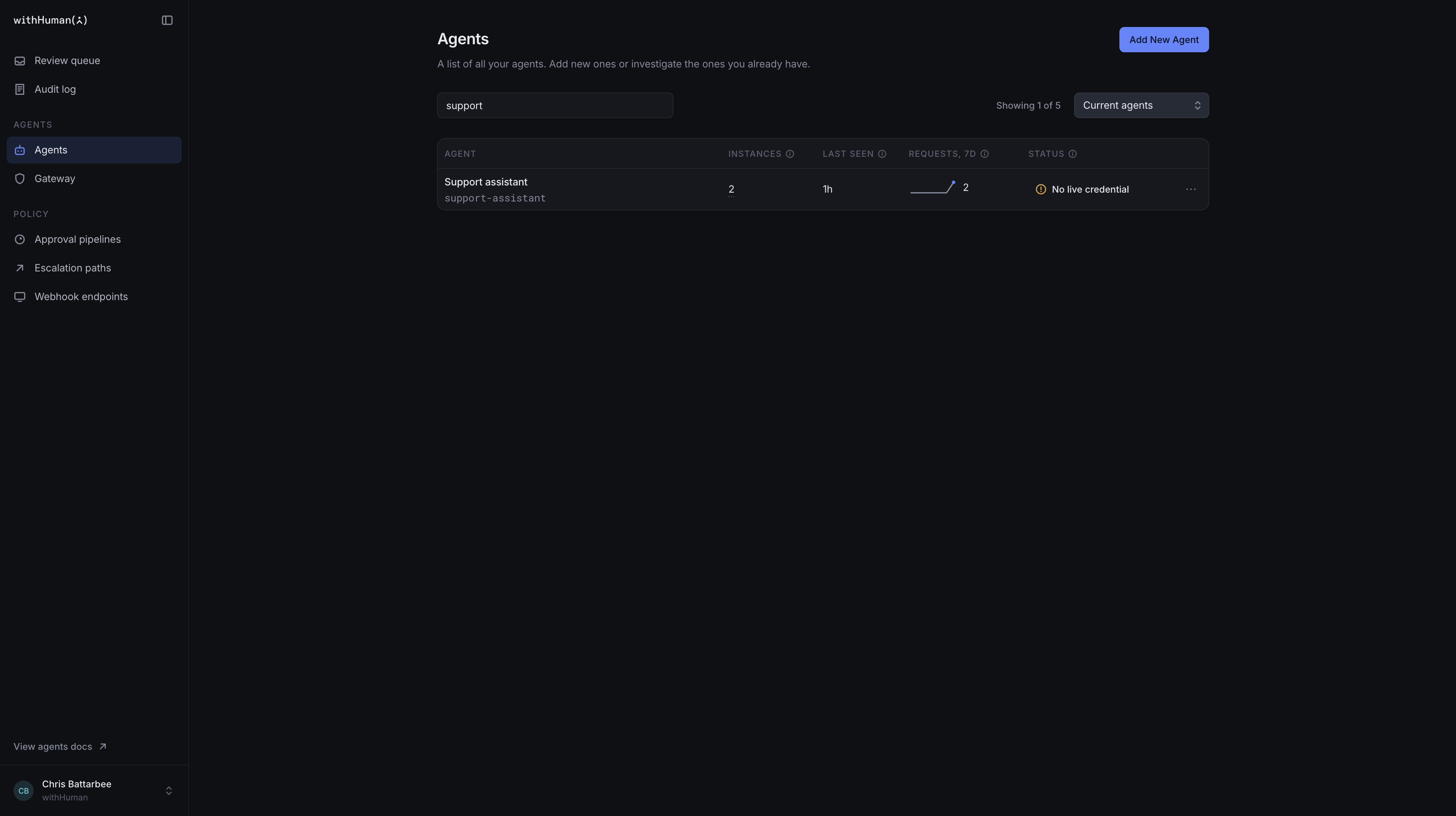
Open Agents in the sidebar. Search by an agent's name or slug, then select it to open its page.
The list shows each agent's instances, Last seen time and Requests, 7d. The request count covers the last seven days. Last seen tells you when an instance last contacted withHuman.
Use Status to narrow the list. Current agents excludes archived agents, while All agents shows every agent you have access to, archived included.
| Status | What it means |
|---|---|
| Connected | At least one enabled instance has a usable credential. This doesn't tell you whether its runtime is currently running. |
| No live credential | No enabled instance currently has a usable credential. |
| Disabled | Access has been paused for the whole agent. |
| Archived | The agent has been retired, but its instances and history are still available. |
Permissions
Your permissions determine which agents you can see and manage. They can apply to particular agents, so being able to manage one doesn't necessarily give you access to another.
| Permission | What it lets you do |
|---|---|
agent.read | View agents, their instances and credential status. |
agent.write | Create and rename agents, rename instances, disable or enable agents and instances, and archive or restore agents. |
agent.credential.issue | Register instances of service agents, authorize their connections and issue provisioner tokens. Connecting your own instance of a personal agent needs no permission. |
agent.credential.revoke | Revoke instance credentials and provisioner tokens. |
Requests, pipelines and audit records have their own access requirements. If you can't see a control you need, ask an administrator for access to that agent and action.
Agent creation
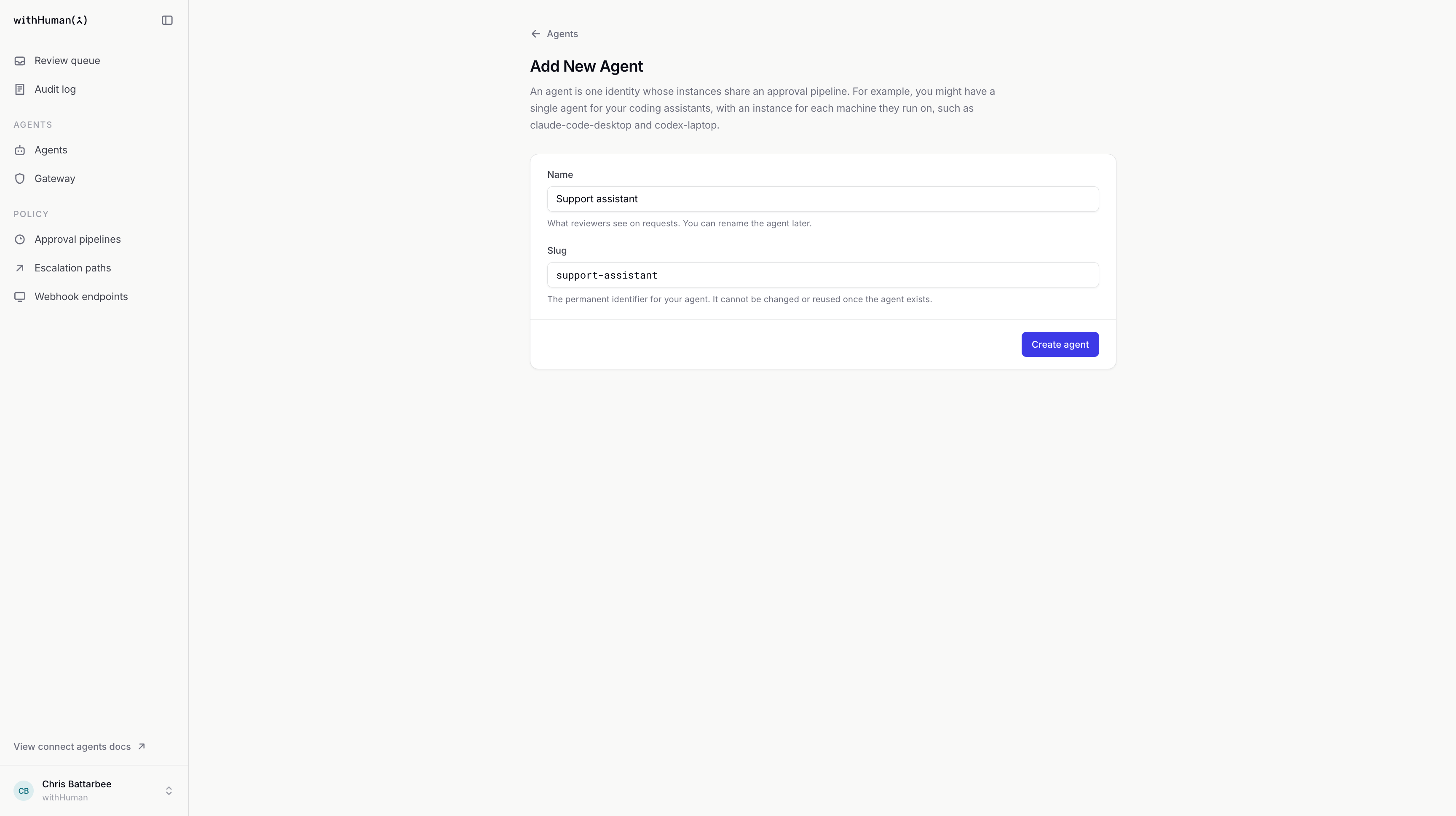
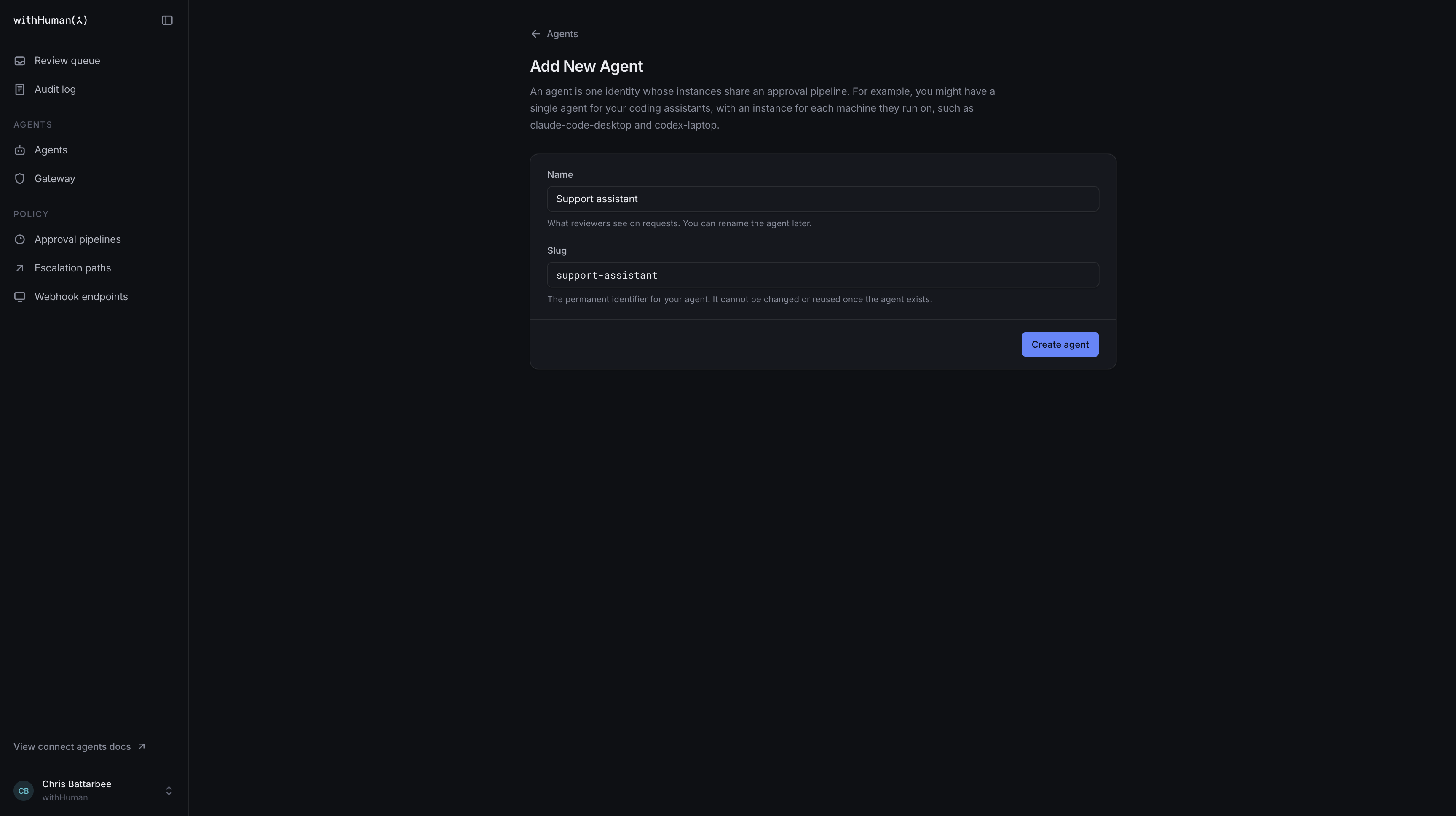
Select Add New Agent and enter a Name. This is what reviewers see on requests, and you can change it later. We'll use Support assistant.
Check the suggested Slug, support-assistant, or enter your own. The slug is the agent's permanent identifier. It can't be changed or reused, even after the agent is archived.
Choose the agent's Kind. It can't be changed later.
- A service agent is one your organization runs, such as a support bot or a deploy assistant. Its instances share one identity and belong to nobody. People with permission to issue credentials connect them, and provisioner tokens can register them automatically.
- A personal agent is one people run for themselves, such as a coding assistant on a laptop. Every instance belongs to the member who connects it, and any member can connect their own. Requests from that instance show who it was acting for. When the member leaves the organization, their instances are disabled and their credentials revoked. Personal agents have no provisioner tokens.
The guided setup creates the agent for each runtime it connects (claude-code, codex and so on) as a personal agent.
Select Create agent. withHuman creates the agent, then opens the agent's page. It doesn't connect a runtime yet; that's the next step.
Instance connections
New instance opens a setup page with three choices. Install with the CLI connects a supported runtime on a laptop or server. Generate an API key gives you the connection details for an AAP integration you configure yourself. Pause runs while waiting does the same for an integration whose runs pause until a decision arrives. Choose one route for each instance.
This walkthrough assumes your approval pipelines are already set up. A new instance follows the rules that already apply to its agent.
CLI enrollment
Install with the CLI provides one command to paste into a terminal on the machine where your agent runs. It installs the CLI and starts connecting to the selected agent. The installer supports macOS and Linux on Intel and ARM machines.
curl -fsSL https://downloads.withhuman.ai/install.sh | sh -s -- agent install --agent support-assistant --url https://app.withhuman.aiOur example connects to Support assistant. Copy the command from your own setup page to use the correct agent and deployment address.
The CLI looks for supported runtimes. If it finds several, choose the one you want to connect. It supports Claude Code (claude-code), Codex (codex), OpenClaw (openclaw), Pi (pi), Hermes (hermes), DeepSeek (deepseek), Gemini CLI (gemini) and Antigravity (antigravity). Each installation connects one runtime. Gemini CLI and Antigravity also need the withHuman extension or plugin: see Connect Gemini CLI and Connect Antigravity.
The CLI names the instance for the machine and opens your browser. Check the organization, runtime, instance and agent, then select Connect instance. If the browser cannot open, visit the address printed in the terminal and enter its code. The --agent value must name an agent that already exists in that organization.
The list offers every personal agent, and the service agents you may issue credentials for. An instance you connect to a personal agent belongs to you: it acts on your behalf, and the agent's Instances tab shows you as its owner.
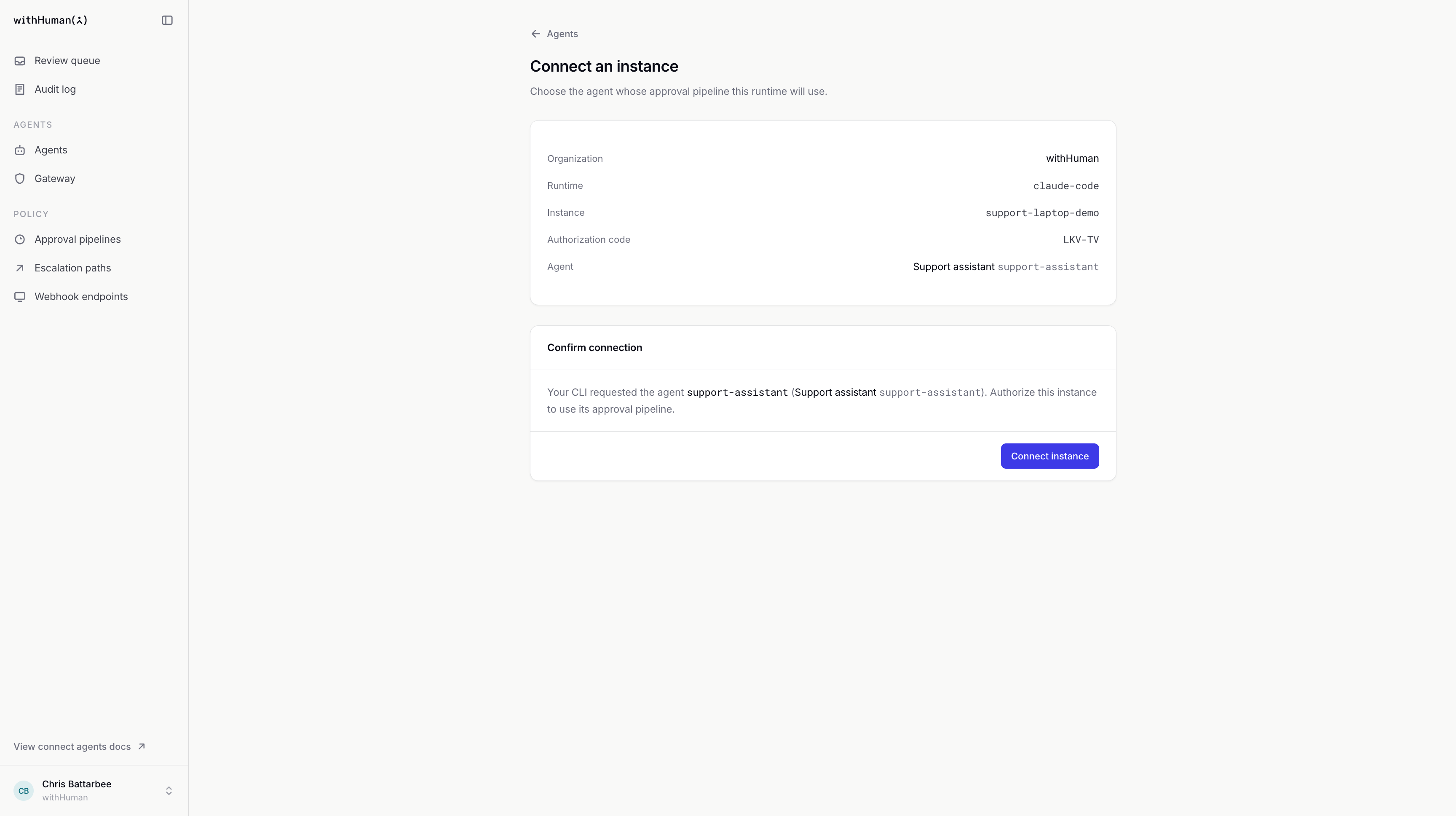
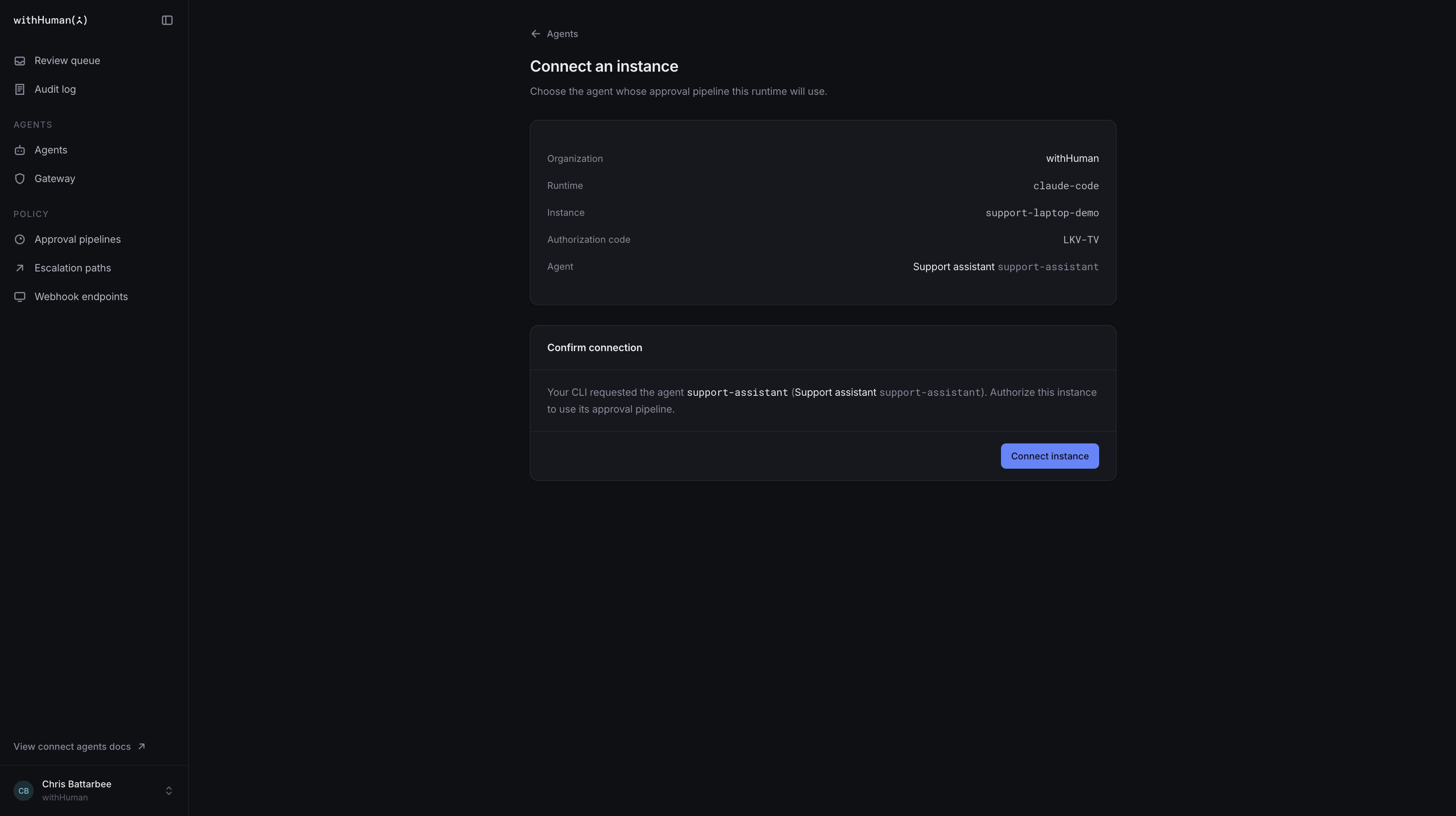
Return to the terminal. The CLI retrieves the instance credential for you and finishes the installation. On hosted withHuman it also registers the MCP Gateway with the runtime, so the agent can use the tools you grant it there. Follow any restart or consent instructions it prints before trying the runtime.
If you've already connected that runtime with a valid credential, running install again can reuse the connection without another browser authorization.
API key setup
Generate an API key registers an instance for an AAP integration you configure yourself. Give it a name that tells you where it runs, such as support-server-01. Instance names must be unique within the agent.
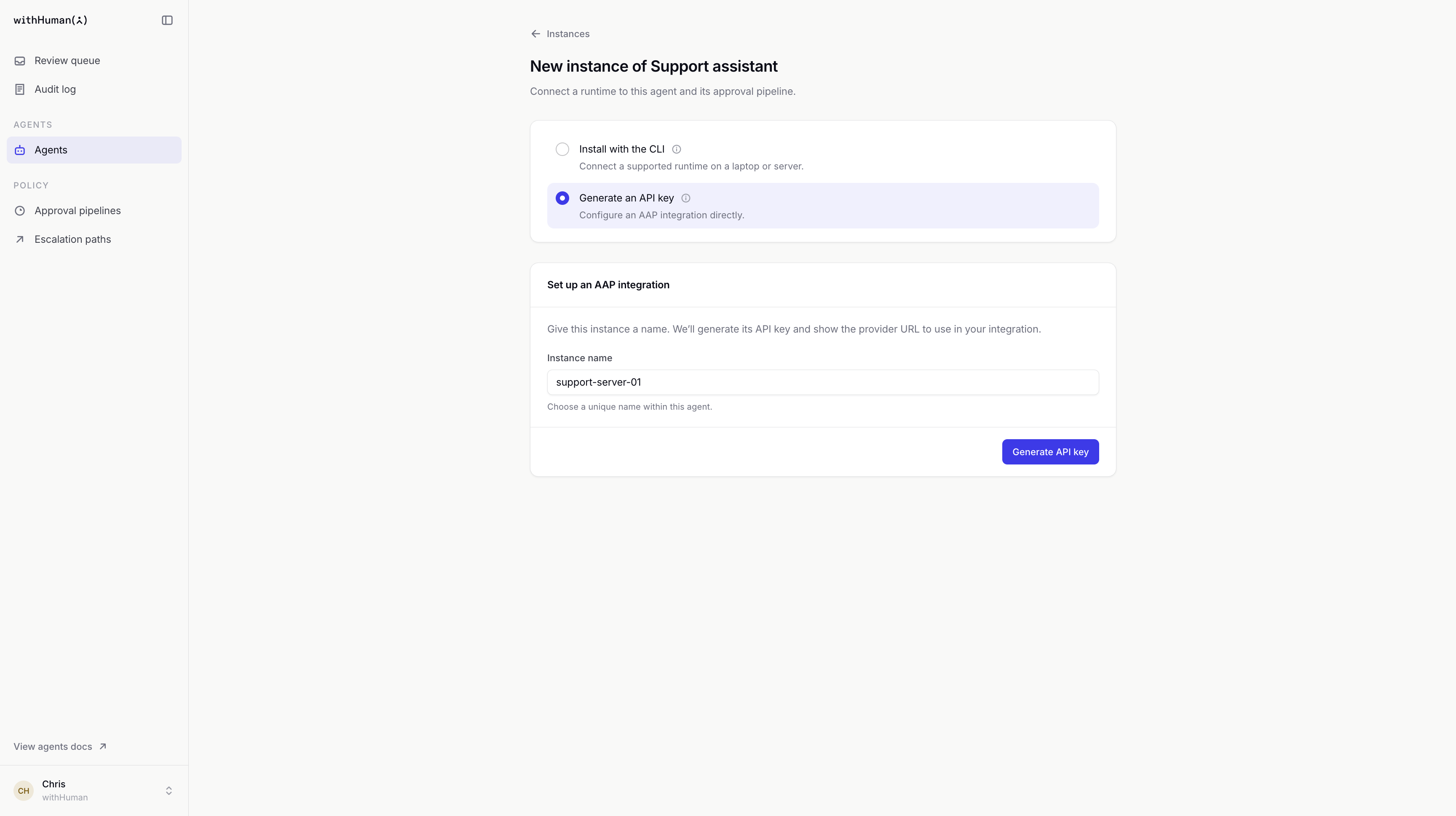
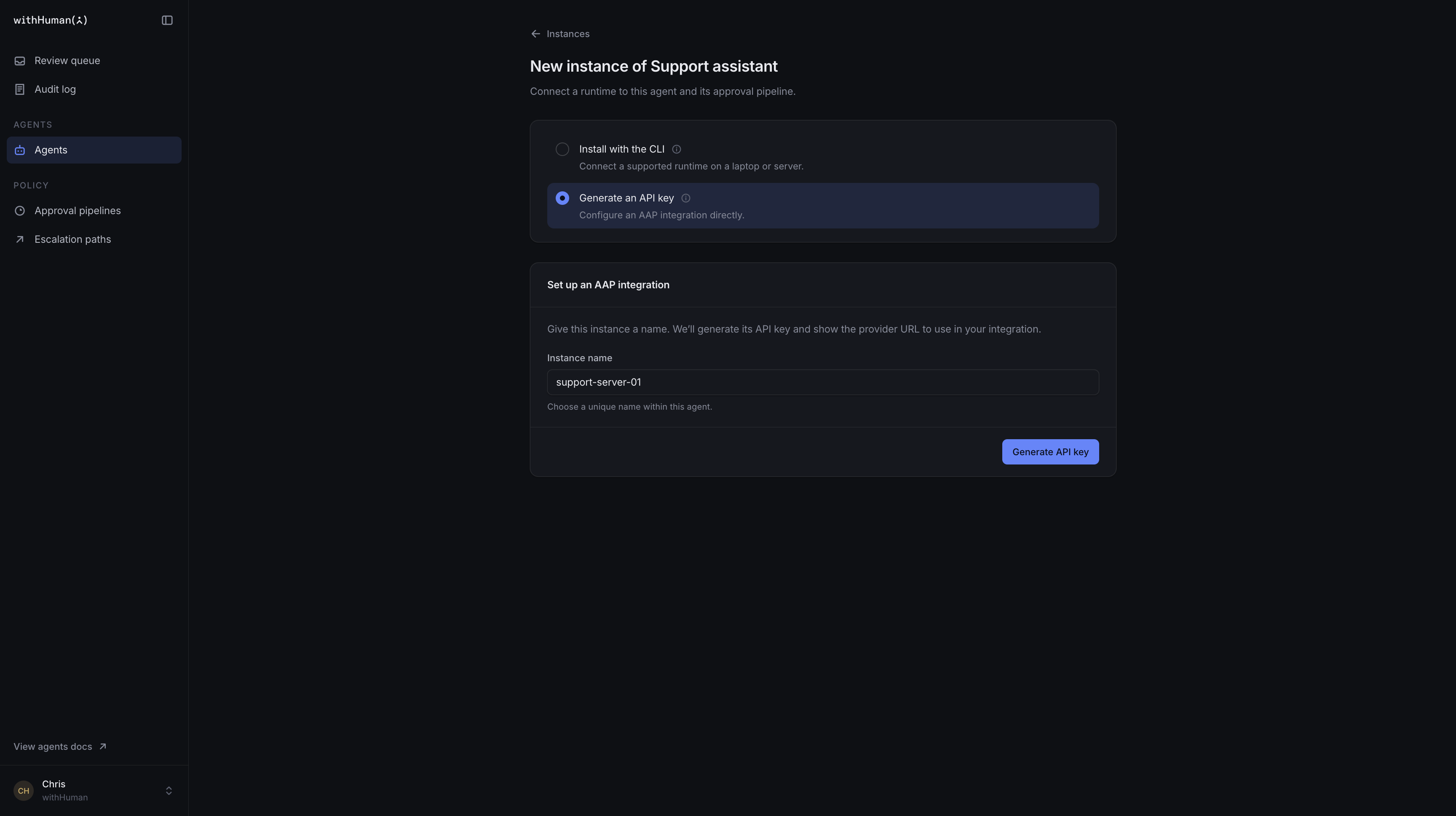
After generation, the page shows the Agent API key, AAP provider URL and key expiry. Copy the key before leaving or reloading the page. It's shown only once and cannot be retrieved again.
Set your AAP integration's provider URL to the displayed address and use the key as its bearer token (Authorization: Bearer <API key>). For hosted withHuman, the provider URL is https://app.withhuman.ai/api/aap. Self-hosted setup pages show their own deployment's URL. The AAP reference describes the connection and approval requests.
For an agent you build with a framework such as LangGraph, Pydantic AI or Mastra, see Connect agents built in code.
Each instance should have its own credential, so its requests and access can be managed separately.
Webhook delivery
Pause runs while waiting sets up an instance whose runs pause at calls that need a reviewer. When a decision is made, withHuman notifies the instance's receiver, which resumes the run.
- Select Generate signing secret. Copy the Registration ID and Signing secret. The secret is shown only once, and the registration expires after an hour.
- Start your receiver with both values. It must be reachable at a public HTTPS address; for local development, use a tunnel.
- Enter an Instance name and the Receiver URL, then select Verify receiver.
- Once the receiver answers, the page shows the instance's Agent API key once. Give it to your agent and receiver.
If verification fails, fix the receiver and try again; the secret stays on the page. Approvals for these instances stay valid for 30 minutes, so a paused run has time to resume. The option appears only when your deployment can send webhooks.
Connect agents built in code shows a receiver set up with the AAP SDKs.
Connection status and requests
Open the agent's Overview. It links to the agent's approval requests, instances and provisioner tokens.
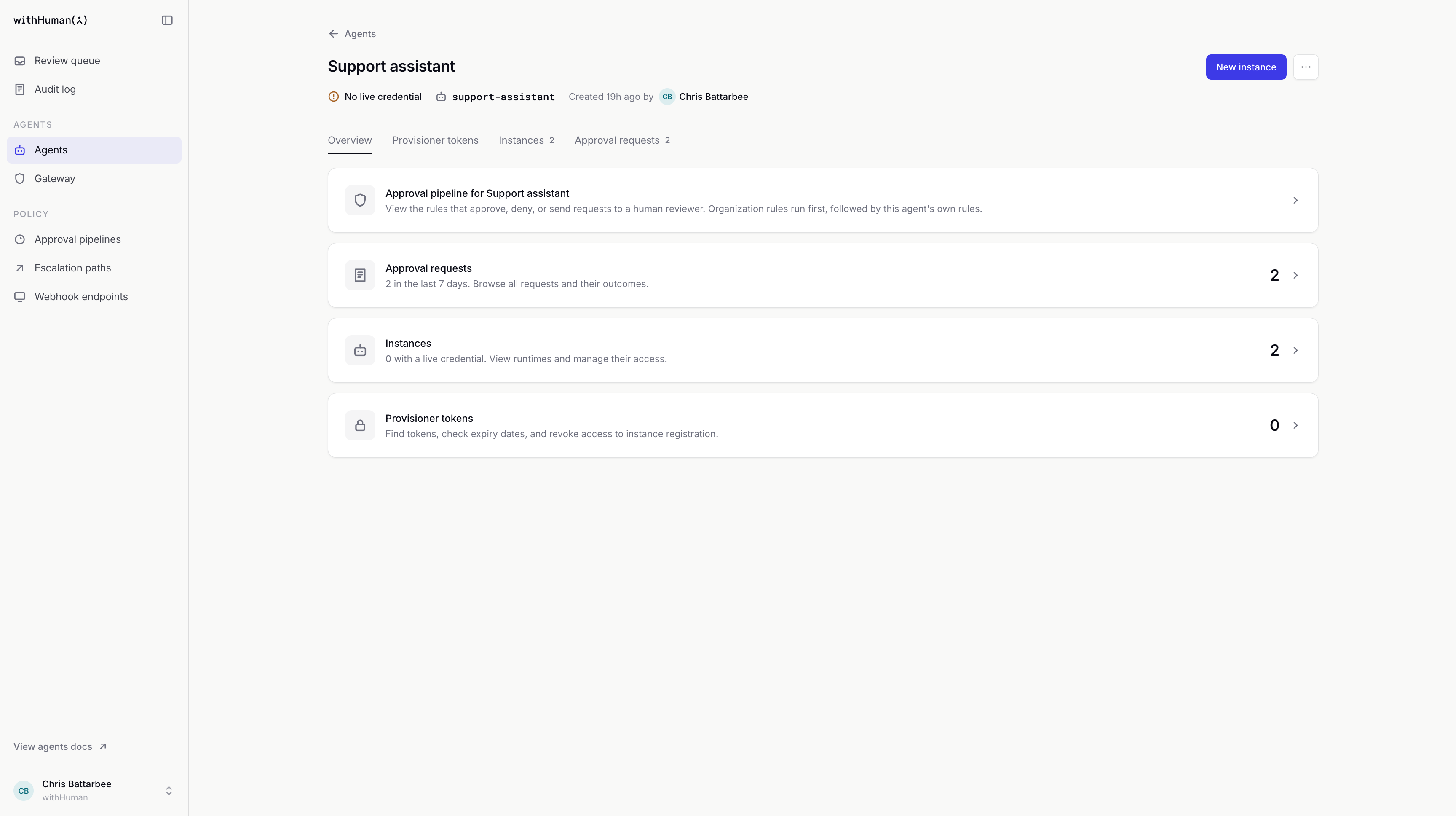
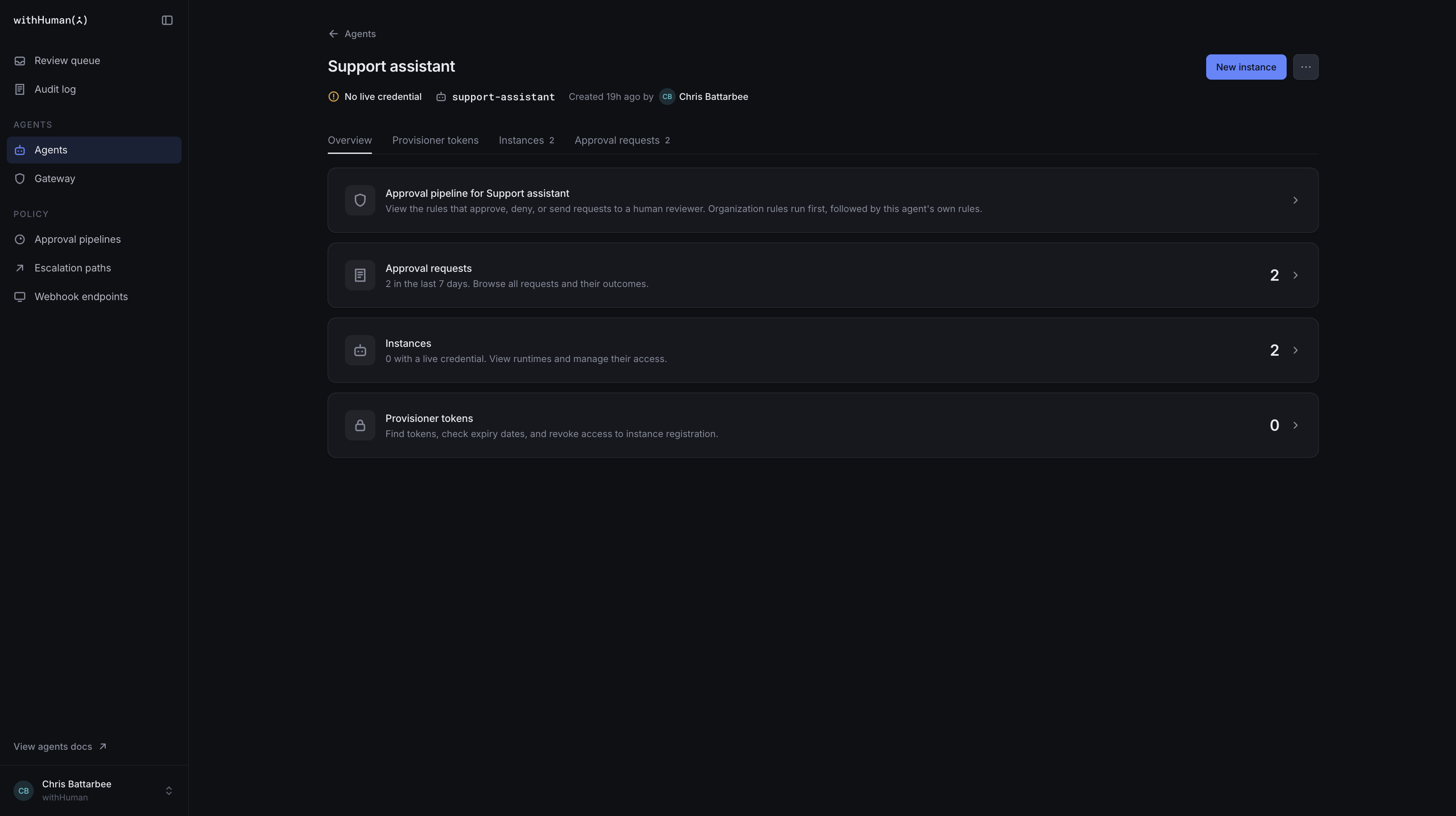
Under Instances, find the instance you connected. Check its credential status and hover over that status to see its expiry date. Last seen and Requests, 7d help you check whether it's contacting withHuman and sending requests.
After your agent sends a request, open Approval requests. Our Support assistant's history includes its $75 refund. You can search by tool or instance, filter by request status, and select a request to see its details. Use Previous and Next to move through longer lists, or Clear filters to reset a search.
This history includes automatic decisions as well as requests sent to a human. The Review queue guide explains how to review a request. The Audit log guide explains how to follow the events behind it.
Agent and instance management
Agent names
Open the menu beside New instance and select Rename agent. Enter the new name and select Save name. Reviewers will see that name on requests; the slug stays the same.
Instance names
An instance is named when it connects: the CLI uses the machine's hostname, a provisioner token or your own registration uses the name given. To change it later, open Instances, open that row's action menu and select Rename instance. Enter the new name and select Rename instance.
The new name must be unique within the agent. Requests the instance already made keep the name it had at the time, so older items in the queue and the audit log still read the way they did; new requests carry the new name. The running agent doesn't need to reconnect.
Enabled and disabled access
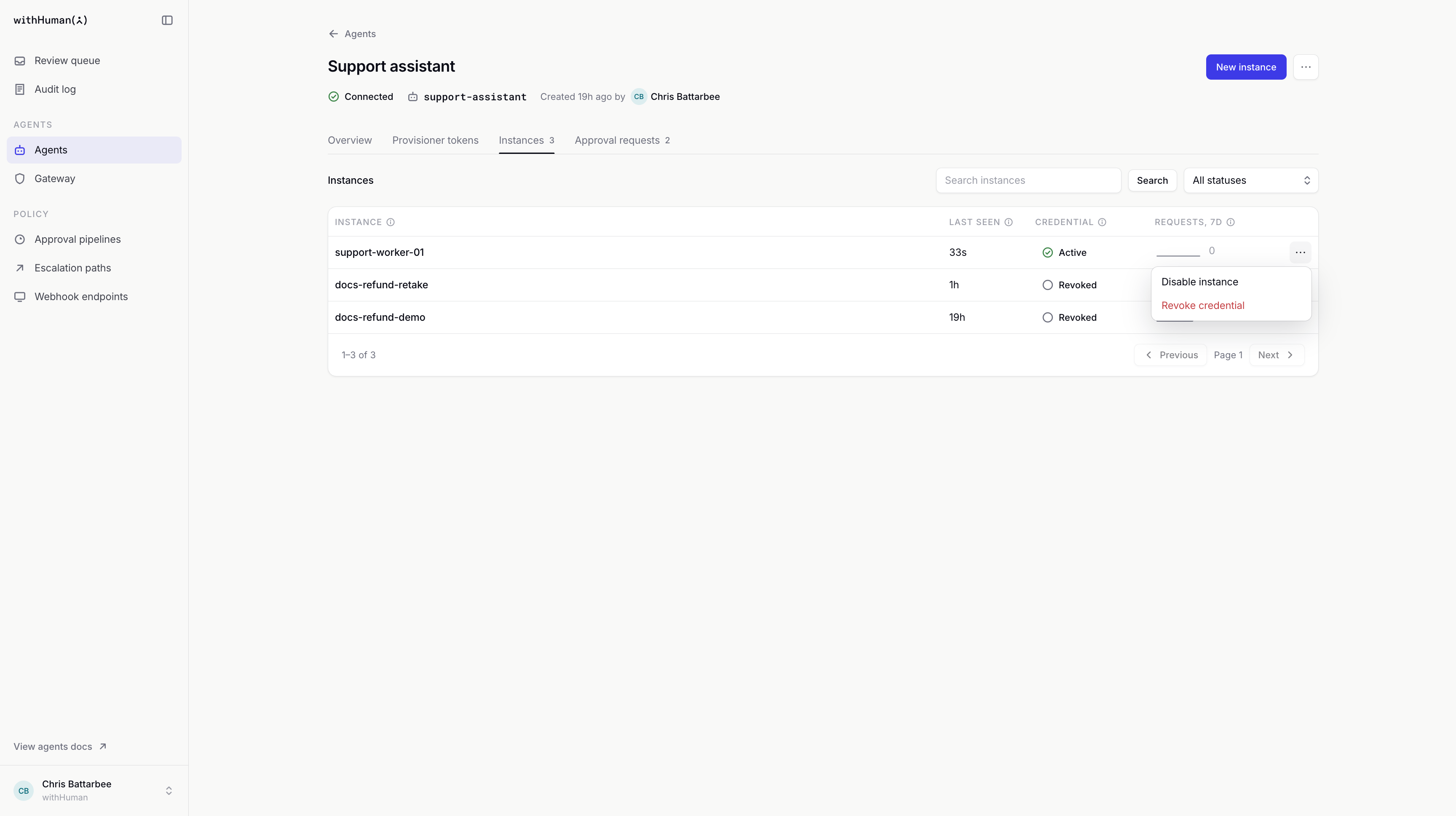
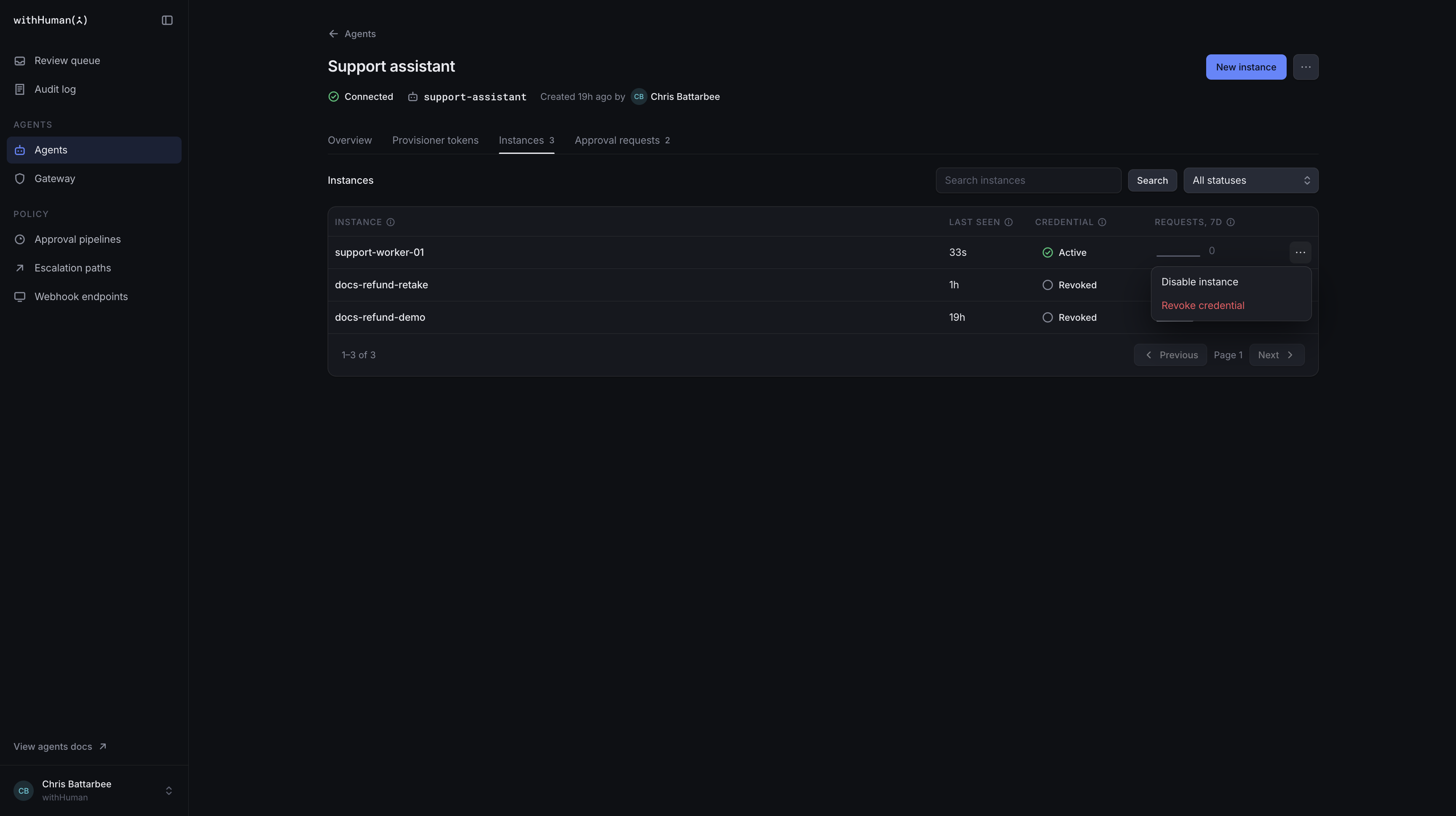
To pause one instance, open Instances, open that row's action menu and select Disable instance. The agent's other instances keep their access. Select Enable instance to let it connect again.
To pause every instance, use Disable agent in the agent's menu and confirm. Use Enable agent to restore access for its enabled instances with valid credentials.
Disabling keeps the credentials, so you can pause and resume access without issuing new ones. It changes access to withHuman; it doesn't shut down the runtime itself. While access is paused, a runtime that still has the adapter installed has every tool call denied. To use it without approvals in the meantime, remove the adapter on that machine.
Credential revocation
In Instances, open the instance's action menu, select Revoke credential and confirm. That credential stops working immediately. Other instances keep their access.
A revoked credential can't be enabled again. Reconnect through the CLI, or register a new instance and give its new credential to your adapter. Choose a new instance name when registering again.
Archiving and restoration
When you're finished with an agent, select Archive agent from its menu. Read the confirmation, type the agent's name and confirm.
Archiving revokes all of its instance credentials and provisioner tokens. Your approval pipelines don't change. Its instances and request history remain available. No new instances can be registered while it is archived.
Archiving doesn't change the machines running the agent. Each runtime that still has the adapter installed has every tool call denied until someone on that machine runs withhuman agent eject <runtime> (Adapter updates and removal) or reconnects it to another agent. The confirmation lists the instances that still had a live credential, which are named after their machine by default.
To bring it back, choose Archived in the Agents list's status filter, open the agent and select Restore agent. This restores the agent. Previously revoked credentials and provisioner tokens stay revoked, so reconnect the runtimes and issue replacement tokens as needed.
Tools
Open an agent's Tool Catalogue tab to inspect its tool definitions before building approval rules. Search by name or description, filter by source or availability, and select a tool to see its argument names, types, descriptions, required fields and allowed values. Expand Full argument schema for nested or complex definitions.
Setup and CLI installation report local tools automatically. After changing an agent's MCP connections, refresh from the project directory on the machine where that instance runs:
withhuman agent refresh-tools claude-code --agent support-assistantReplace claude-code with your runtime and support-assistant with your agent's slug. The command uses the instance's saved connection and reports successful and failed sources separately. Each project's report is kept separately, so refreshing one project doesn't remove another project's tools. There is no background local refresh.
| Label | Meaning |
|---|---|
| Reported | A local instance reported this tool. This is a capability report, not proof that its runtime is running. |
| Granted | The gateway discovered this tool and the agent's current access allows it. |
| Unavailable | The latest complete discovery no longer lists the tool, or its instance, credential or gateway configuration no longer provides access. |
| Stale | A refresh failed or was incomplete. The last successful definition is retained; age alone does not mean access was revoked. |
| Observed | The tool appeared in a recent request you can read, but no complete definition is available. |
Use Refresh gateway tools to refresh central discovery immediately. Otherwise gateway discovery is cached for five minutes. Open the Gateway Tools tab to manage access.
When a server can't list its tools
The Servers card at the top of the tab shows each server the agent's tools come from, with one row per server however many instances or projects report it. Servers that couldn't list their tools are shown first; choose Show all to see the rest.
Open a server's row to see which instance failed and why:
- A local server: fix the cause shown (for example, sign in to the server again in your runtime, or start it), then run the refresh command the row shows on that instance's machine, from the project that uses the server.
- A gateway server: choose Try again, or Open server settings to connect or replace its credential.
Failed discovery doesn't undo a successful installation, and the tools from the last successful listing stay in the catalogue until a refresh succeeds. Instances you've disabled or whose credentials are revoked drop out of the card.
Some runtimes expose built-in descriptions without argument schemas. These show Argument schema unavailable. Tools with the same name retain their separate source definitions, including conflicting schemas.
The catalogue helps you author rules. It never changes an existing approval pipeline or grants tool access.
Gateway tools
The Gateway Tools tab and the gateway's discovered tools are part of the hosted edition; the open edition's Tool Catalogue lists the tools each instance reported and nothing else.
Gateway Tools controls which tools this agent can use on each MCP server. Every instance inherits the same choices. Adding a server starts with no access until tool choices are saved.
Selected tools allows specific tools. All tools, including future tools also allows tools the server adds later. Remove server removes this agent's access without affecting other agents.
Allowed tools still follow approval rules. Removing access blocks calls still waiting for approval, even if they are later approved. It cannot undo a call already sent to the external service.
The MCP Gateway guide covers server connections, credentials, tool access, approval rules and activity checks.
Adapter updates and removal
Use withhuman upgrade to update the CLI. To refresh an adapter's files, rerun installation for that runtime, replacing <runtime> with its name, such as claude-code.
withhuman upgrade
withhuman agent install <runtime>
Follow any instructions printed by the installation. You can check local adapter installation status with withhuman agent discover.
To remove the adapter from a runtime, run:
withhuman agent eject <runtime>Confirm the removal when asked. This removes the local adapter setup, the gateway's MCP server entry and the saved credentials. It doesn't revoke the instance credential in withHuman. Revoke it from Instances too if it will no longer be used.
Automatic instance registration
If your deployment platform starts new copies of a service agent, it can use a provisioner token to register an instance for each one. Each instance receives its own credential and follows the rules that already apply to its agent. Personal agents have no provisioner tokens, because each of their instances belongs to a person.
See Provisioner tokens for issuing a token, registering instances and managing the token's access.
Connection problems
| What you see | What to do |
|---|---|
| A control is missing or unavailable. | Check your permissions and whether the agent is disabled or archived. Ask an administrator for the access you need. |
| The browser authorization code has expired. | Run the install command again and use the new code. Codes last ten minutes. If the browser doesn't open, visit the address printed in the terminal and enter the code there. |
| The CLI can't find a runtime. | Install a supported runtime first, then retry. You can name it explicitly, for example withhuman agent install claude-code --agent support-assistant. |
| Installation is incomplete. | Follow the CLI's reported restart, consent or repair steps, then rerun install. Use withhuman agent discover to check the result. |
| An instance credential is expired or revoked. | Reconnect through the CLI, or register a new instance with a new name and replace the credential in your adapter. |
| An instance name already exists. | Choose a new name for the new registration. Existing instance names remain taken after credential revocation. |
| Every tool call is denied because the provider refused the runtime's credential. | The agent was archived or disabled, or the instance credential was revoked. Enable or restore the agent, reconnect through the CLI, or run withhuman agent eject <runtime> on that machine to stop gating it. |
| A connection is rejected or unavailable. | Check the provider URL, connectivity, credential and agent/instance status first. Enable disabled access if appropriate; a temporary connection failure doesn't mean you need another instance. |