Escalation paths
Choose who reviews requests and how they escalate over time.
Escalation paths let you choose which people and teams review requests, when to notify them and who to ask next if nobody decides.
A path belongs to the organization and can be shared by several approval pipelines. The Escalation paths concept explains how pipelines, paths and team policies fit together.
Paths
The Escalation paths page shows your organization's paths and their active revisions. Each path has a display name, a permanent key that pipelines reference, and an ordered set of rules called steps.
Steps determine who is contacted and when. They can notify reviewers, wait, or take different branches depending on the request. A delay affects the steps that follow it.
An approval pipeline uses a path when it asks for human review, either through a block's routing choice or the pipeline's default escalation path. Creating a path does not connect it to a pipeline automatically. See Human review for how these choices apply.
Notify steps
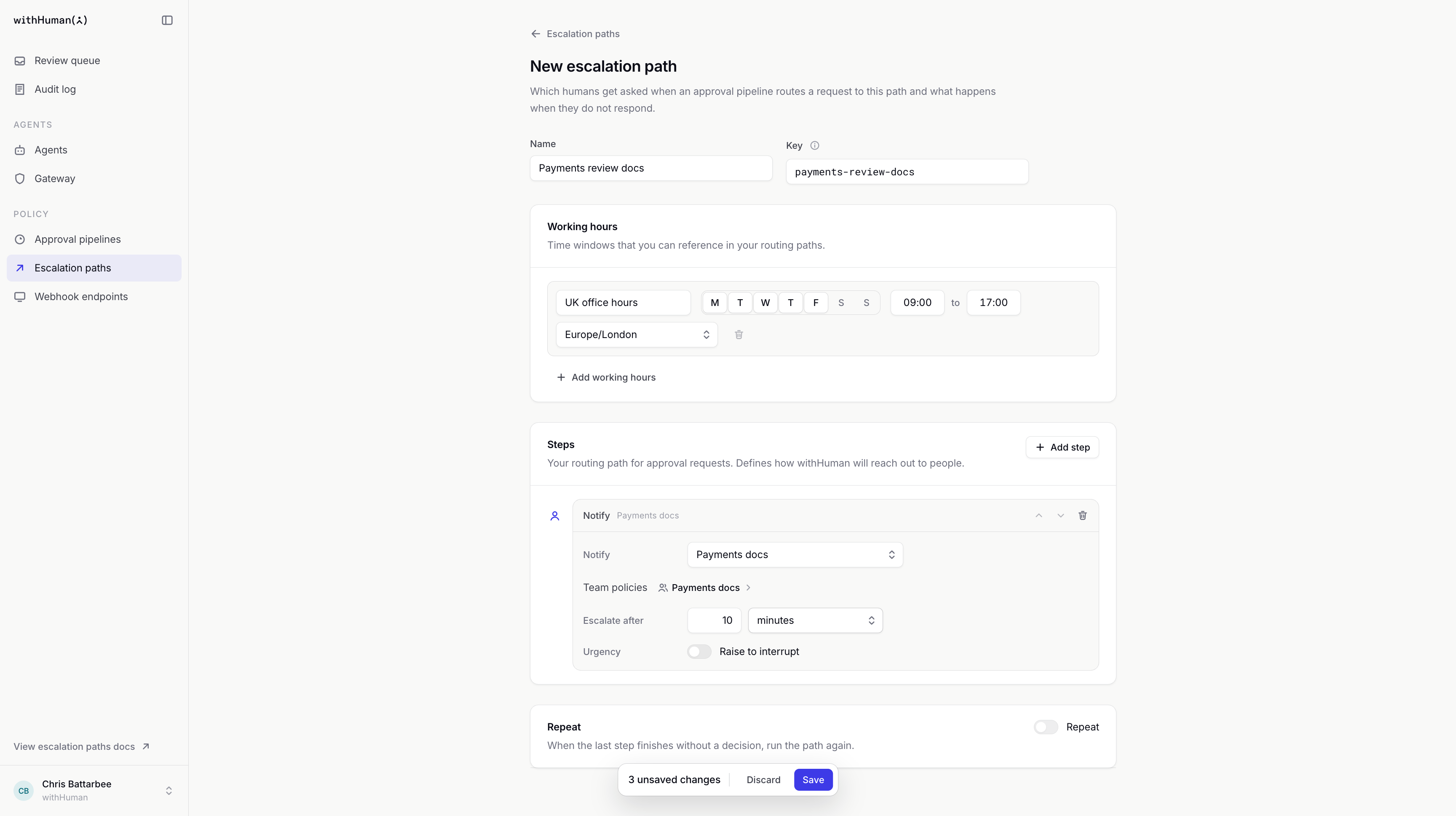
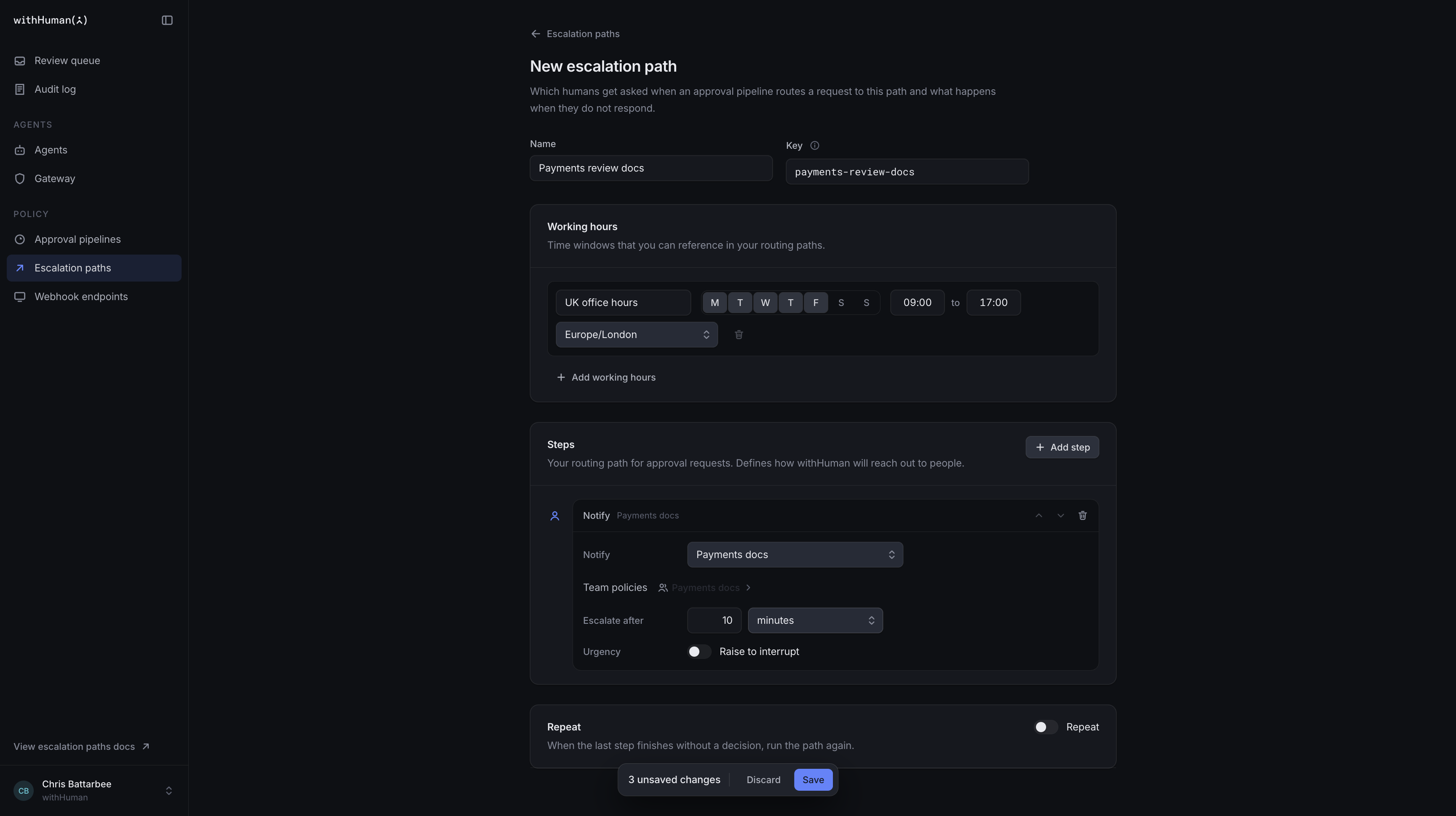
A Notify step contacts one or more people or teams. Targets on the same step are contacted together. When a team has an active escalation policy, that policy controls which members are notified; otherwise, everyone on the team is notified.
Escalate after sets how long to wait before continuing to the next step without a decision. Contacting more reviewers does not remove the earlier reviewers.
Each team's policy runs on its own timing alongside the path. See Teams for how team escalation policies work.
Once a step reaches someone, their personal notification rules choose the channels and message delays. Those delays run alongside the path's timer.
A step does not require approval from every target. One approval or denial ends the request. Eligible reviewers can act before their notification step, and everyone still needs permission to decide the request.
Conditions
An If / else step chooses between two branches. All its conditions must match for Then to run; otherwise, Otherwise runs.
| Condition | What it checks |
|---|---|
| Request | Fields such as the tool name, arguments or agent name. The request comparison supports All/Any groups and nested conditions. |
| Working hours | Whether the selected time window is open or closed when the step runs. |
| Urgency | Whether the request is currently Standard or Interrupt. |
Request comparisons use the same fields and operators as Conditions blocks. Here they choose reviewers rather than approve or deny the request.
Each branch has its own steps. When the branch finishes, the path continues with the step after If / else. An empty branch continues immediately.
Example: Refund reviewers
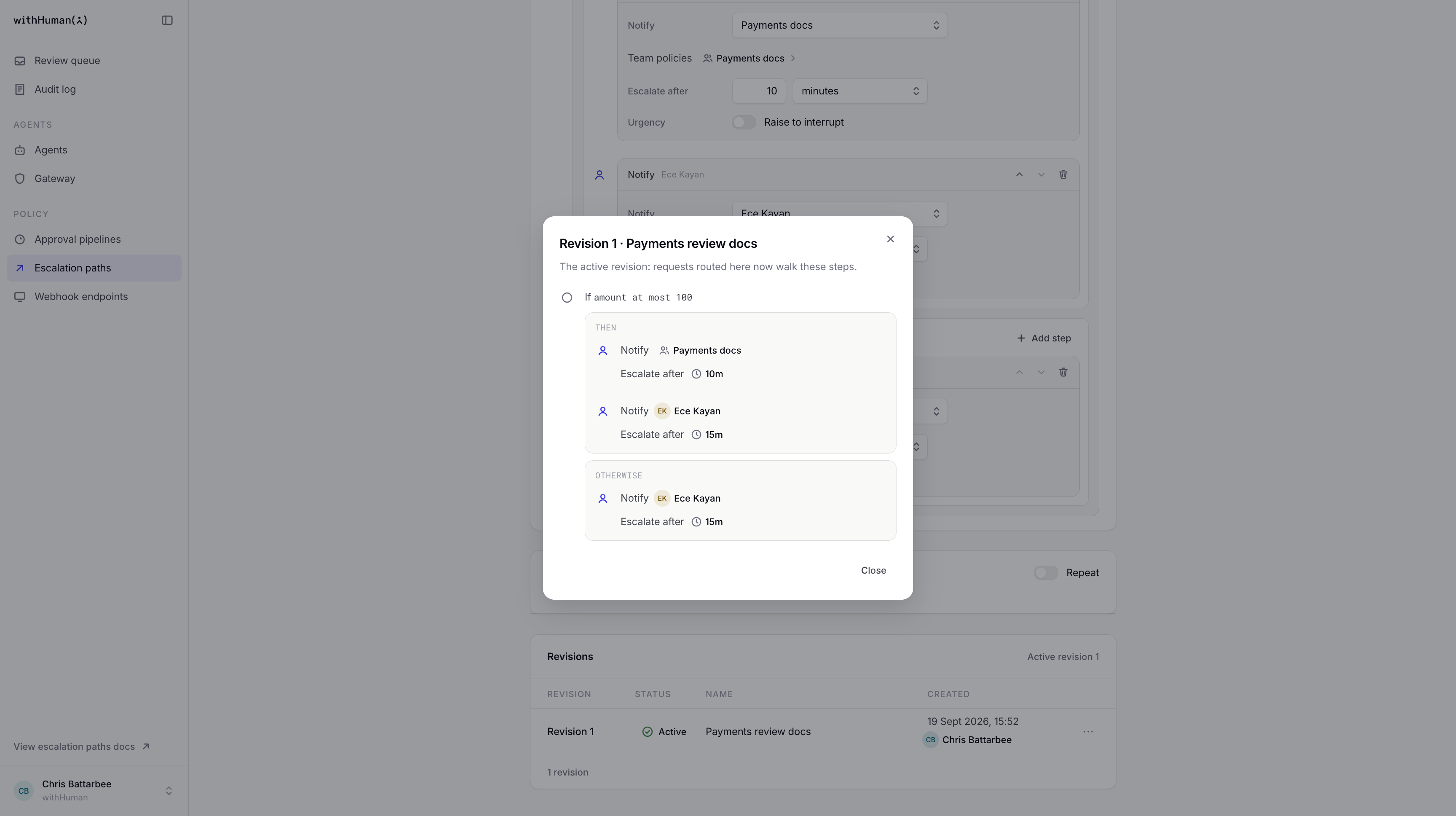
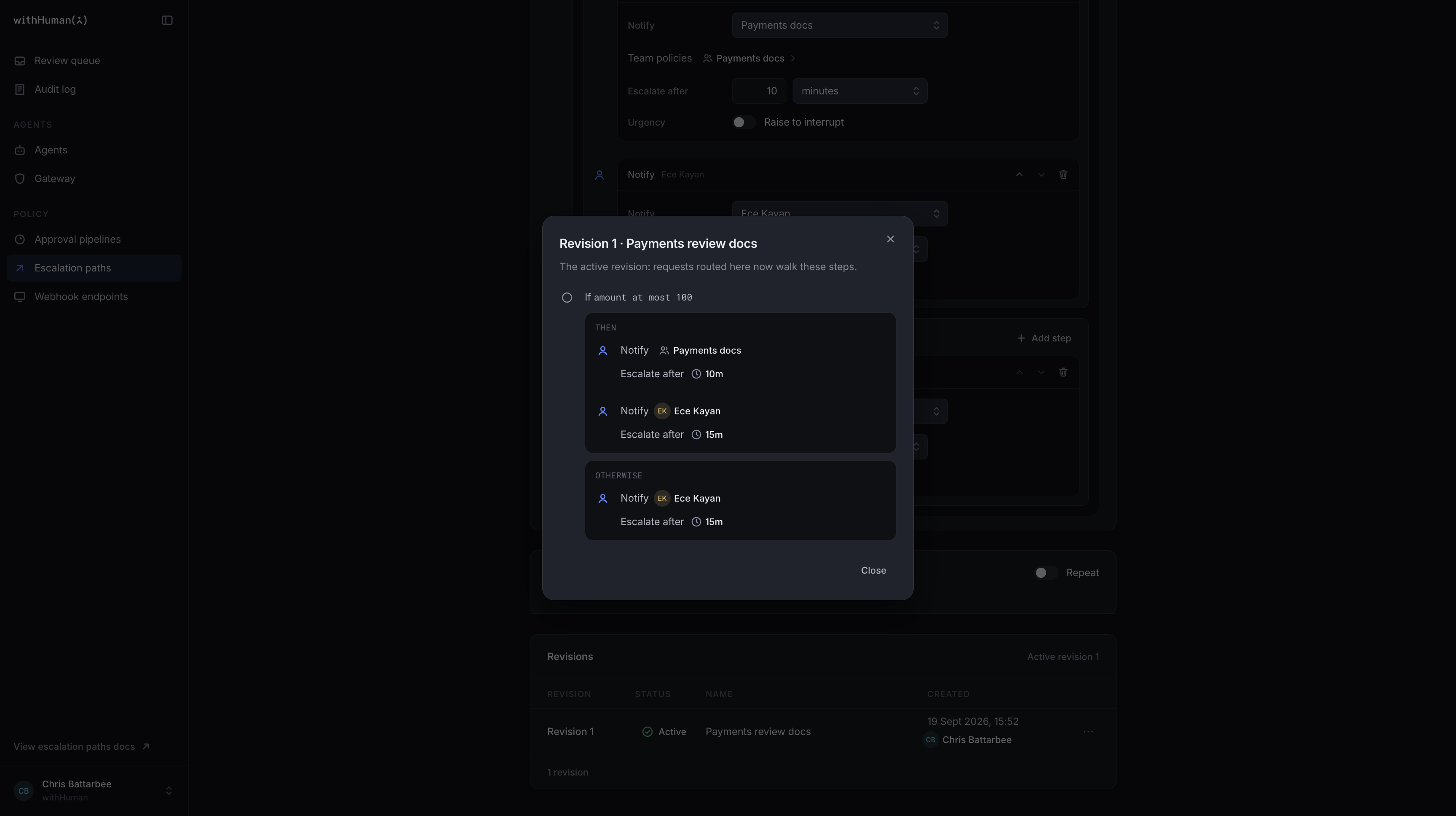
Our Payments review path handles refunds already selected for human review. We'll use a Request condition that checks whether amount is at most 100.
- Then: notify the Payments team, wait 10 minutes, then notify the finance lead.
- Otherwise: notify the finance lead immediately.
Our $75 refund reaches the team first; our $250 refund reaches the lead immediately. The delay belongs to the smaller-refund branch, so it does not delay larger refunds.
Working hours and deferral
Working hours defines time windows with weekdays, a start time, an end time and a timezone.
Defining a window does not delay notifications by itself. A Working hours condition can choose different reviewers inside and outside that window. A Defer step waits until the window opens before continuing.
If the window is already open, Defer continues immediately. With Standard urgency only, Interrupt requests skip the delay. Deferral does not extend the request's deadline, so a request can expire while waiting.
Example: Office hours
We'll define UK office hours as Monday to Friday, 09:00 to 17:00, in Europe/London. A Working hours condition can notify our local team during those hours and a different reviewer outside them. If a request can wait until the next working day, we can use Defer instead.
Urgency and repeat
Requests start at Standard urgency. Raise to interrupt changes the urgency before a Notify step contacts its targets. The request stays Interrupt for later steps and repeats.
Urgency selects the recipient's personal notification rules. It does not bypass their settings, grant permission to approve, or extend the request's deadline.
Repeat runs the path again if it finishes without a decision, with a configurable delay and number of repeats. Working-hours and urgency conditions are checked again on each run.
When the final run finishes, the request stays pending until someone decides, it is cancelled, or it expires. A claim pauses escalation and repeat countdowns while someone reviews. Working-hours windows and the request deadline continue to follow the clock.
Drafts and activation
Changes are saved as revisions. A draft records proposed changes without affecting routing. The active revision supplies the rules for new requests.
Only one revision is active at a time. Requests already routed keep their existing path and team-policy rules. Activating a shared path changes the rules for new requests from every pipeline that uses it.
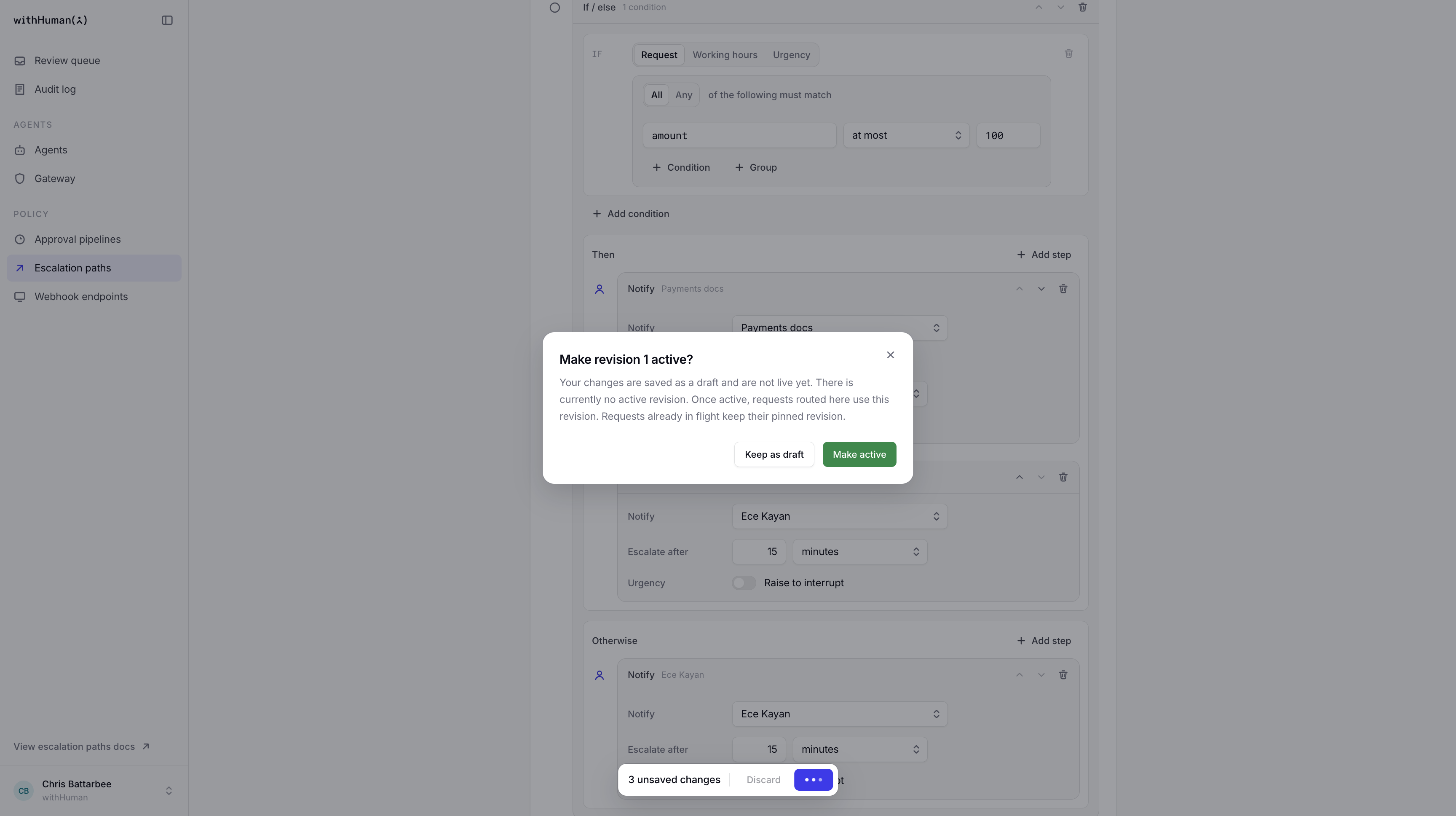
Revision history preserves earlier versions for comparison, further editing or rollback. Rolling back makes an earlier revision active again. A path must have an active revision before a pipeline referencing it can be activated.
Checking routing
Test request in the pipeline editor shows which path a sample request would use. It does not run escalation steps or send notifications.
Actual routing appears in Review queue, with a history of events in Audit log. Checking notification timing and delivery requires a controlled real request and confirmation from its reviewers.
Warnings and limits
| Message or feature | What it means |
|---|---|
| Some requests will reach nobody | A possible route has no Notify target. It needs a reviewer target to reach someone through normal routing. |
| Members cannot decide requests | A target lacks permission to decide. Being named in a path or team does not grant that permission. |
| On-call or round-robin routing | These are not available. Paths support named people and teams. |
Archiving
Archive path permanently stops a path from being used for new routing. Its history remains readable, but it cannot be restored and its key cannot be reused. Requests already routed retain their existing rules.
Archiving is blocked while an active pipeline references the path. Those references must be removed from the active pipeline revisions first.
Permissions
Viewing paths, editing revisions and activating them are separate permissions. Activation permission also covers rollback and archiving.
Reviewers separately need permission to decide the requests routed to them. Team policies have their own permissions.