Notifications
Choose how withHuman reaches you for standard and urgent requests.
Notifications manage the ways withHuman contacts you when a request needs your review. You choose your channels and when to use each one, with separate rules for standard and urgent requests.
These are your personal settings. Everyone manages their own notifications without needing an administrator to edit them.
Routing and notifications
An escalation path chooses which people to contact and when. Once it reaches you, your notification rules choose how to reach you. A team policy works the same way when it selects a team member.
Loading diagram…
Diagram source
flowchart TD
    path["Escalation path reaches you"] -->|Standard request| standard["Your Standard requests rules"]
    path -->|Urgent request| interrupt["Your Interrupts rules"]
    standard --> channels["Your chosen channels and delays"]
    interrupt --> channels
Channels
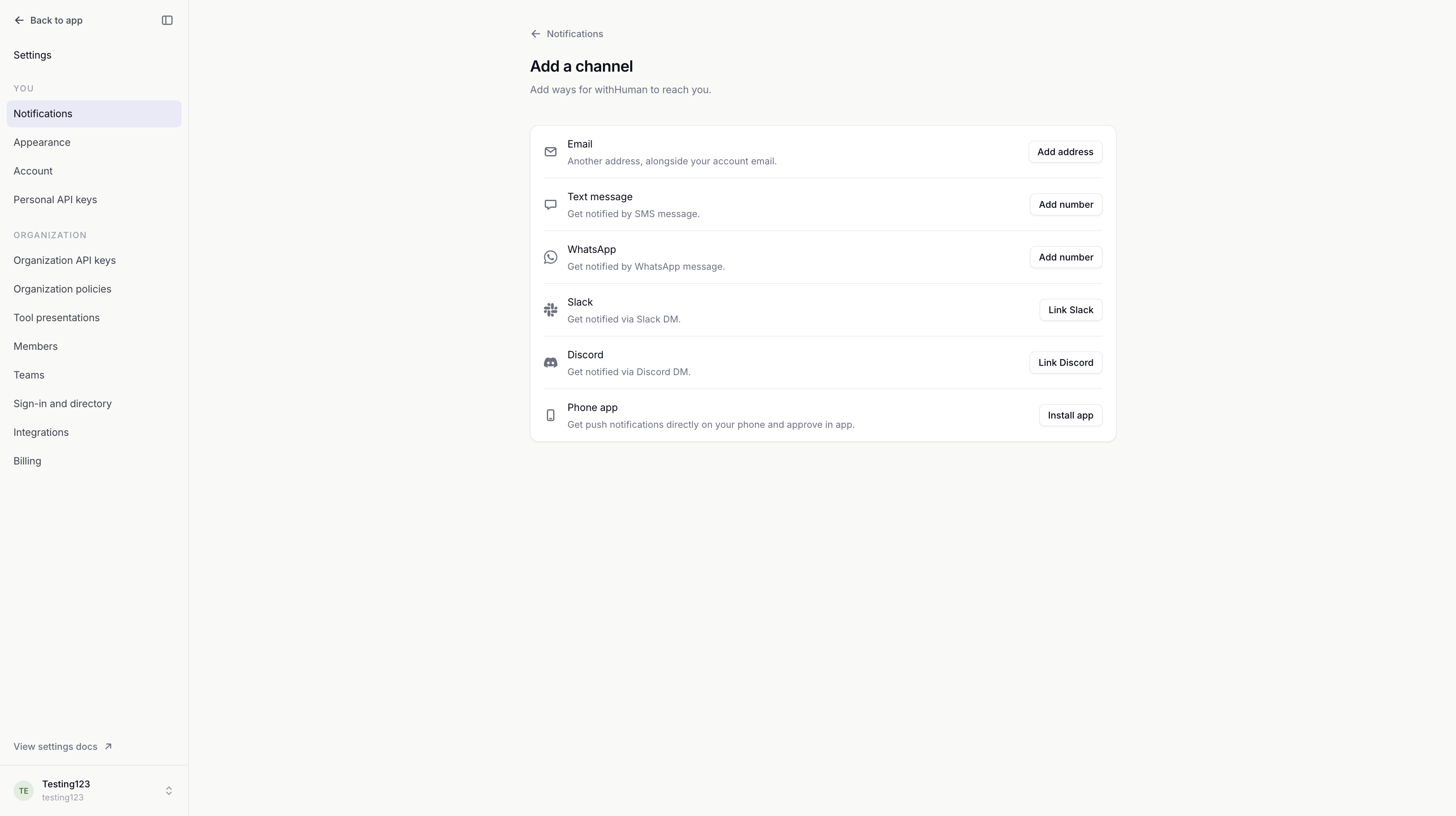
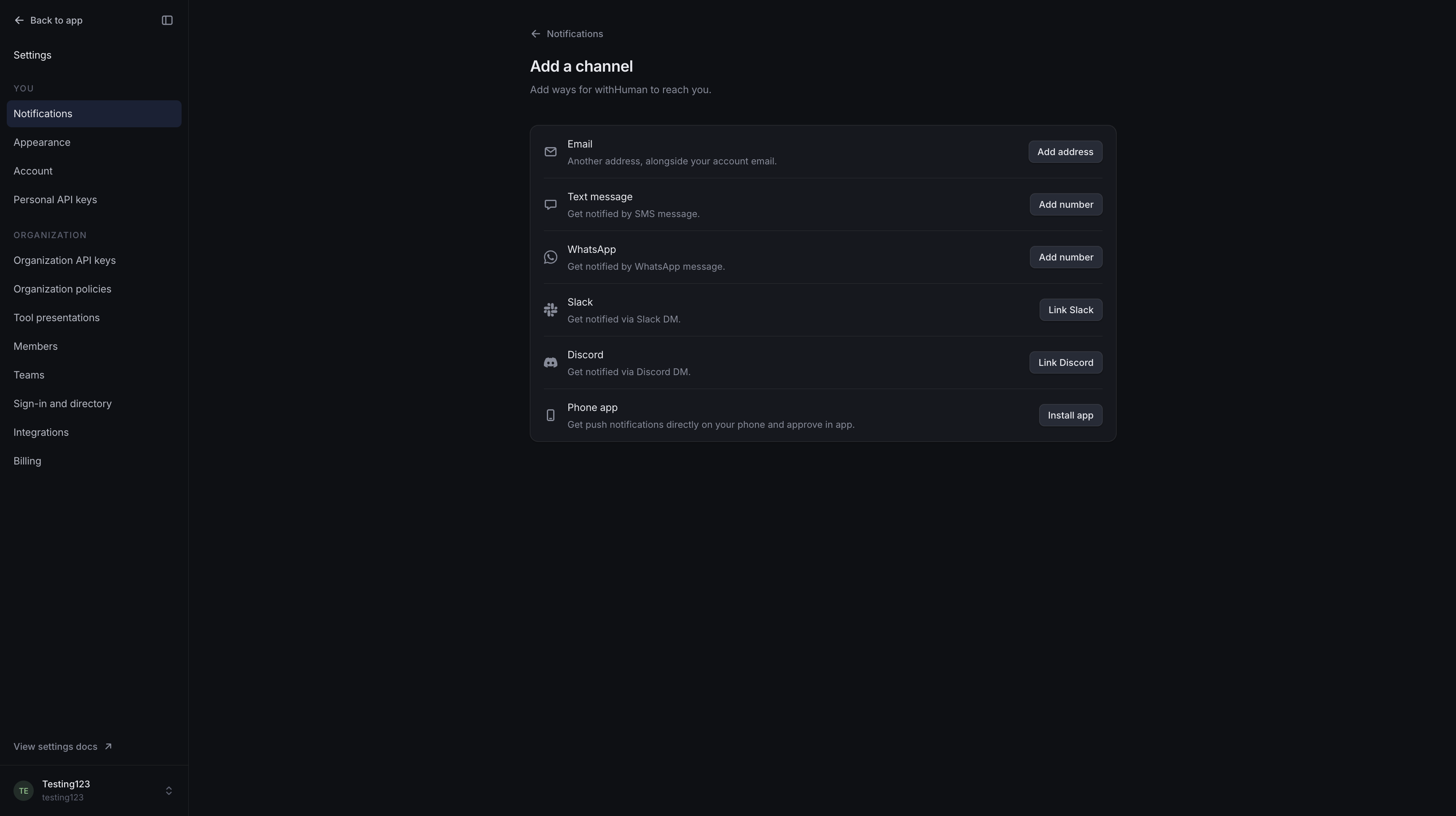
Channels lists your account email, confirmed addresses and numbers, linked chat accounts and registered phones. Confirm an address or link an account before choosing it in your rules.
| Channel | How it reaches you |
|---|---|
| Your account email or another confirmed address. | |
| Text message | An SMS to a confirmed mobile number. |
| A message to your confirmed WhatsApp number. | |
| Slack | A direct message in your organization's connected workspace. |
| Discord | A direct message through your organization's connected server. |
| Phone app | A push notification on a registered iPhone or Android device. |
Text message, WhatsApp and the phone app are hosted edition channels; the open edition offers email, Slack and Discord.
Your rules, email addresses, phone numbers and registered devices belong to your account. Slack and Discord links belong to an organization. If you review requests in several organizations, include a channel such as email that can reach you in all of them.
Standard requests and interrupts
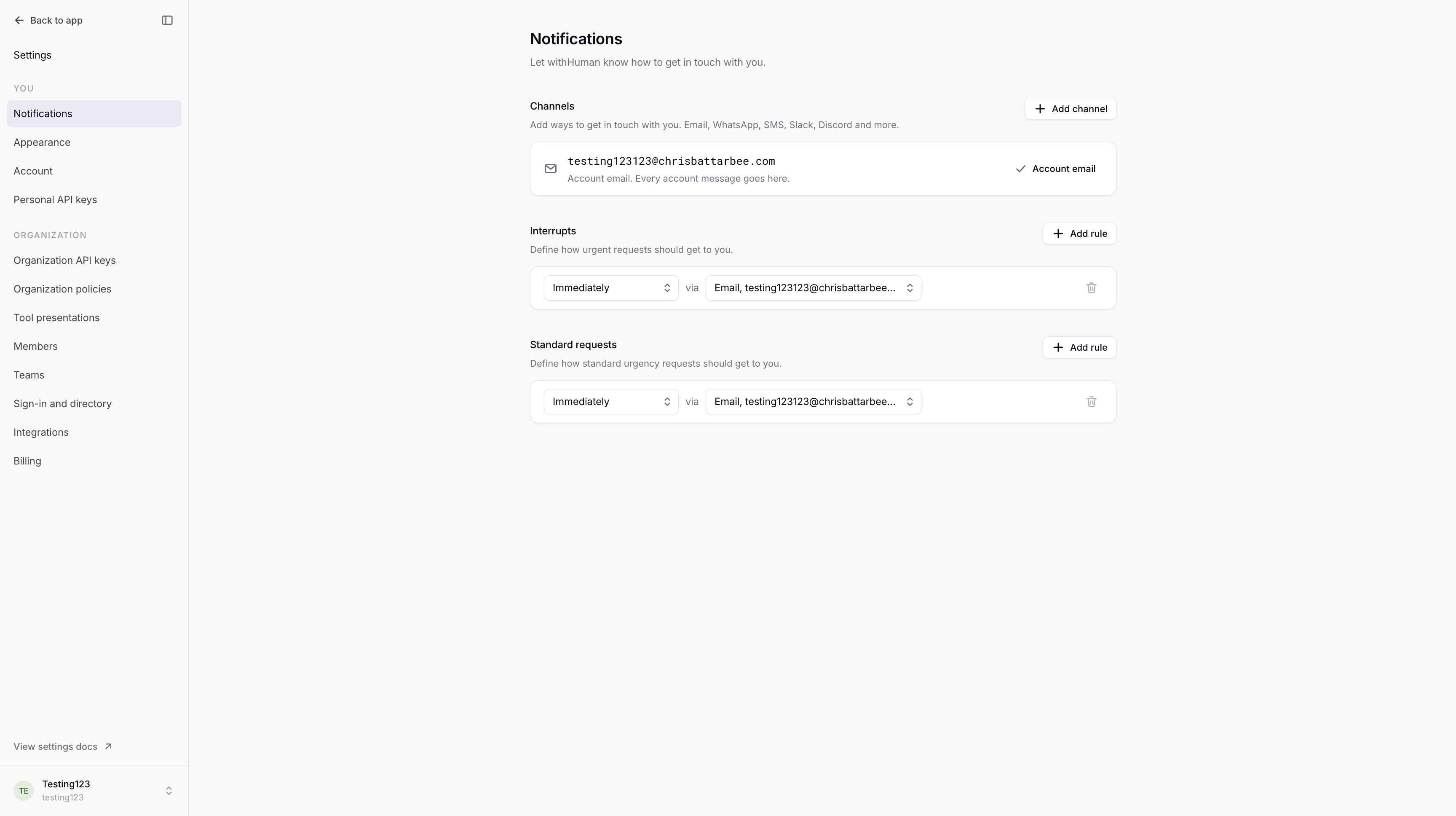
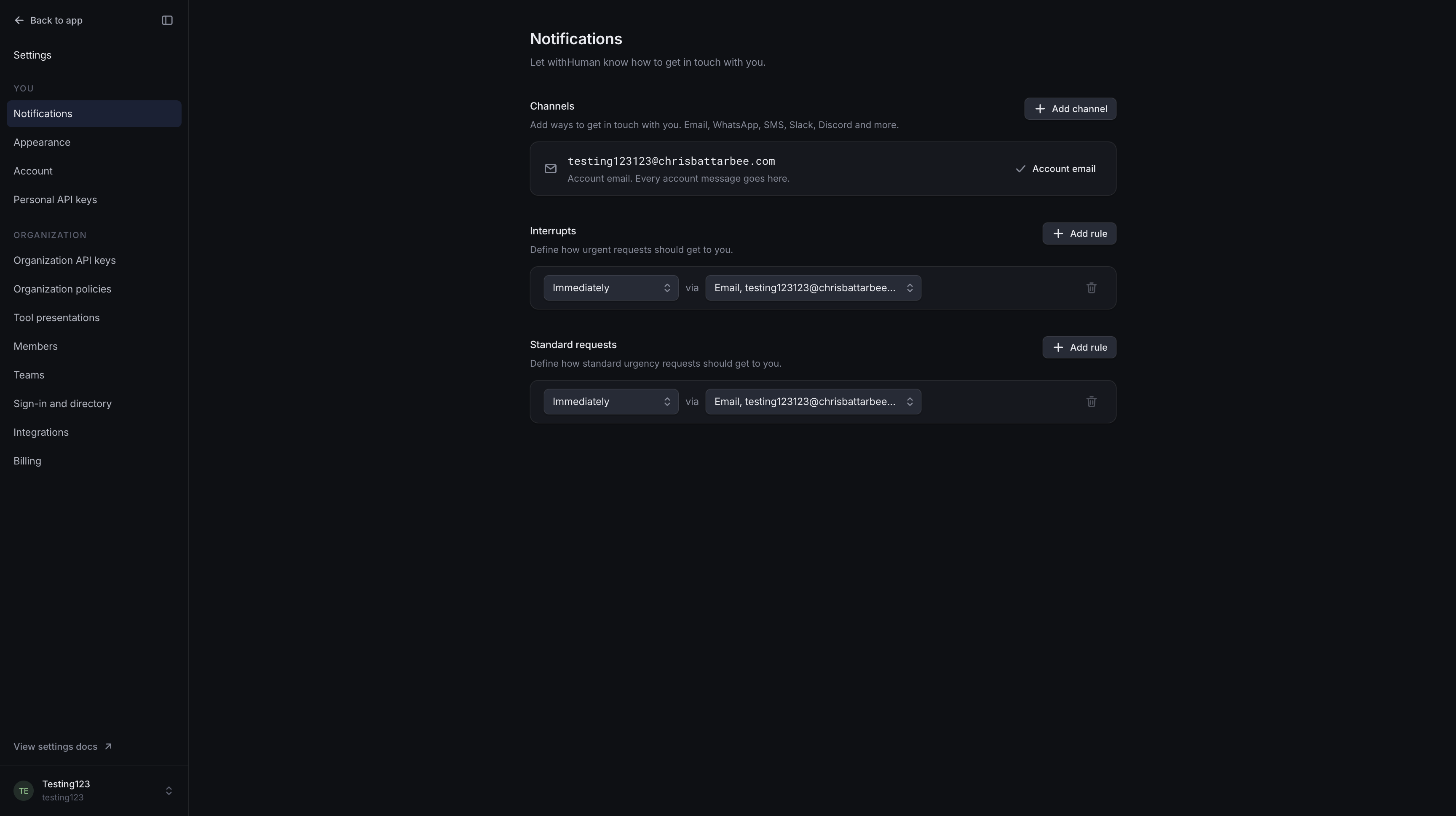
Standard requests controls ordinary notifications. Interrupts controls notifications for requests marked urgent. The request's urgency selects the rules; you can use different channels and delays for each.
Before you customize them, the defaults are:
| Request urgency | Default notifications |
|---|---|
| Standard | Account email immediately. |
| Interrupt, with an available chat account | Slack immediately, or Discord if Slack is unavailable. Account email after 5 minutes. |
| Interrupt, without an available chat account | Account email immediately. |
Registered phone apps also receive an immediate notification in both defaults. Extra email addresses, SMS and WhatsApp numbers need a rule before they receive approval notifications.
Saved rules replace the defaults for that urgency. If you have customized your rules, adding a channel does not automatically add it to them.
Delays
Each rule pairs a channel with a delay, from Immediately to After 1 hour. You can keep up to ten rules for each urgency. Rules with the same delay run together.
Delays start when withHuman reaches your notification step. They are not added together: rules after one minute and five minutes run one and five minutes after that step starts.
The escalation path keeps its own timer. It can contact another reviewer while your delayed messages are still waiting. Messages scheduled at or after the request's deadline are skipped.
Example: A refund needs attention
We'll give a Payments reviewer an immediate phone-app rule and an email rule after 5 minutes. When Payments review reaches that person, their phone gets the first notification. Email follows five minutes later if nobody has claimed or decided the request.
If the path escalates to the finance lead after 3 minutes, the lead's own notification rules start then. The reviewer's five-minute email remains scheduled.
Receiving or opening a message does not stop later notifications. A claim stops the remaining scheduled messages and pauses escalation. Approval, denial, cancellation or expiry ends notifications for the request.
Changes and removal
Rule edits take effect when saved. Changes apply the next time withHuman plans notifications for you, including later steps of a pending escalation path. They do not rewrite messages already scheduled for a pending request.
Removing a channel also removes its rules. Check the remaining channels and delays afterwards. If no saved rules remain for an urgency, withHuman uses its defaults again. Your account email stays available.
Disconnected Slack
When Slack is marked Unavailable, its notification rules stay saved but Slack messages pause. This also applies to Slack messages that were already scheduled.
Other channels keep their usual timing. If Slack was your only usable channel before a request expires, withHuman sends one immediate notification to your account email for that request.
Once the workspace reconnects and your Slack channel shows Linked, your saved Slack rules work again. Messages missed during the disconnection are not sent later. The Slack guide explains how to restore your channel.
You can still open withHuman and review pending requests in the Review queue while Slack is disconnected.
What messages contain
Notifications identify the requested tool and link to the request. Most channels also show the agent and expiry; SMS may shorten those details to fit the message. To avoid leaking sensitive details, request arguments stay in withHuman rather than being copied into messages or lock-screen alerts.
Review and decide in withHuman. Replies to an email, text or chat notification do not approve or deny the request. See Review queue for decisions and claims.