Personal API keys
Manage keys that let scripts act with your current permissions.
Personal API keys manages credentials for scripts that act as you in the current organization. Your keys follow your permissions, including access inherited from teams.
For a shared integration that should keep working after you leave, use an organization API key.
Permissions
Everything I can do gives a key your current permissions that are available to API keys. As your access changes, the key's access changes too.
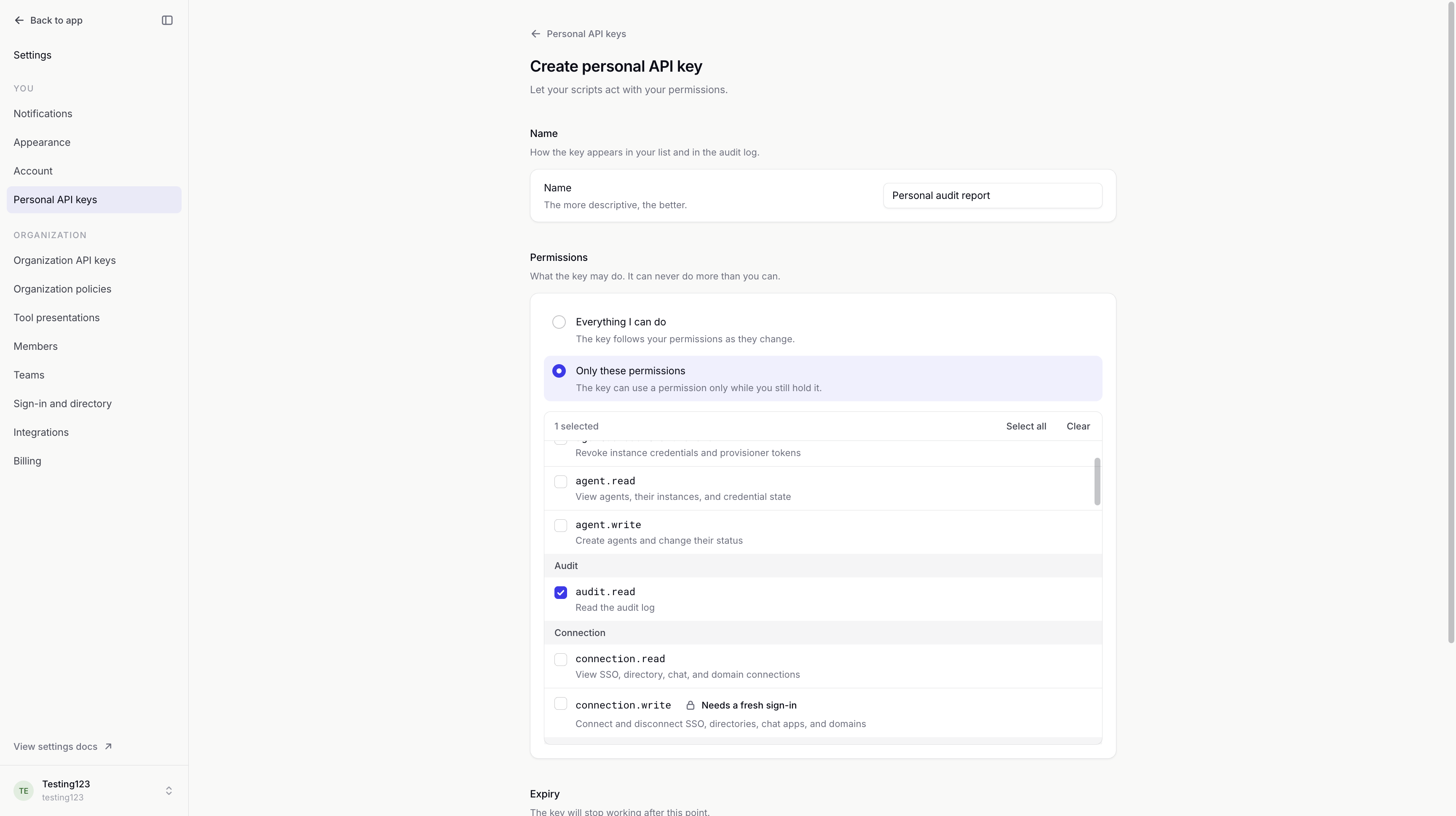
Only these permissions limits the key to selected actions. It can use each action only while you still hold that permission. The resources it can access also follow your current scope. This choice depends on the deployment and plan; when it is unavailable, keys inherit your access.
A key's selected actions are fixed at creation. Create a replacement to change that selection. Changes to your own permissions apply on the key's next API call.
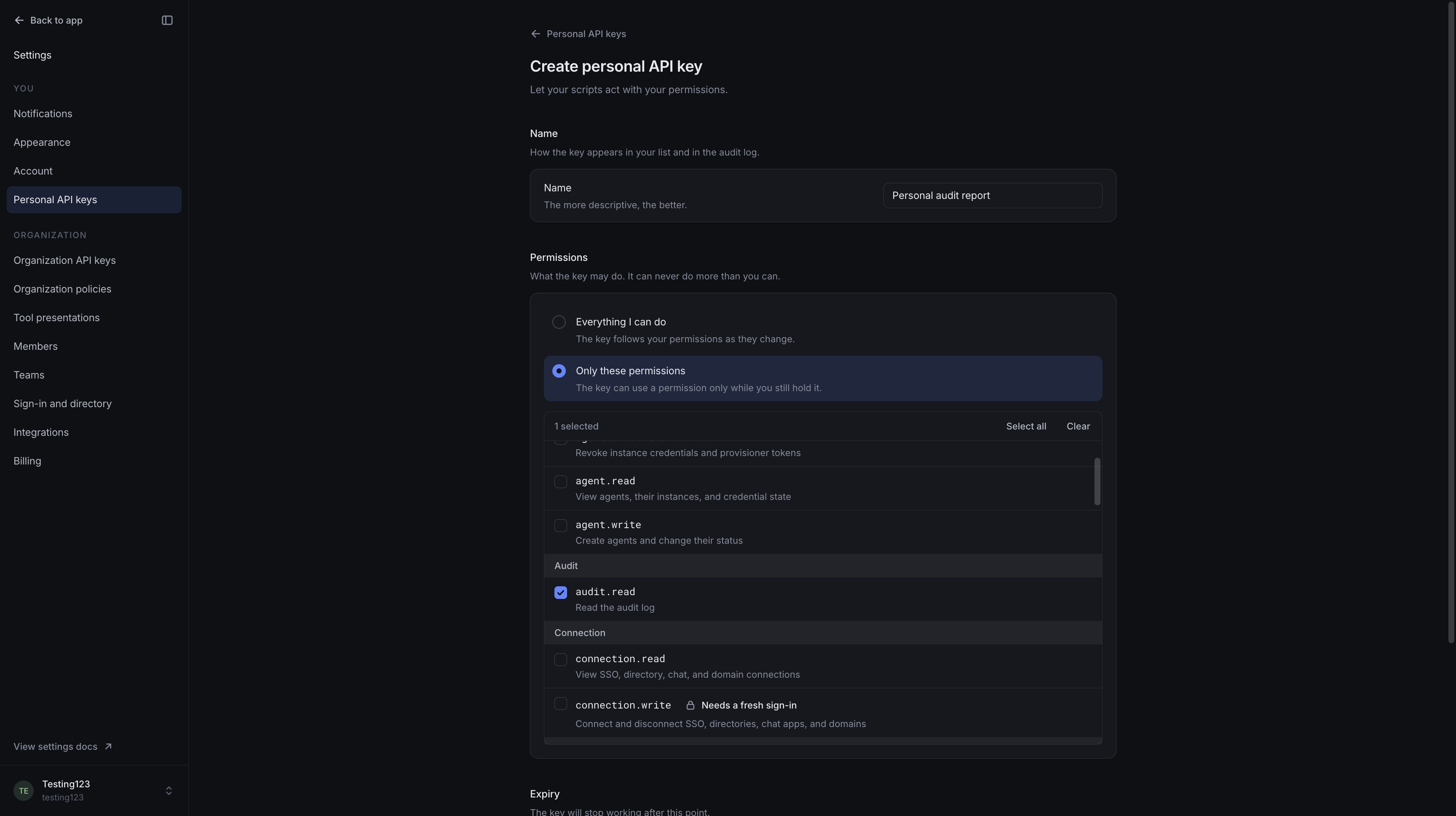
Example: Personal audit report
We'll give Personal audit report permission to read the audit log. Our script can produce a report without being able to edit pipelines or decide requests. If we lose audit access, the key loses it too.
Expiry and sign-in
The creation form starts with an expiry 90 days away. Expires on sets a date and time; Never expires requests no expiry. A deployment's maximum lifetime still applies. The saved key's expiry is the one to rely on.
Creating a key that can decide requests or use a sensitive permission requires a recent sign-in and any multi-factor authentication your organization requires.
A personal key can approve or deny only where you can. Request assignment and the organization's MFA requirement still apply. A key uses its own expiry and revocation instead of the reviewer's sign-in timer. See Review queue and the current limits in Organization policies.
Key list
The list shows each key's name, public prefix, permissions, status, creation date, last use and expiry. Search by name, prefix or permission, and filter by Active, Expired or Revoked. People with access to view all keys can switch between Your keys and All members.
For a key with selected permissions, Narrowed means you no longer hold one or more of its listed actions. The key cannot use those actions while they are missing from your access.
You can view and revoke your own keys even if you no longer have permission to create them. Viewing other members' keys and revoking them require separate permissions. The list never reveals anyone's secret.
Membership and availability
Suspending your membership pauses your keys. Reactivation makes them usable again if they have not expired or been revoked. Removing you from the organization revokes your personal keys. Membership management covers these changes.
Administrators can turn off personal API keys in Organization policies. Existing keys are retained, but API calls are refused until keys are allowed again. This switch does not control organization API keys.
Replacement and revocation
Create a replacement when a key expires, its secret is lost or its selected permissions need to change. Update your script, then revoke the old key once the replacement works. If a secret is exposed, revoke it immediately.
The API keys overview includes a verification call and explains one-time secrets. Audit log records key creation, use and revocation.