Set up MCP Gateway
Keep an MCP server's credentials in withHuman instead of on your agents' machines, and send every call through your approval pipeline.
When you add an MCP server to an agent yourself, the agent holds the server's credentials and calls it directly. Through the MCP Gateway, withHuman holds the credentials instead, your agents get only the tools you choose, and every call goes through your approval pipeline first.
There are two ways to set it up:
- Your coding agent does the setup, using the withHuman skills, and asks you what it needs. See Have your coding agent do the setup.
- You do the setup yourself in the app, in six steps. See Do the setup yourself in the app.
The examples use Linear as the server and Codex as the agent. The steps are the same for any remote MCP server and any agent that can use MCP servers.
Before you start
You'll need:
- Permission to manage the gateway. Owners and admins have it.
- The server's MCP URL, for example
https://mcp.linear.app/mcp. The service's documentation lists it, usually under "MCP" or "remote MCP server". It must be a remote server that speaks Streamable HTTP. To use a server you run yourself, see Gateway tunnels. - A connected agent that can use MCP servers, such as Claude Code or Codex. If you haven't connected one yet, follow the Quickstart first.
If your agent already connects to the service on its own, turn that connection off. Codex's built-in Linear app is one example. Otherwise the agent may keep calling the service directly instead of through the gateway.
Have your coding agent do the setup
Your coding agent sets up the server through the withHuman MCP server, as you.
-
Add the withHuman skills to your coding agent:
bashnpx skills add https://withhuman.ai -
Connect the withHuman MCP server, and sign in when asked. For Claude Code:
bashclaude mcp add --transport http withhuman https://app.withhuman.ai/api/mcp/v1For Codex:
bashcodex mcp add withhuman --url https://app.withhuman.ai/api/mcp/v1 -
Ask your agent to set up the server, for example:
textUse the withHuman skills to put the Linear MCP server at https://mcp.linear.app/mcp behind the withHuman MCP Gateway. Give it a read-only organization scope, give Codex its tools, then help me write approval rules for it.
Your agent registers the server and its scopes, gives agents access, makes the server active and writes the approval rules, checking with you along the way. It can't sign in to the service for you: if a scope uses OAuth, open the server from Gateway and select Connect OAuth when your agent asks.
Do the setup yourself in the app
Open Gateway in the sidebar and select Register server. The setup takes you through six steps. Each step saves as you go, so you can leave and pick up where you stopped from the server's page.
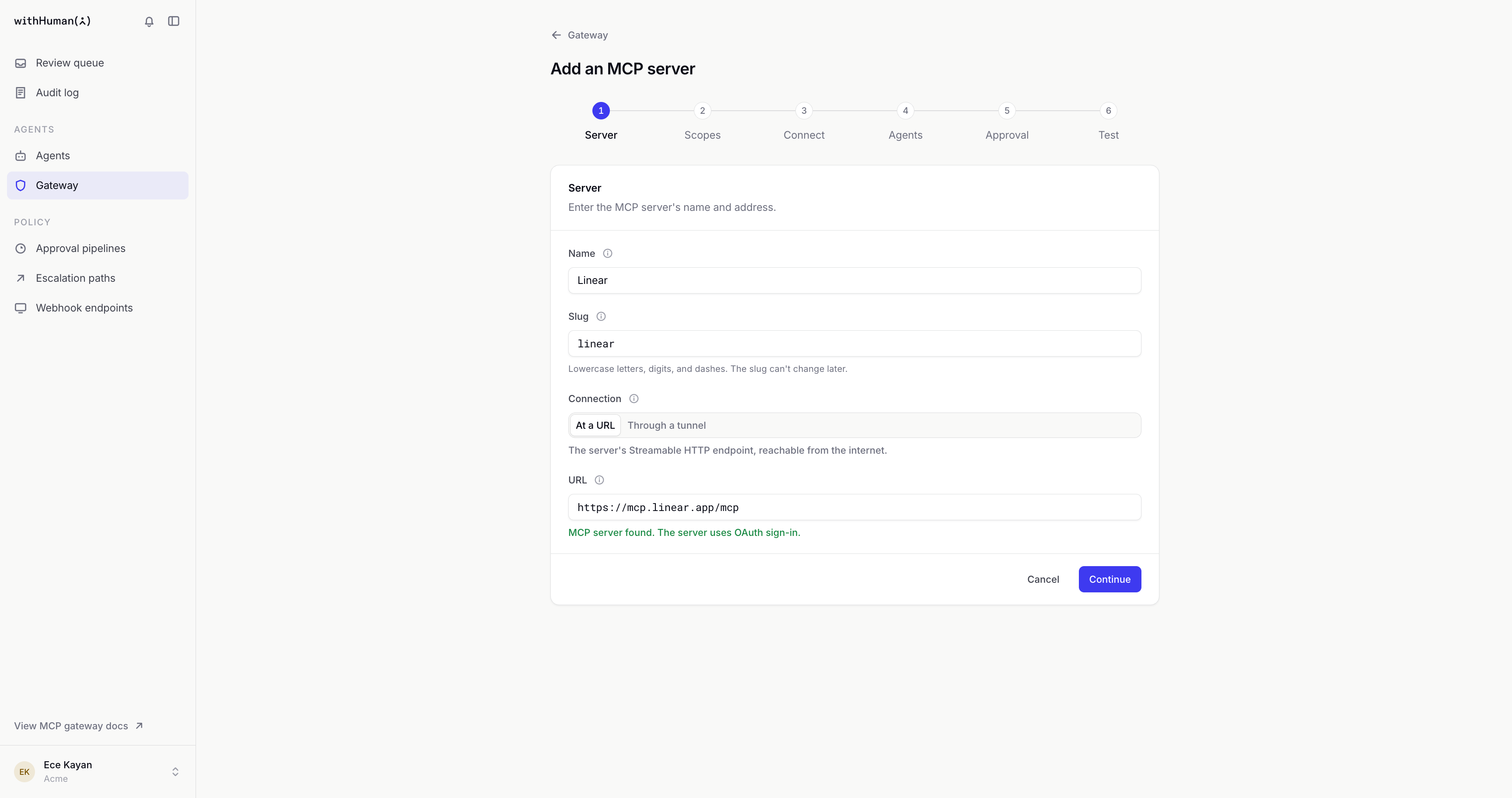
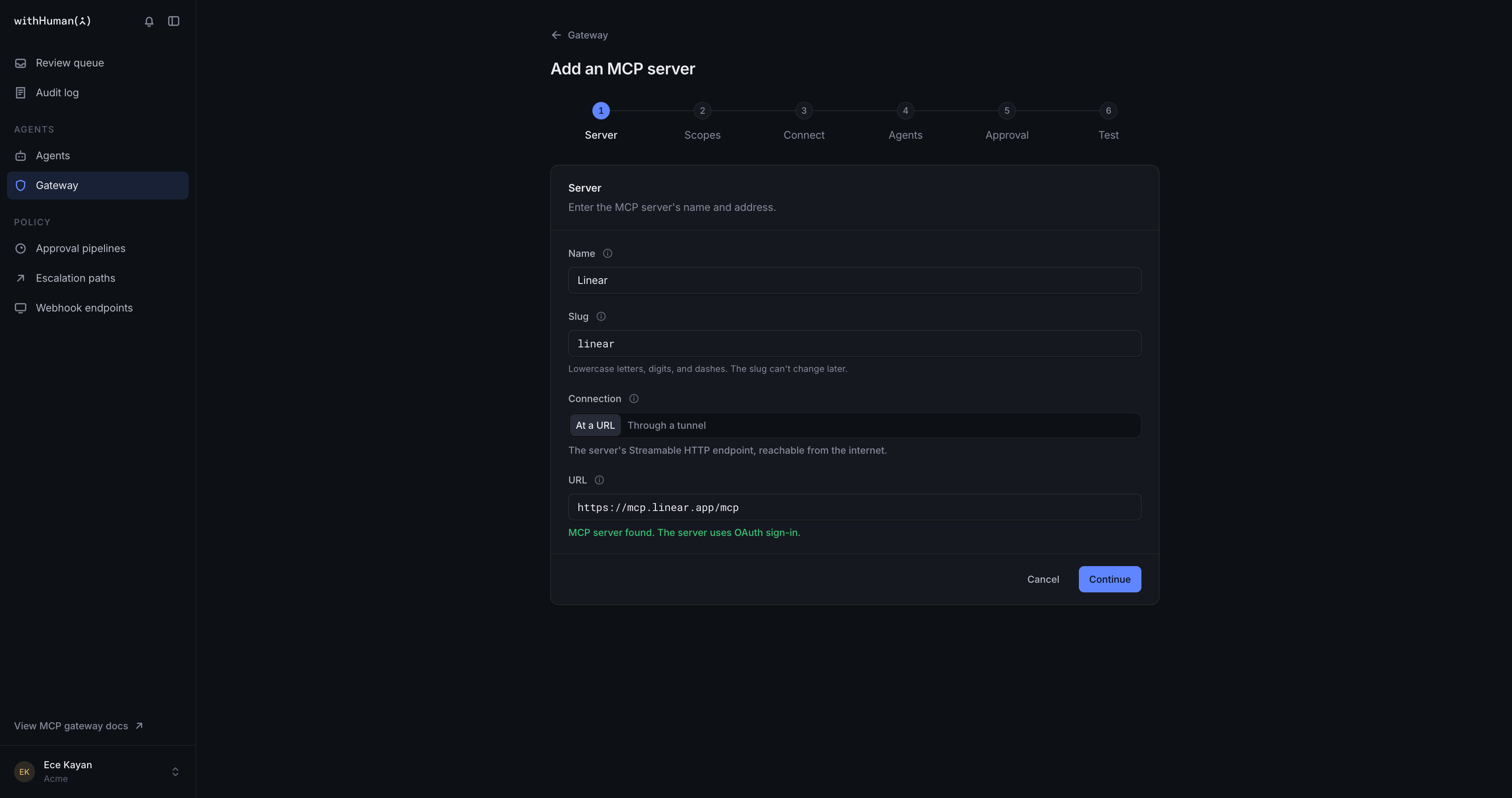
1. Server
Enter a Name for the server, such as "Linear", and its URL.
The Slug fills in from the name. It's the server's permanent short name: agents see it in tool names, and approval rules use it to match calls to this server. You can't change it later.
2. Scopes
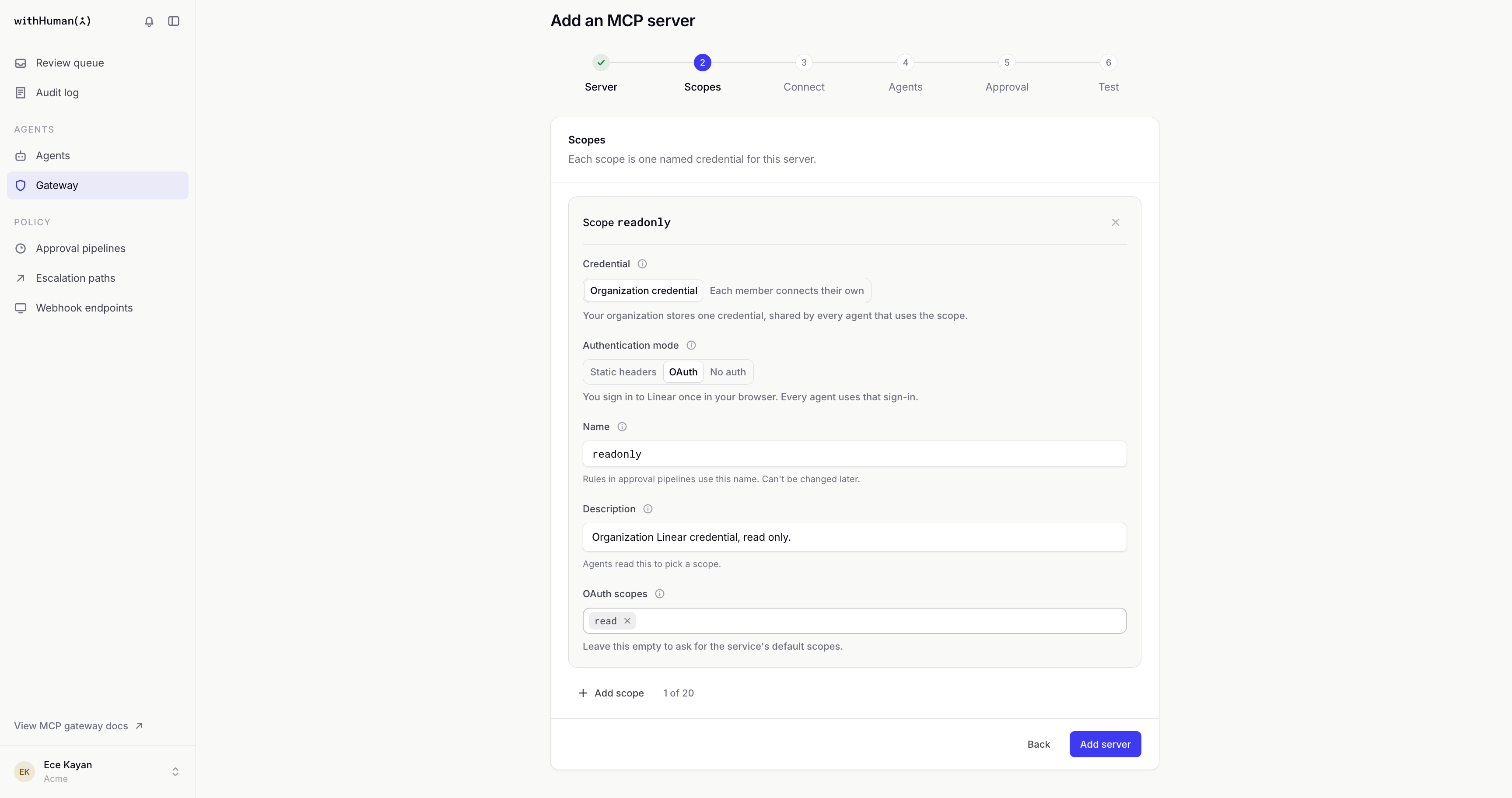
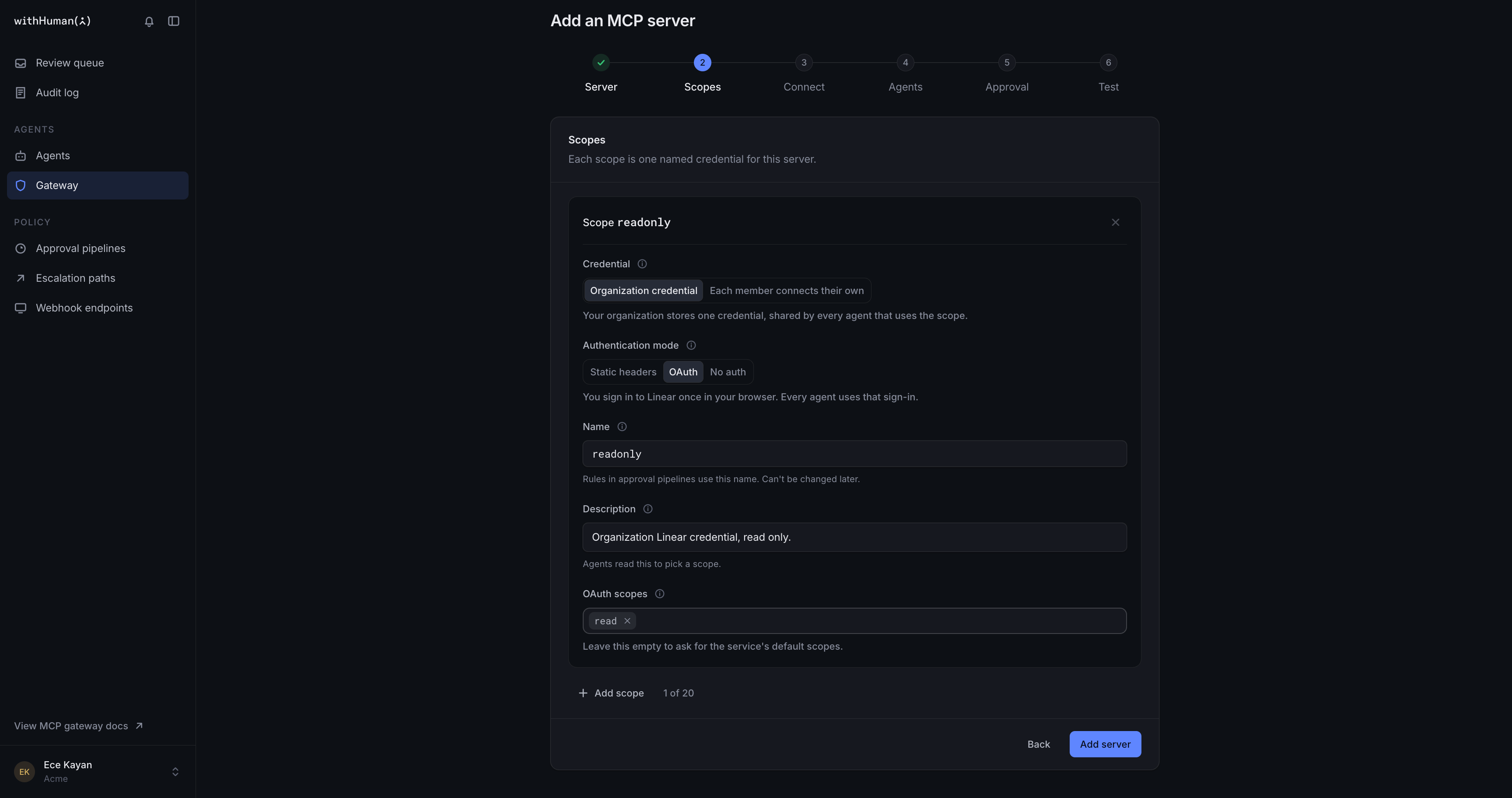
A scope is one named credential for the server. Most servers need just one.
For each scope, choose:
- Credential: whose credential agents use.
- Organization credential: you connect one credential, and every agent that uses the scope shares it. Choose this for a shared service account, or for a support bot or other agent your organization runs.
- Each member connects their own: every member connects their own credential, and their agents act as them. Choose this when people should only reach what they can reach themselves, like their own Linear issues.
- Authentication mode: how the service signs in. Keep the one withHuman picked unless you know the service needs something else.
- Name: a short name such as
readonlyorfullaccess. Approval rules can match it, so it can't be changed later. - Description: what the scope is for and who approves it, for example "Organization Linear credential, read only." Agents read this to pick a scope when they have more than one.
- OAuth scopes, for OAuth only: the permissions to ask the service for. Leave it empty to ask for the service's defaults.
Select Add server to save the server and its scopes. The server is saved but not active yet: no agent can use it until step 4.
Example: One scope for reading, one for writing
We'll give Linear two scopes: readonly, an organization credential that can only read, and fullaccess, which each member connects with their own account. Reads use the shared credential. Changes are made as the person whose agent makes them, so Linear shows who did what.
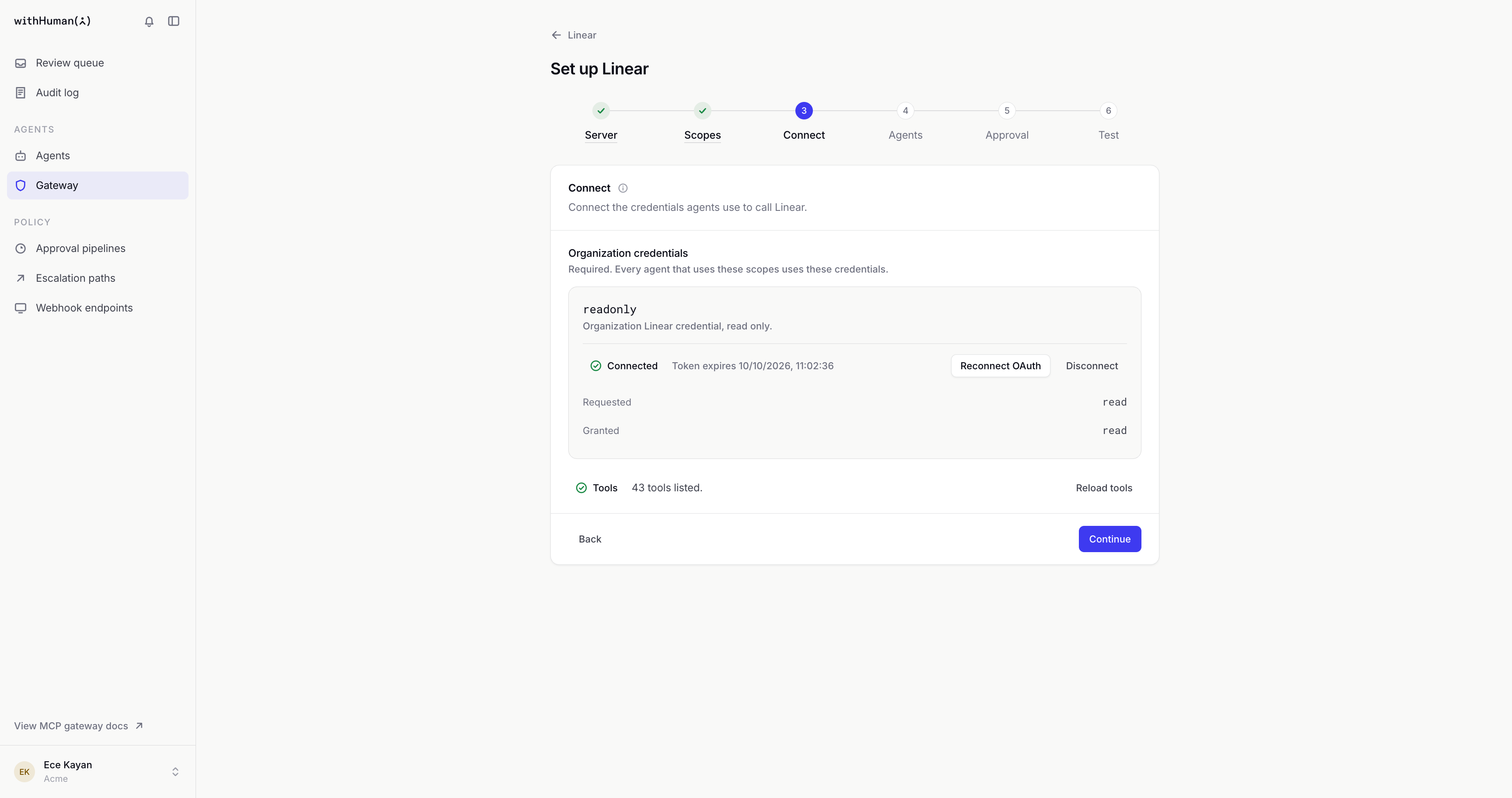
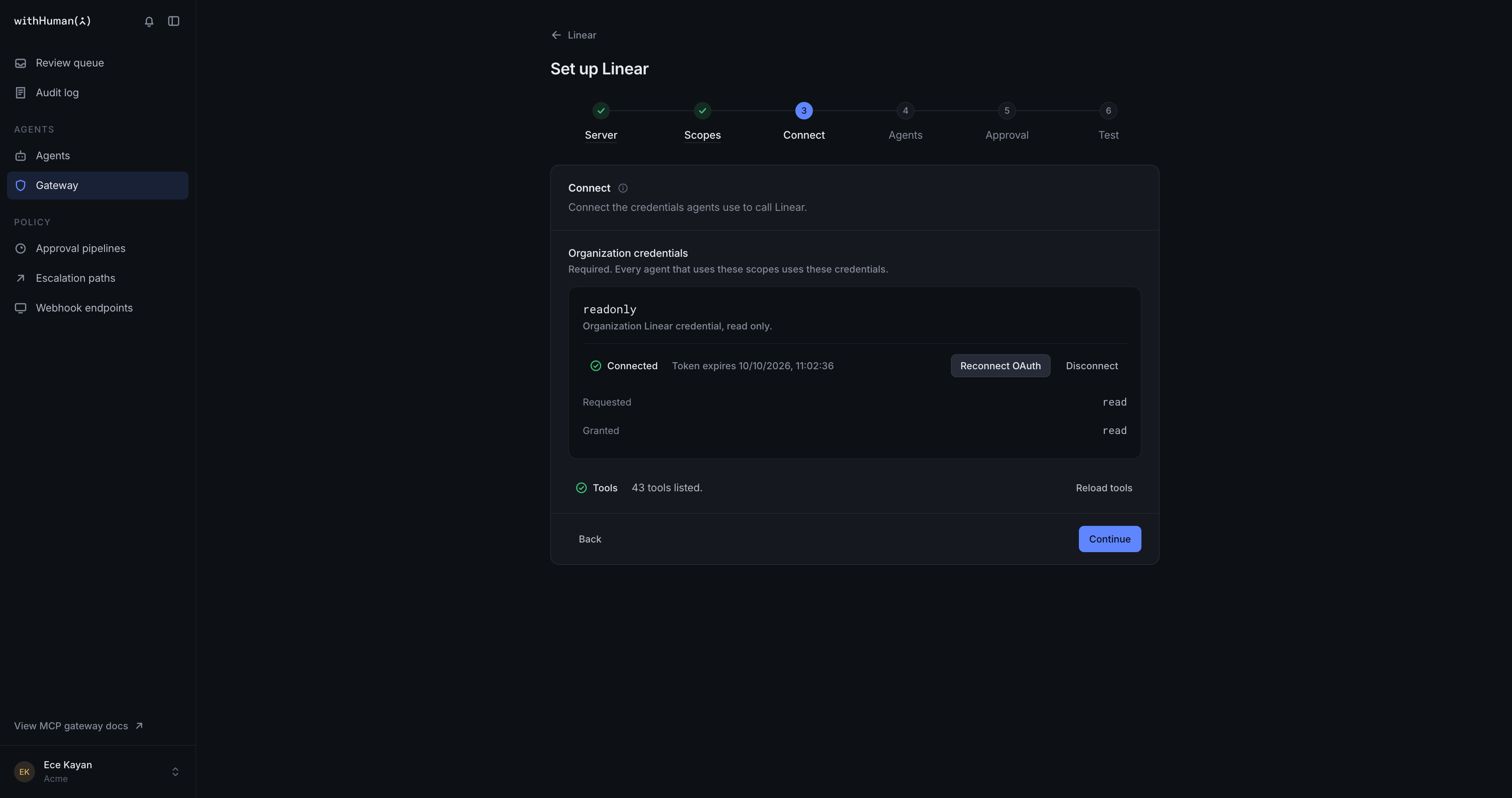
3. Connect
Now connect to the server you added, using the authentication mode you chose for each scope in step 2.
Connect has a section for each kind of scope.
If you picked Organization credential for a scope, you need to connect it here. Every agent that uses the scope shares this one credential, so no agent can call the server until it's connected.
As the authentication mode, if you picked:
- OAuth: select Connect OAuth. A dialog asks for a client ID and secret. Most services don't need them: leave both empty and select Connect. Then sign in to the service and approve only what the consent screen asks for.
- Static headers: select Set headers and paste the header the service expects, usually
Authorization: Bearer <your API key>.
If you picked Each member connects their own for a scope, connecting yours here is optional. Each member's credential is used only by that member's agents, so connect yours only if your own agents will use the server. Everyone else connects theirs under Settings, then Connections.
When a credential works, the step lists the server's tools. Select Continue once every organization credential is connected.
4. Agents
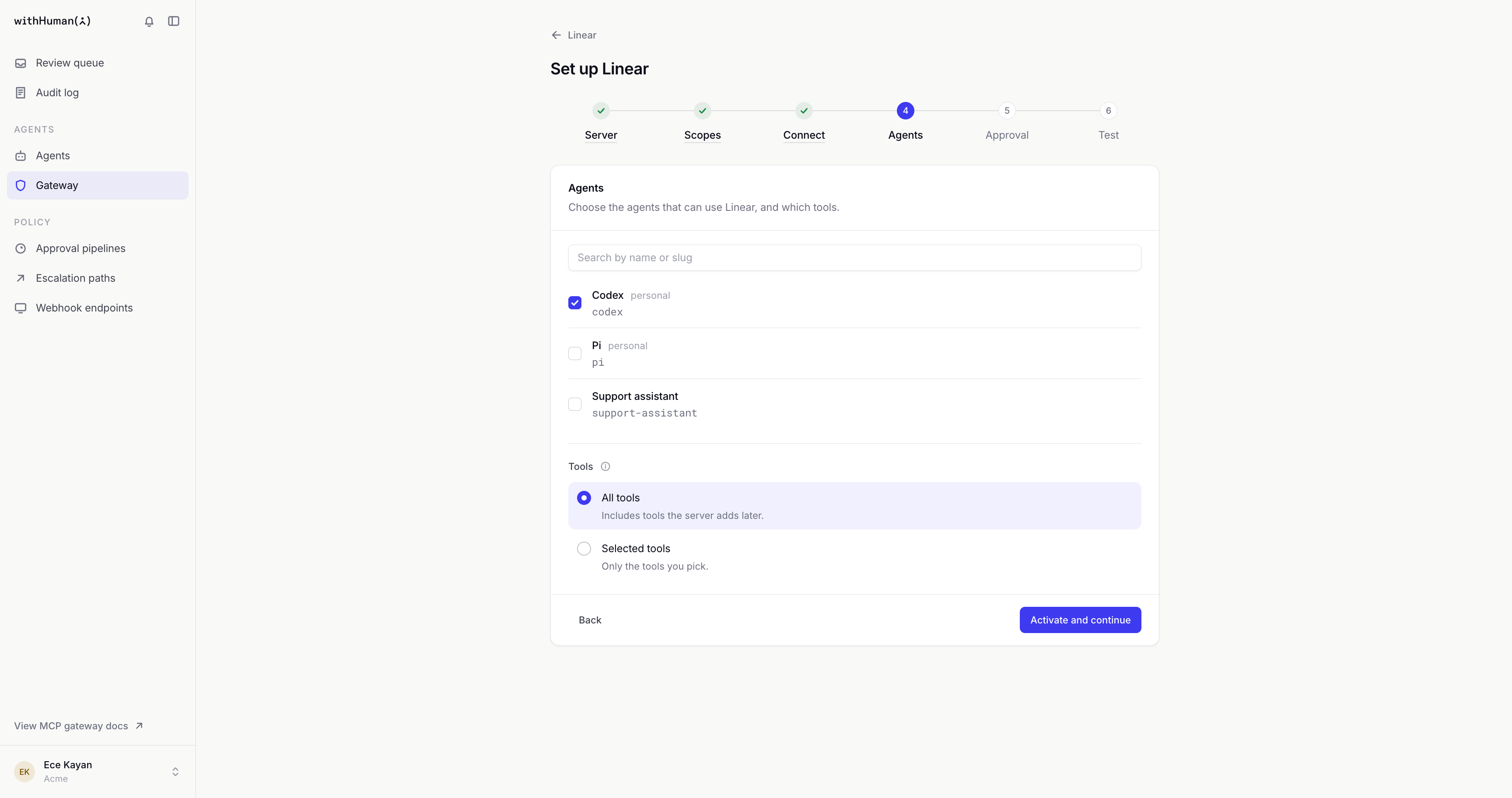
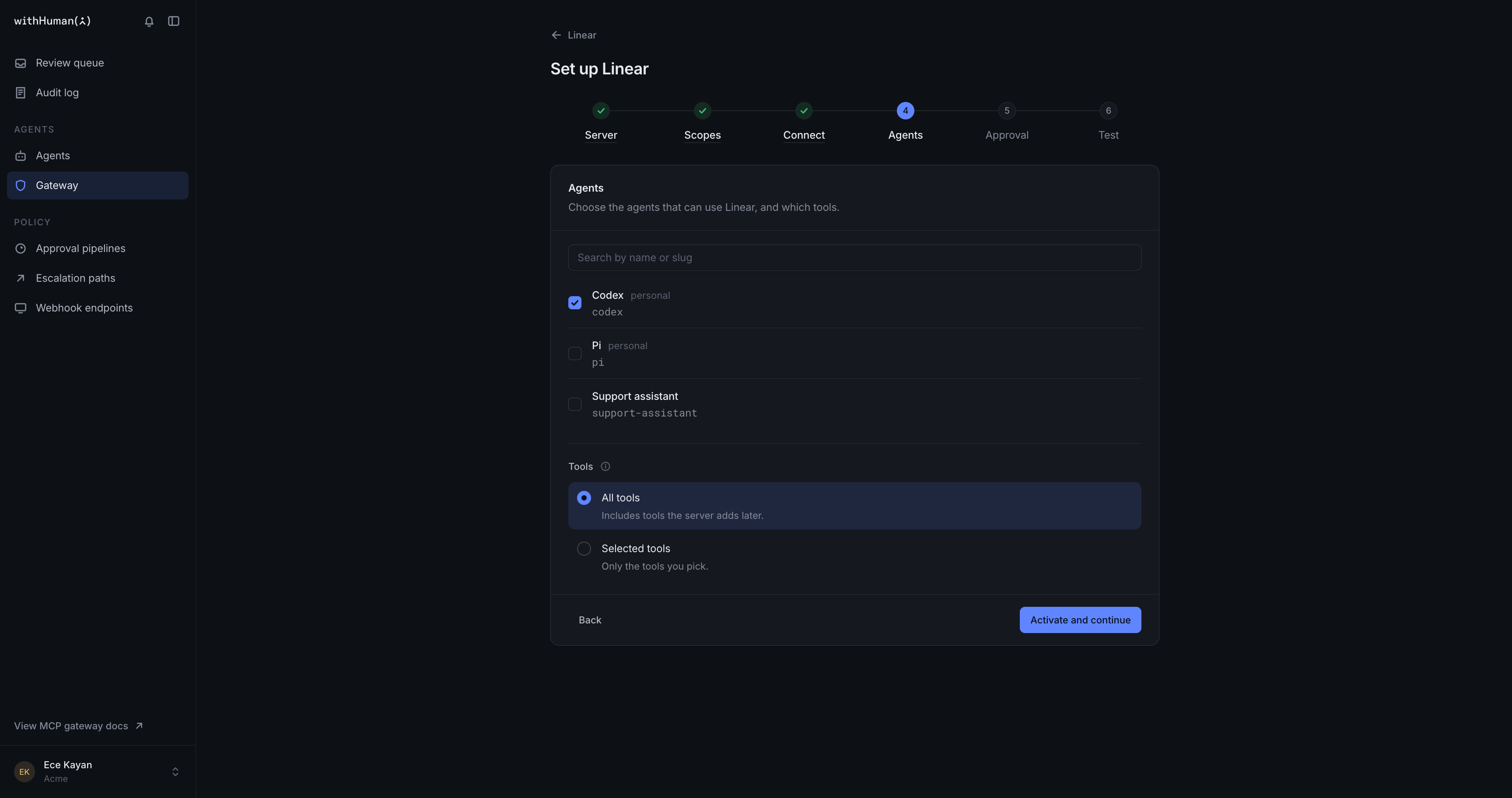
Choose the agents that can use the server, then choose their tools:
- All tools includes tools the server adds later.
- Selected tools allows only the tools you tick.
Access belongs to the agent, not to its instances. An agent such as Coding Agent has an instance for each person who connected it, for example Alice's Codex instance and Chris's Codex instance. If you give Coding Agent access to the server you're adding, every one of its instances gets the tools you allow on that server: Alice's Codex instance and Chris's Codex instance both get them.
Only personal agents can use a scope where each member connects their own. If an agent you expect isn't listed, check that it's a personal agent.
Select Activate and continue. This makes the server live for the agents you chose.
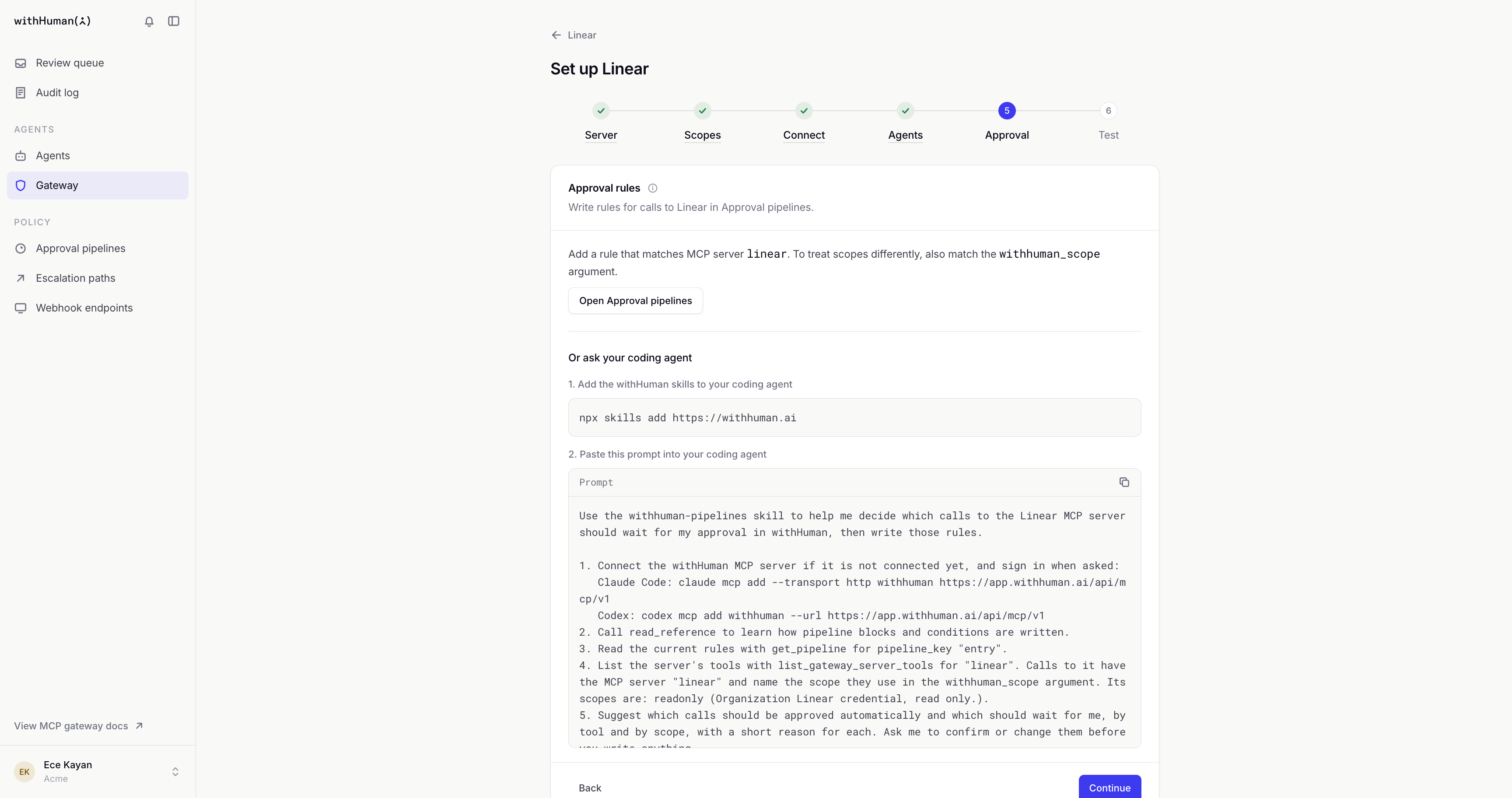
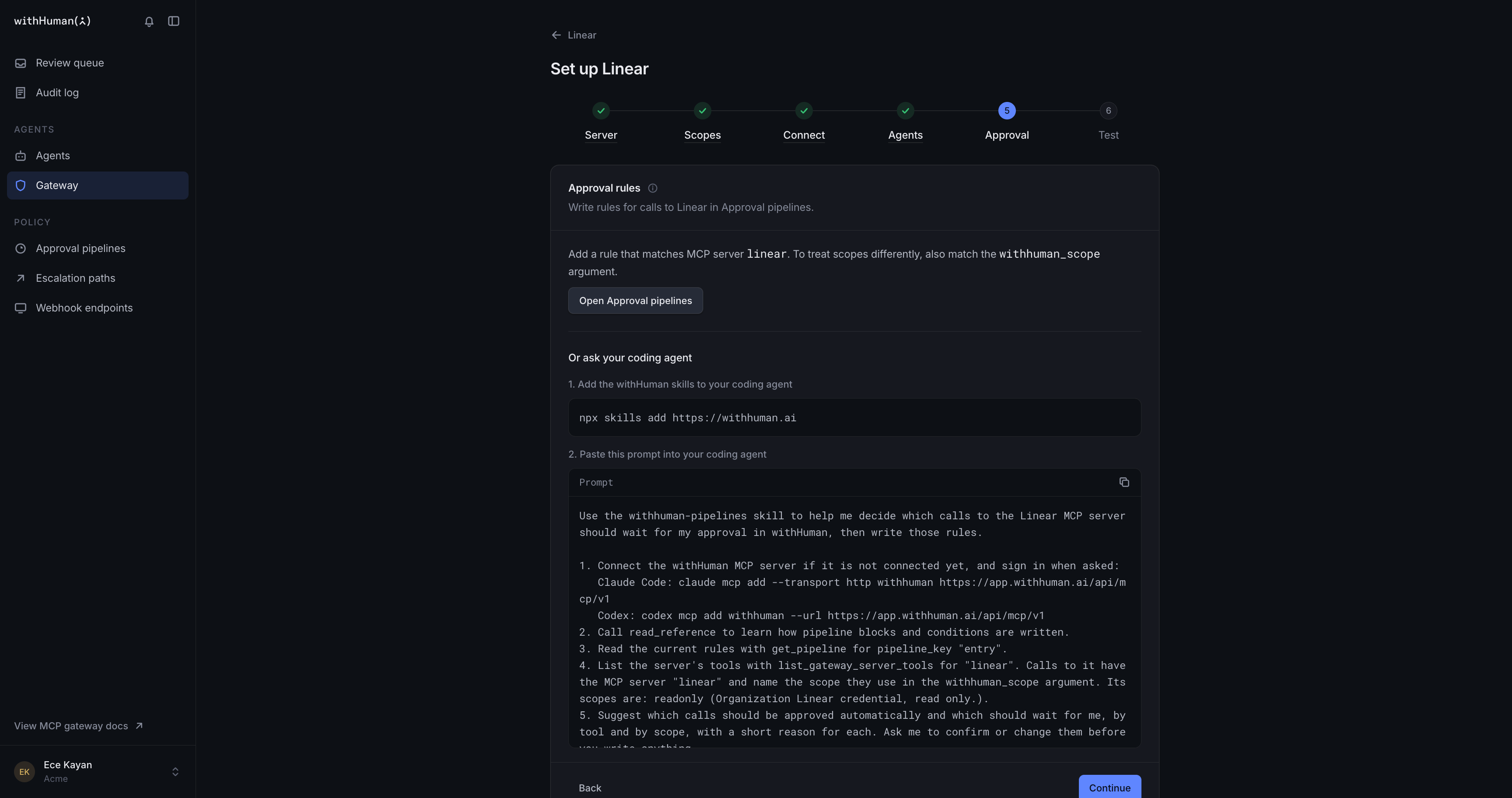
5. Approval
The gateway sends every call to your approval pipeline. Until you add a rule for the server you're connecting, your existing rules decide its calls. This step shows two ways to write one:
- Open Approval pipelines opens your entry pipeline in a new tab, ready to edit. Add a branch that matches MCP server
linear. To treat scopes differently, also match thewithhuman_scopeargument. - Ask your coding agent: add the withHuman skills, then paste the prompt the step gives you. Your agent suggests which calls to approve and which should wait for review, asks you to confirm, then writes the rules.
Select Continue when you're done. Nothing is saved on this step. Set up approval pipelines walks through writing the rules for this example, both ways.
Example: Different rules for each scope
With the readonly and fullaccess scopes from step 2, we'll approve calls made with readonly, since Linear only granted it read access, and send calls made with fullaccess for review:
| MCP server | withhuman_scope | Result |
|---|---|---|
linear | readonly | Approve automatically |
linear | fullaccess | Ask a human |
Only approve a scope like this when its credential really can't write. The Connect step shows what the service granted. See Conditions for how to match an argument.
6. Test
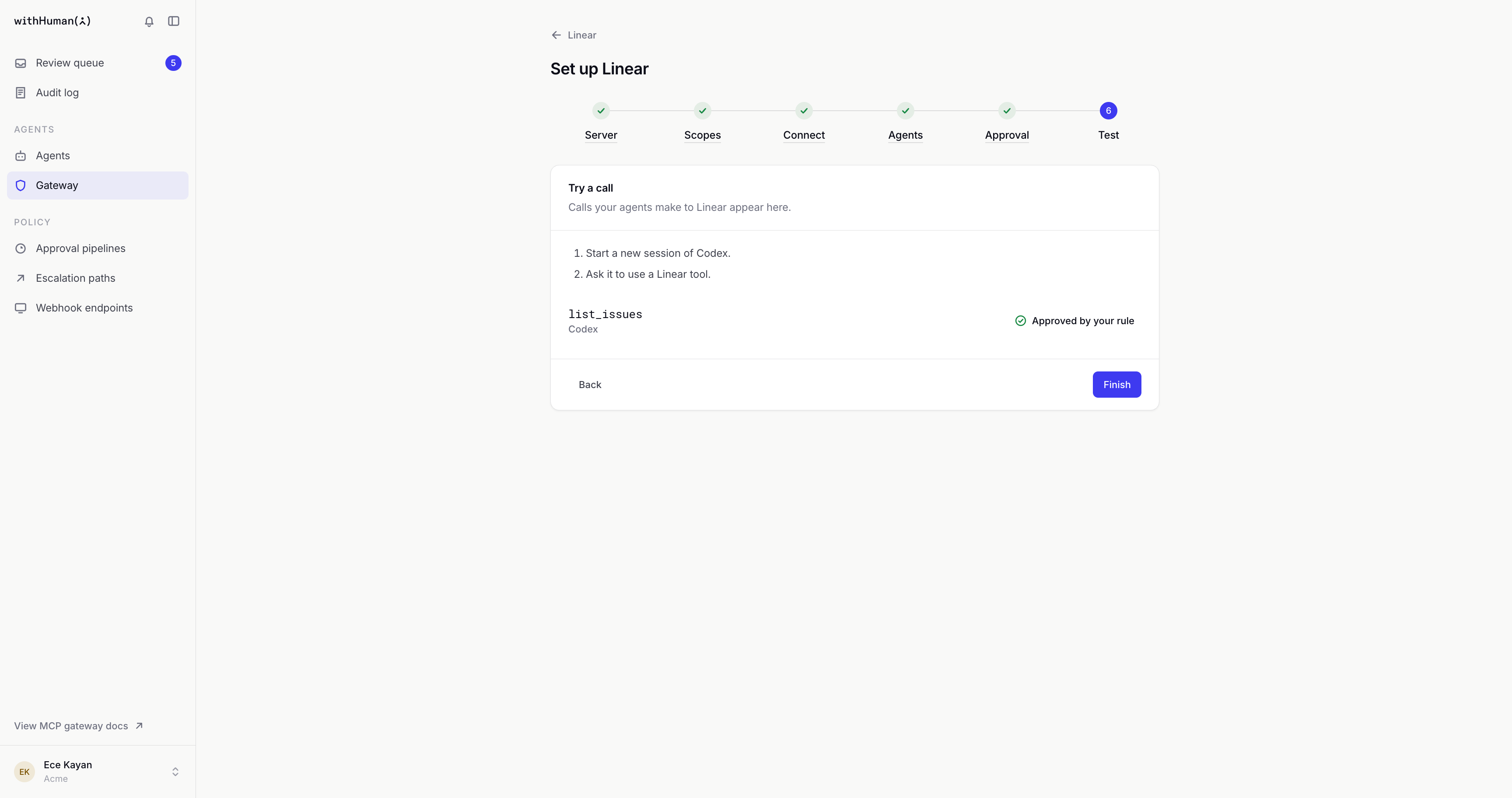
Start a new session of your agent, so it picks up the new tools, and ask it to use one. For example: "List my open Linear issues."
The call appears on the page as it arrives:
- Approved automatically: a rule in your pipeline let it through.
- Waiting for review: select Review to approve or deny it in the Review queue.
Select Finish when you're done. That's it: your agent's Linear calls now go through withHuman.
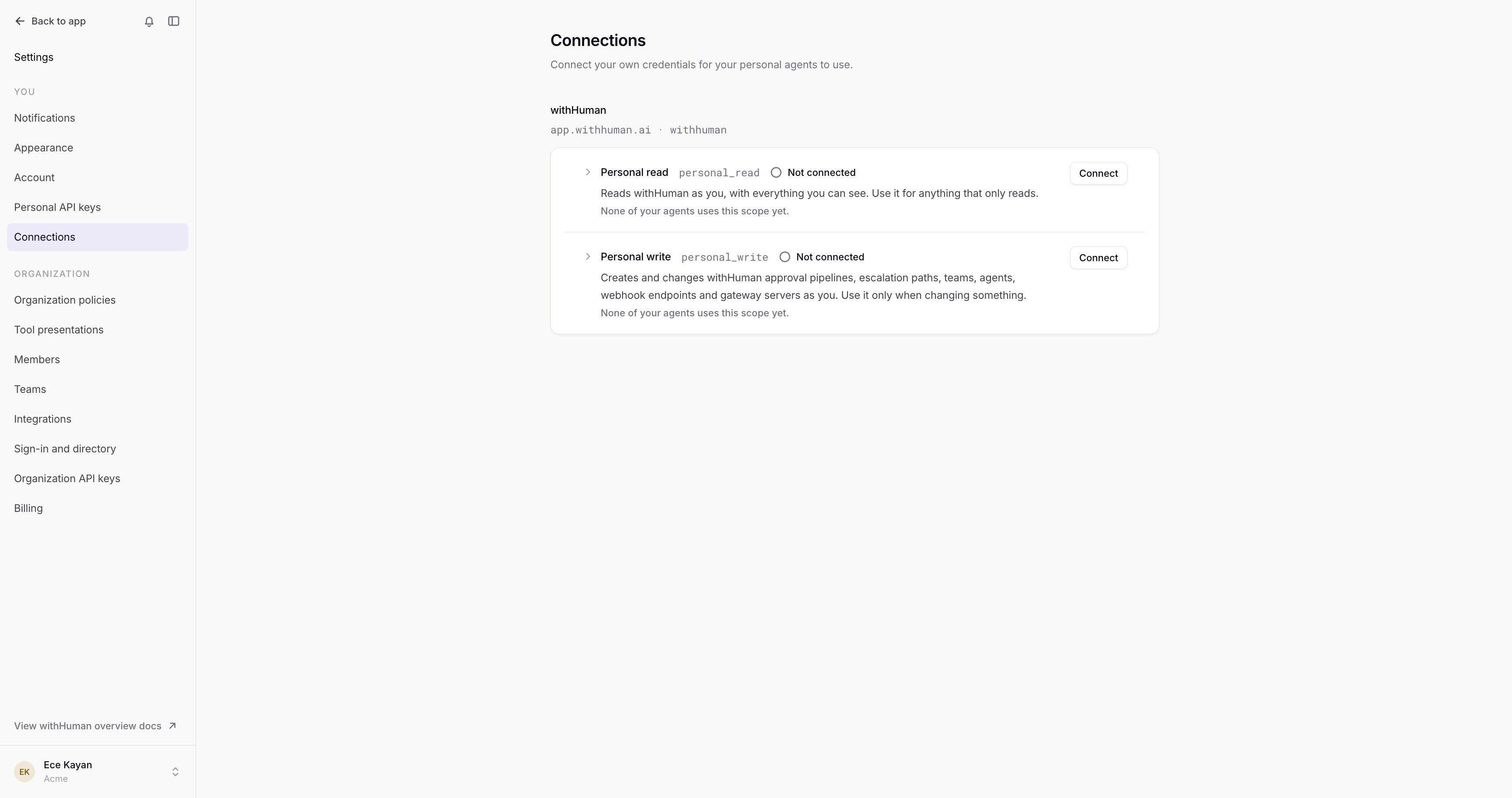
For members: connect your own credential
If the server has a scope where each member connects their own, every member who wants to use it connects once:
- Open Settings, then Connections.
- Find the server's scope and select Connect.
- Sign in to the service, or paste your headers.
Until you connect, your agents see the server's tools, but calls with that scope fail with a message saying where to connect. The bell next to the withHuman logo shows a dot while one of your agents is waiting on you. Start a new agent session after connecting.
Troubleshooting
| What you see | What to do |
|---|---|
| Continue stays disabled on the Connect step | Connect every organization credential first. |
| No tools listed on the Connect step | Select Reload tools. If it still fails, reconnect the credential or check the URL. |
| A member's sign-in asks for a client | The service doesn't register clients by itself. On the server's page, select Set client on the scope and enter the client ID and secret from the service. |
| The agent doesn't see the new tools | Start a new agent session. Then check the server is active and the agent has access on its Gateway Tools tab. |
| The call shows in the Review queue but not on the Test step | The agent used its own connection to the service, not the gateway. Turn that connection off, such as Codex's built-in Linear app, and try again. |
| Nothing arrives on the Test step | Make sure the agent can use MCP servers and is connected. The step shows Connect an instance for agents that aren't. |
To change anything later, open the server from Gateway. The MCP Gateway guide explains every setting in detail.