Approval pipelines
Define how requests are evaluated and when they reach human review.
Approval pipelines allow you to write rules to approve requests, deny them or send them for human review.
The Approval pipelines concept explains how they fit into withHuman.
How rules apply
Use the organization pipeline for rules that apply to every agent. It runs first for every request. Use an agent pipeline for rules specific to one agent. All of that agent's instances share it.
The agent pipeline only runs if the organization pipeline passes the request on. A request never goes through another agent's pipeline.
Loading diagram…
Diagram source
flowchart TD
    request["Request from an agent instance"] --> organization["Organization pipeline"]
    organization -->|"Approve or deny"| organizationDecision["Return decision to the agent"]
    organization -->|"No decision"| agent["That agent's pipeline"]
    organization -->|"Ask a human"| organizationReview["Human review"]
    agent -->|"Approve or deny"| agentDecision["Return decision to the agent"]
    agent -->|"Ask a human or no decision"| agentReview["Human review"]
An approval, denial or human-review outcome stops pipeline processing. If neither pipeline decides, the request goes to human review.
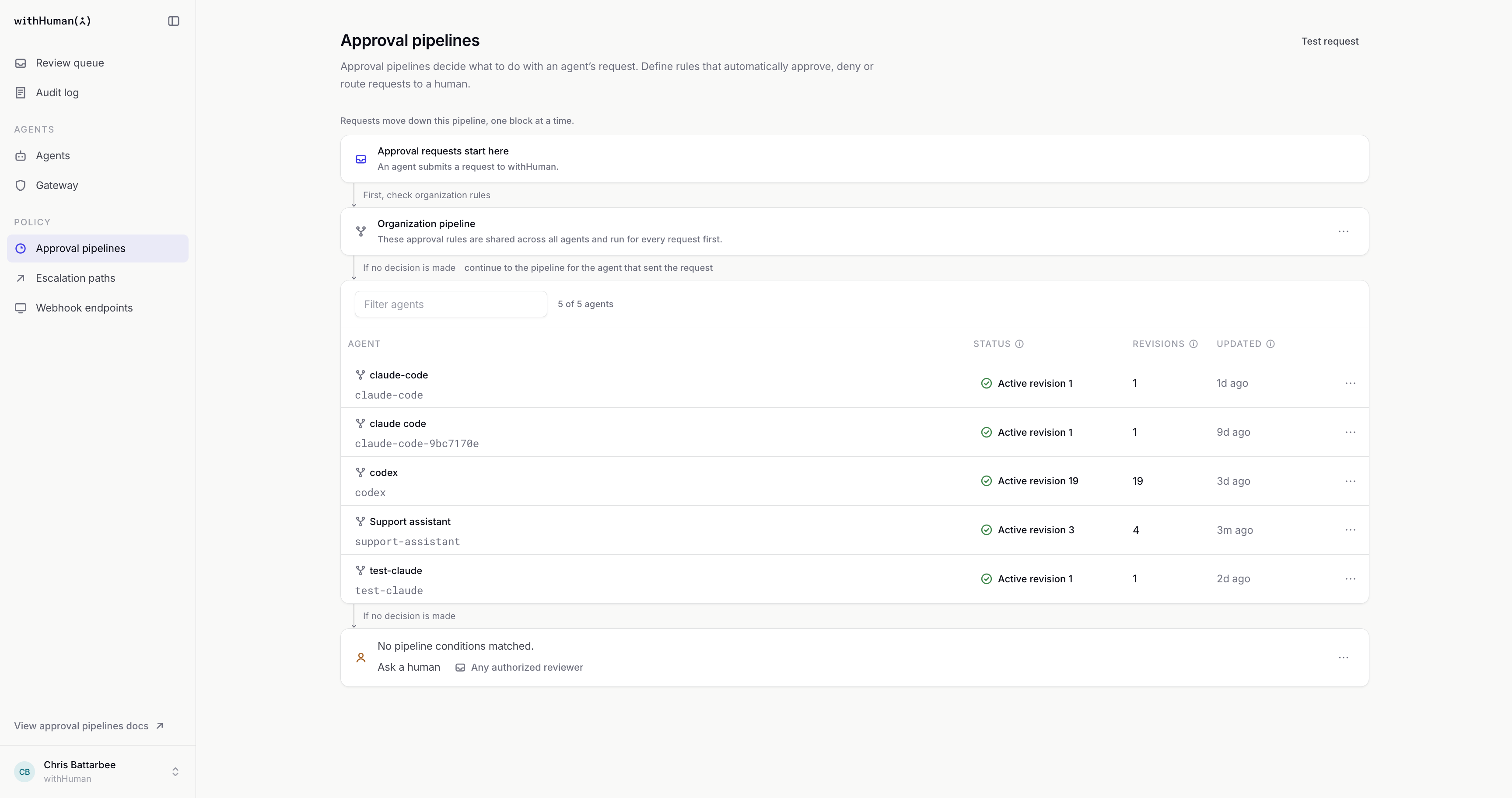
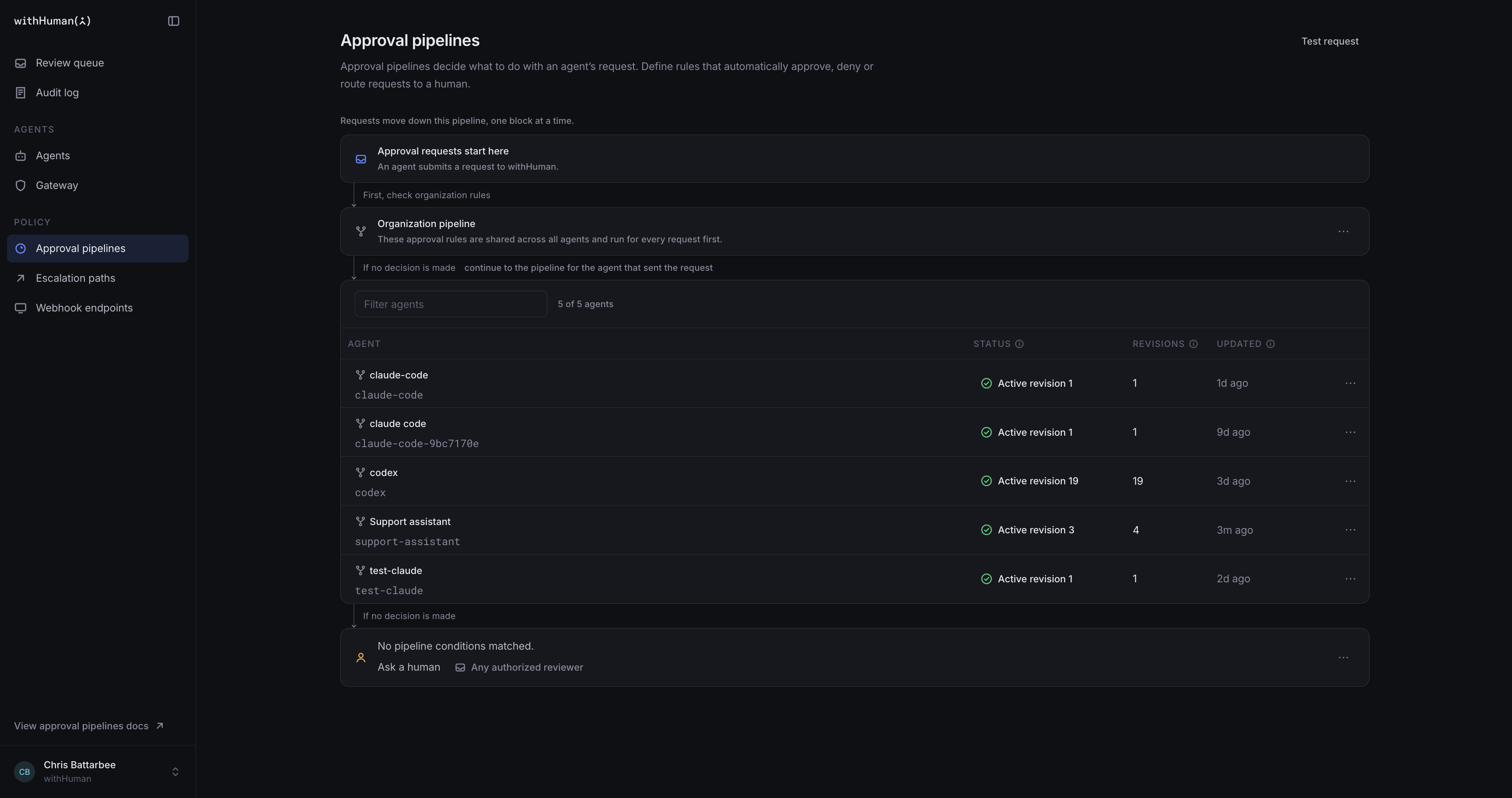
Open Approval pipelines to find both. Filter agents searches the agent pipelines by name or slug, and the status filter can include archived agents when there are any.
Pipelines already exist: the organization has one, and creating an agent creates its pipeline. The list shows the active saved version, called a revision, the number of revisions and when the pipeline was updated.
Rules and blocks
A pipeline's rules are made up of blocks. Each block evaluates the request and can approve it, deny it, ask for human review or continue to the next block.
Select Edit pipeline, then Add block. Choose the type based on how the rule makes its decision.
| Block | Use it to |
|---|---|
| Always | Choose an outcome for every request that reaches this block. |
| Conditions | Compare request fields with values you choose. |
| AI Judge | Evaluate a request against a written policy. Hosted edition only. |
| Webhook | Ask an external service for an outcome. |
| Branch | Run a set of blocks only for requests that match a condition. |
Webhook blocks reference shared Webhook endpoints, which manage the external service's destination and signing secret separately from the pipeline.
Blocks run in their configured order and stop at the first approval, denial or human-review outcome. Their order matters: a block can't check a request that an earlier block has already decided.
A Branch block holds its own blocks and runs them only for requests that match its condition. Other requests skip it. A request that enters a branch finishes there: if none of its blocks decides, the request goes to human review and nothing after the branch runs.
Give each block a name that explains its rule. Drag blocks to reorder them. Their action menus also move, duplicate or remove them, including moving them into and out of branches.
Build your rules around the information in the request. Check the tool name when a rule should apply only to a particular tool.
The JSON editor is another way to edit the same pipeline; the examples here use the visual Blocks editor.
Tool and argument suggestions
Tool-name suggestions come from the agent's Tools catalogue, supplemented by recent requests you can read. You can build a rule before a discovered tool has sent its first request. Descriptions, sources and schema variants help you choose the right name.
Start with Tool name set to equals or in. Argument suggestions then follow the possible tools in that condition group. Separate alternatives keep their own suggestions. Fields that apply to only some tools are labeled, and conflicting types remain visible.
A name condition matches every source that sends that name. It cannot distinguish two servers exposing the same approval name. Gateway suggestions use the name in approval requests, which can differ from the server-prefixed name advertised to the agent.
Choose an argument to see suitable comparisons and value suggestions. Numbers and booleans have typed controls; enums offer the schema's allowed values. All operators and manual names or paths remain available. Use the JSON editor for array-element predicates; the field picker does not generate wildcard paths. Complex schemas remain available in the agent's tool details, and external schema references are not fetched.
Warnings identify saved fields or comparisons that conflict with current definitions. They are advisory: a refresh never rewrites, deactivates or changes execution of your saved pipeline. When a schema is missing or incomplete, use manual conditions and test them with a representative request.
Example: Refund rules
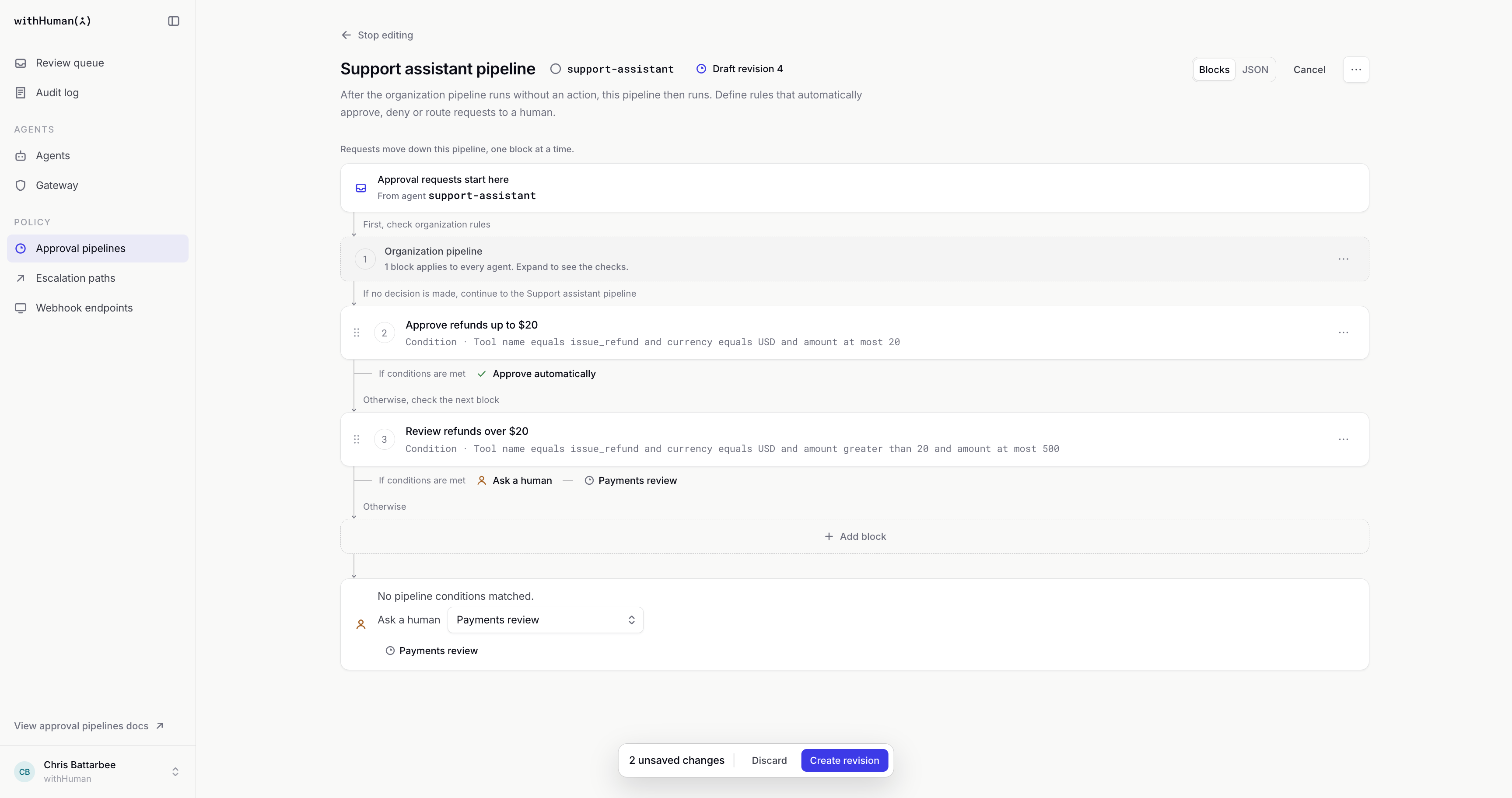
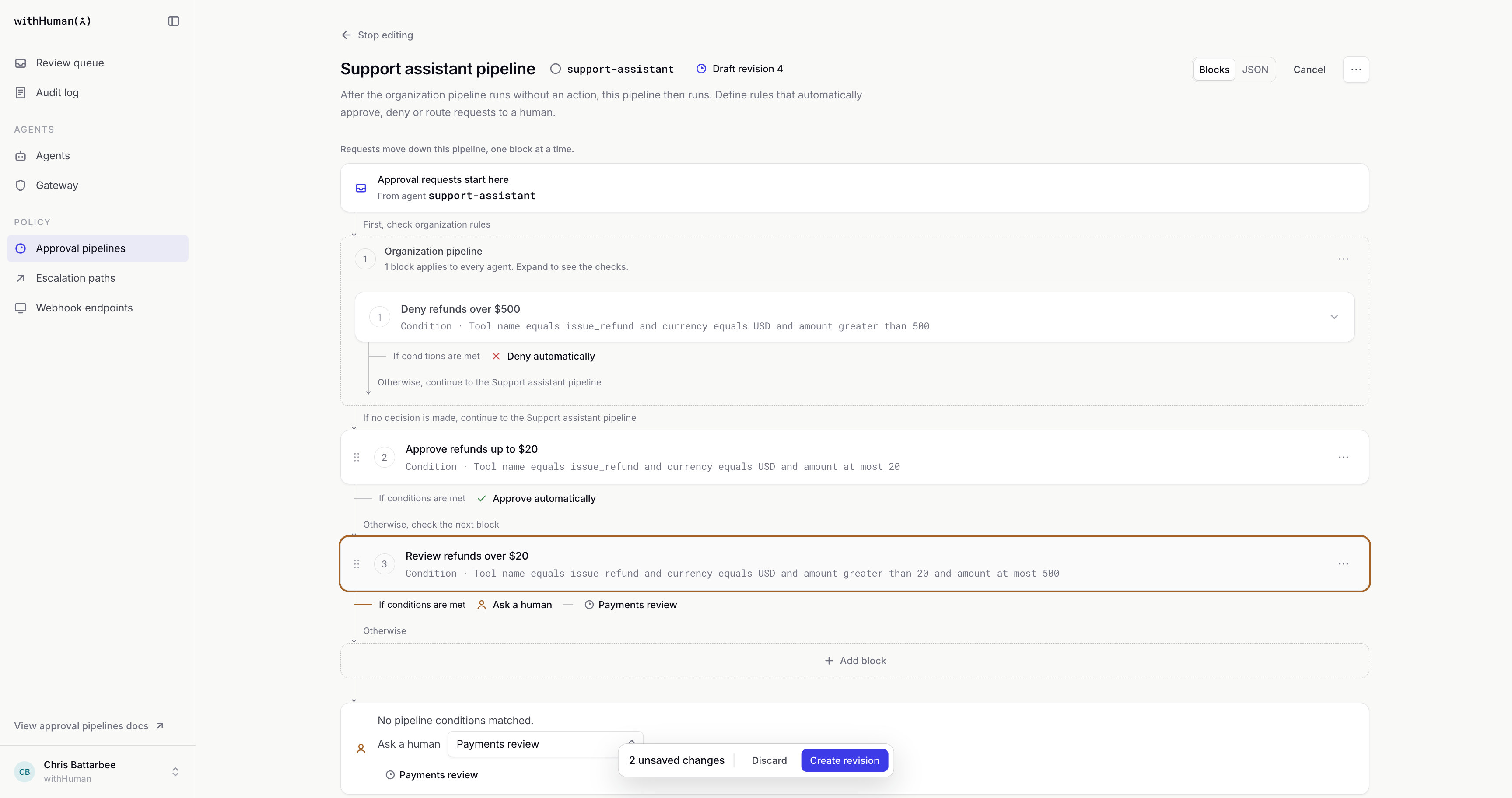
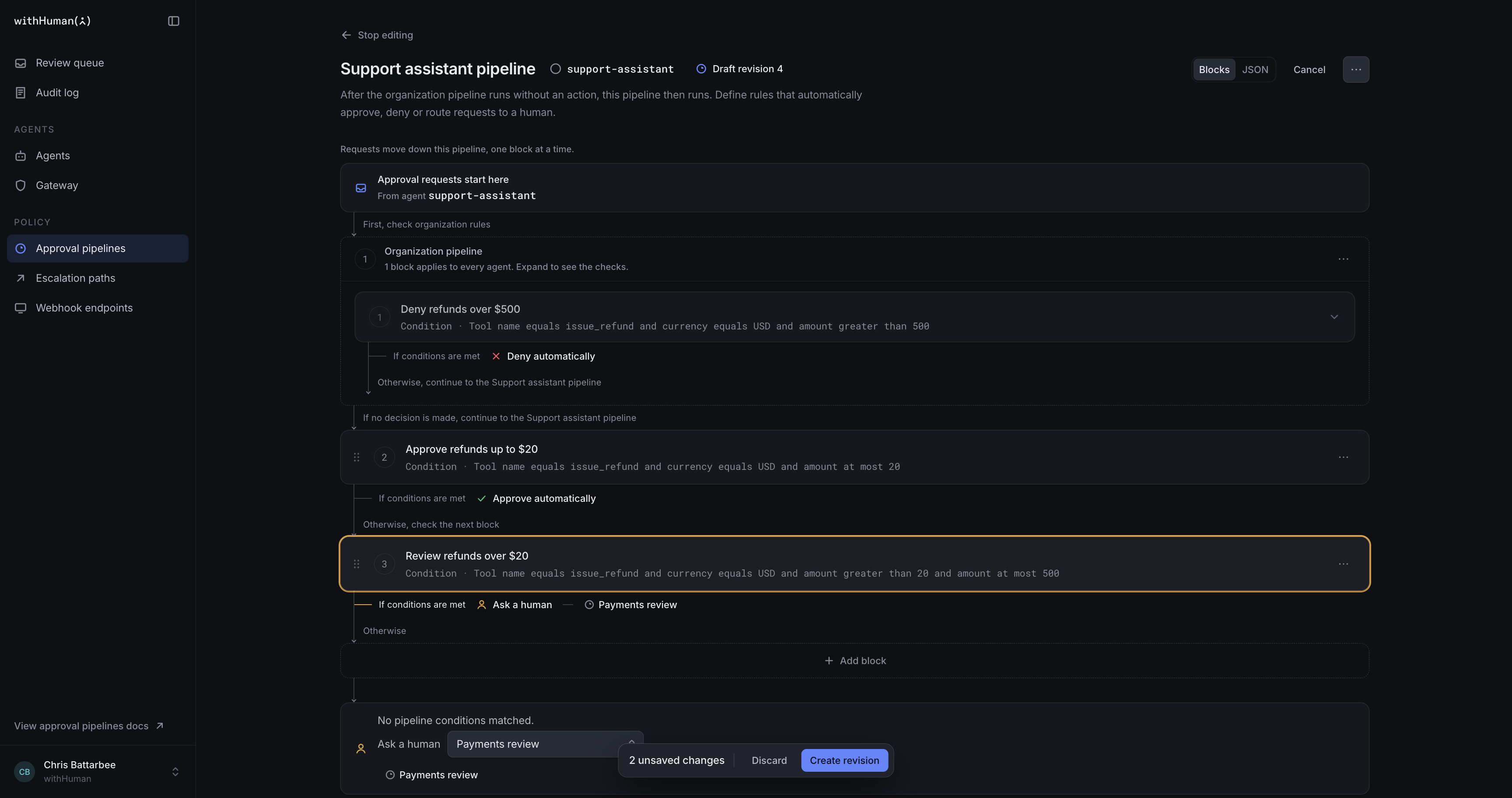
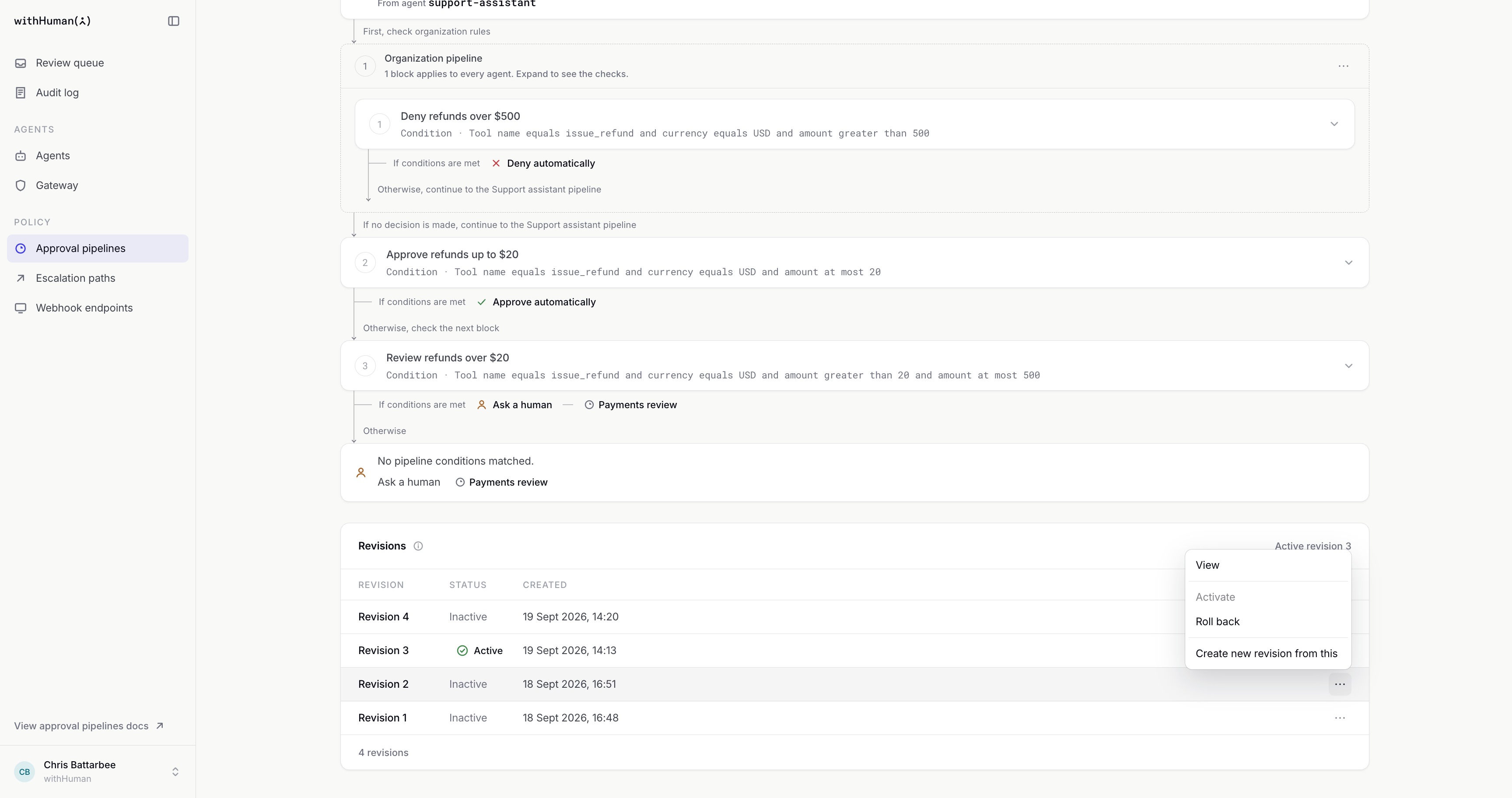
Our Support assistant calls issue_refund, with amount in dollars and currency set to USD. We want the $500 limit to apply to every agent, so that rule belongs in the organization pipeline. The rules for smaller refunds belong to Support assistant.
We'll use Conditions blocks with these checks, in order.
| Pipeline | Block name | Amount conditions | On match |
|---|---|---|---|
| Organization | Deny refunds over $500 | Greater than 500 | Deny |
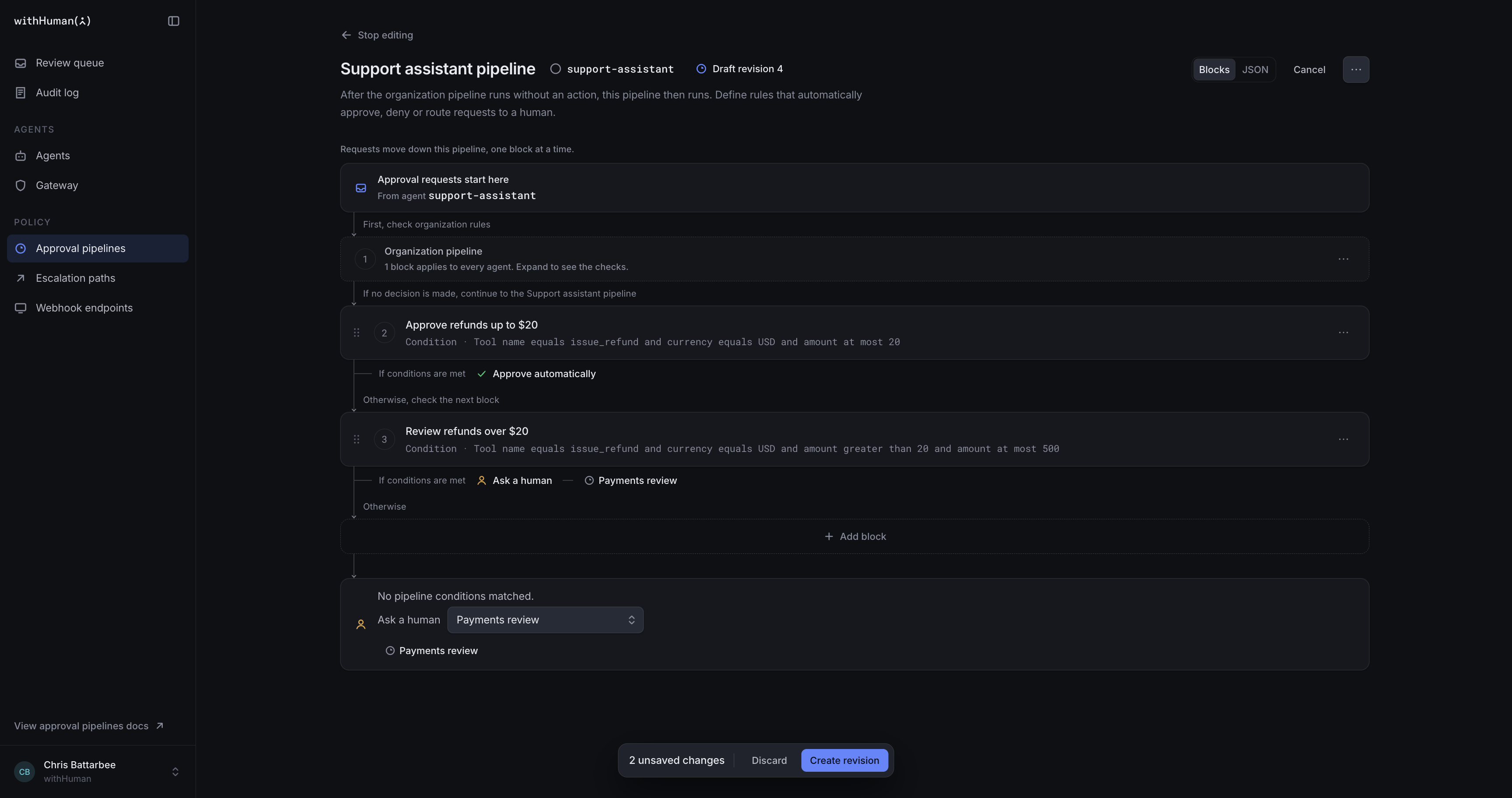
| Support assistant | Approve refunds up to $20 | At most 20 | Approve |
| Support assistant | Review refunds over $20 | Greater than 20 and at most 500 | Ask a human, using Payments review |
Each block will also check that Tool name equals issue_refund and currency equals USD. We'll use All so the tool, currency and amount conditions must all match. That keeps these rules specific to USD refunds. See Conditions blocks for the available comparisons and groups.
Always blocks
Use Always to catch every request that earlier blocks have passed on. Select Add block, then Always block. Give it a name and reason, and choose Approve automatically, Deny automatically, or Ask a human. New Always blocks start with Ask a human. You can select an escalation path or inherit the pipeline default.
For example, put a Conditions block that approves small refunds first, followed by an Always block named Review everything else. Choose Ask a human and your review path. Every request that reaches that block goes to those reviewers, including requests for other tools.
Always stops the pipeline. Blocks below it stay editable and show Unreachable, naming the Always block that prevents them running. Move or remove the Always block to let later blocks run. These warnings do not prevent saving or activating a valid revision. Unreachable blocks still undergo the same validation as every other block.
An Always block in the organization pipeline, outside any branch, also prevents every agent pipeline from running. Place it in an agent pipeline when the catch-all should apply only to that agent. Inside a branch, an Always block only makes the rest of that branch unreachable; see Branch blocks.
The fallback card remains editable even when it is unreachable. Its default escalation path still applies to human outcomes that inherit it. If you have no Always block and no earlier block decides, requests still go to human review.
Human review
An Escalation path decides who is contacted and when a request needs human review. Select one on a block to use it for that block's human-review outcomes, or choose a default escalation path for the pipeline.
withHuman uses the first available option in this order.
- The escalation path chosen on the block that asked for a human. When no block in a branch decides, that's the branch's escalation path.
- The agent pipeline's default escalation path.
- The organization pipeline's default escalation path.
- Any authorized reviewer, if no path is selected.
The defaults also apply when all blocks finish without a decision. Blocks inside a branch don't inherit the branch's escalation path: one that asks for a human without its own path uses the defaults. Routing a request to someone doesn't replace their permission to decide it. See Escalation paths for how reviewers are contacted.
Example: Payments review
Our refunds need the Payments team, even if other requests use a different default path. We'll select Payments review directly on Review refunds over $20. That choice takes precedence over the pipeline defaults.
Pipeline testing
Test request evaluates a sample against the rules you're viewing or editing, including unsaved changes. Open it from the pipeline's action menu and enter a sample request.
What gets tested depends on which pipeline you have open.
- An agent pipeline. The active organization rules run first. If they pass the request on, the agent rules you're viewing or editing run next, including any unsaved changes.
- The organization pipeline. Only the organization rules run. A Continue result means the request would normally go to its agent's pipeline, but that part isn't included in this test.
The highlighted blocks show the route the sample takes, including which branches it entered or skipped. Read each block's outcome and reason to see why it continued or stopped. Later blocks are skipped after a final outcome, and a failed block shows its error.
Testing doesn't create an approval request or contact reviewers. It does make real calls to AI Judge models and webhook endpoints, so use sample data and an endpoint suitable for testing.
Example: A $75 refund
First, we'll save and activate our organization limit so the agent test includes it. Then we'll test Support assistant's rules with this $75 request.
{
  "request": {
    "tool": "issue_refund",
    "arguments": { "amount": 75, "currency": "USD" },
    "agent_reasoning": "The customer was charged twice for the same order."
  },
  "agent": { "slug": "support-assistant", "name": "Support assistant" }
}
The request passes the $500 limit and doesn't match the small-refund approval, so it reaches Payments review. Changing just the amount shows which rule makes each decision.
| Amount | Expected result |
|---|---|
| $10 | Support assistant approves it. |
| $75 | Support assistant sends it to Payments review. |
| $600 | The organization denies it before the agent's blocks run. |
Drafts and activation
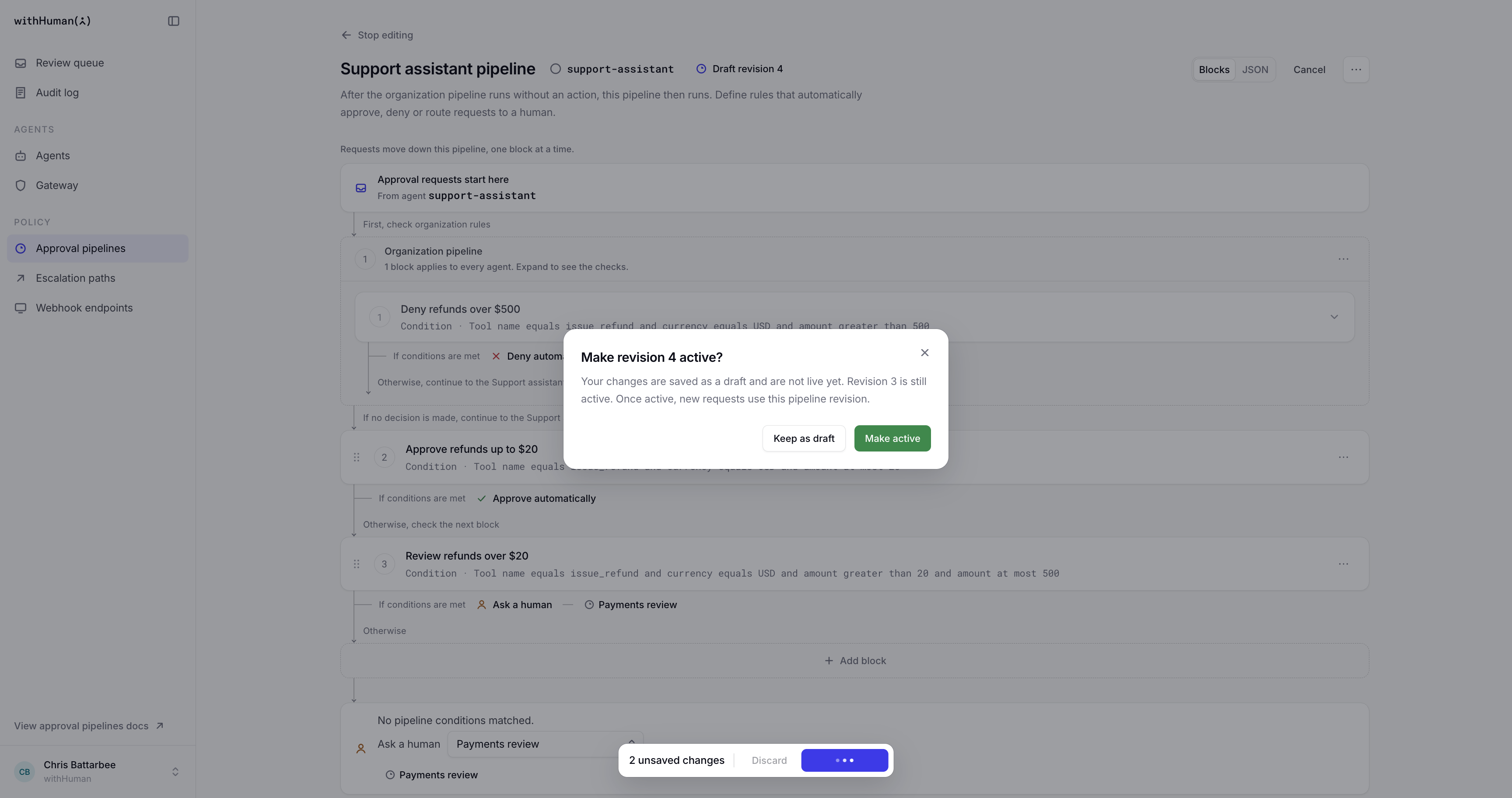
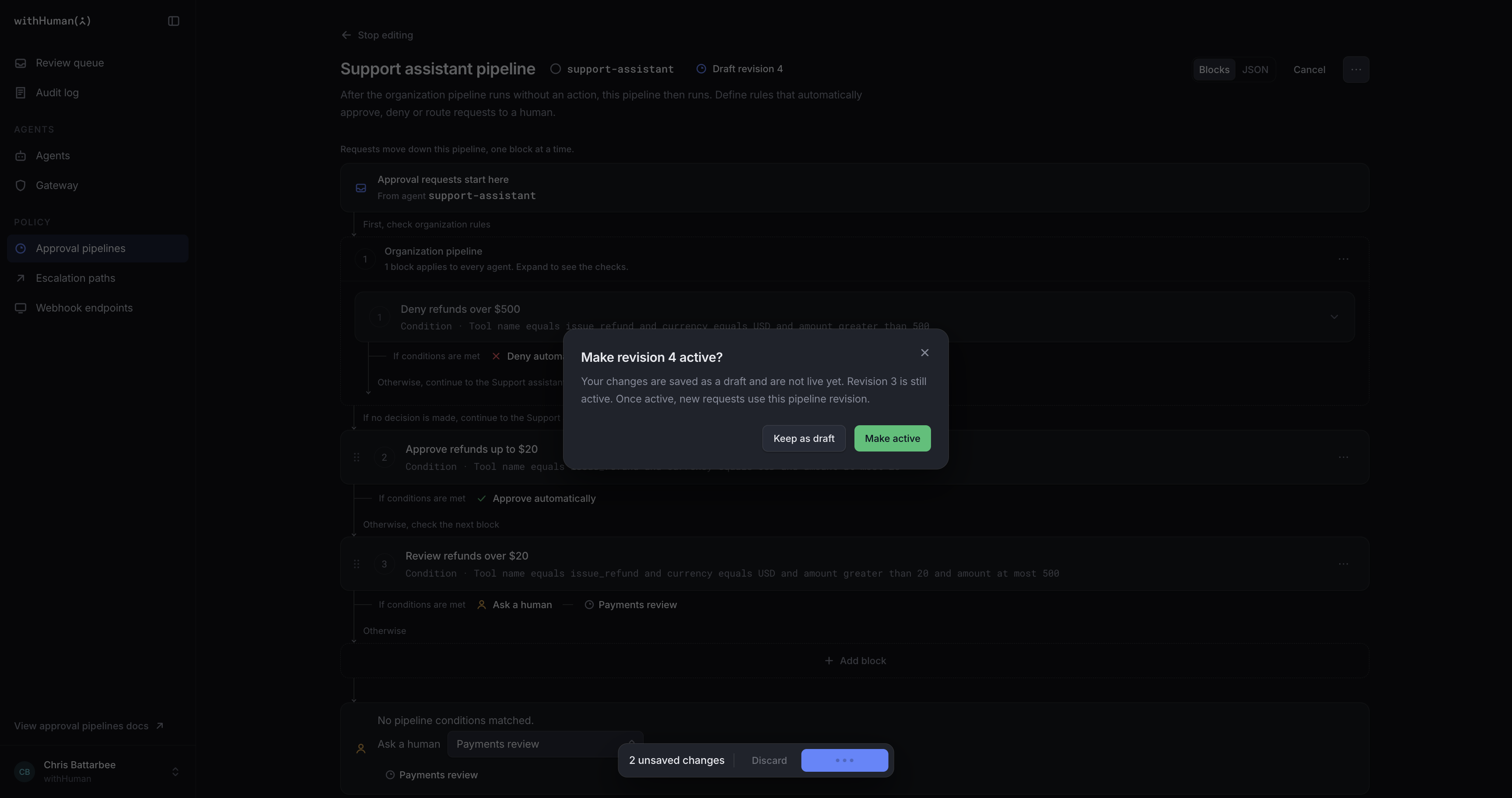
Each saved version of a pipeline is a revision. Only one revision is active at a time. The others remain available in its history.
Create revision saves the rules you're editing. Keep as draft leaves the active rules in place; Make active replaces them with the revision you just saved. Unsaved edits aren't a saved draft.
Editing normally starts from the latest saved revision, which may be newer than the active one. Check the revision label before changing existing rules.
Activation affects new requests. Requests already being evaluated keep their existing rules, and requests waiting for a reviewer aren't evaluated again.
Any escalation paths and webhook endpoints the revision references must be active. If activation fails, the saved revision remains available as a draft.
Revision history and rollback
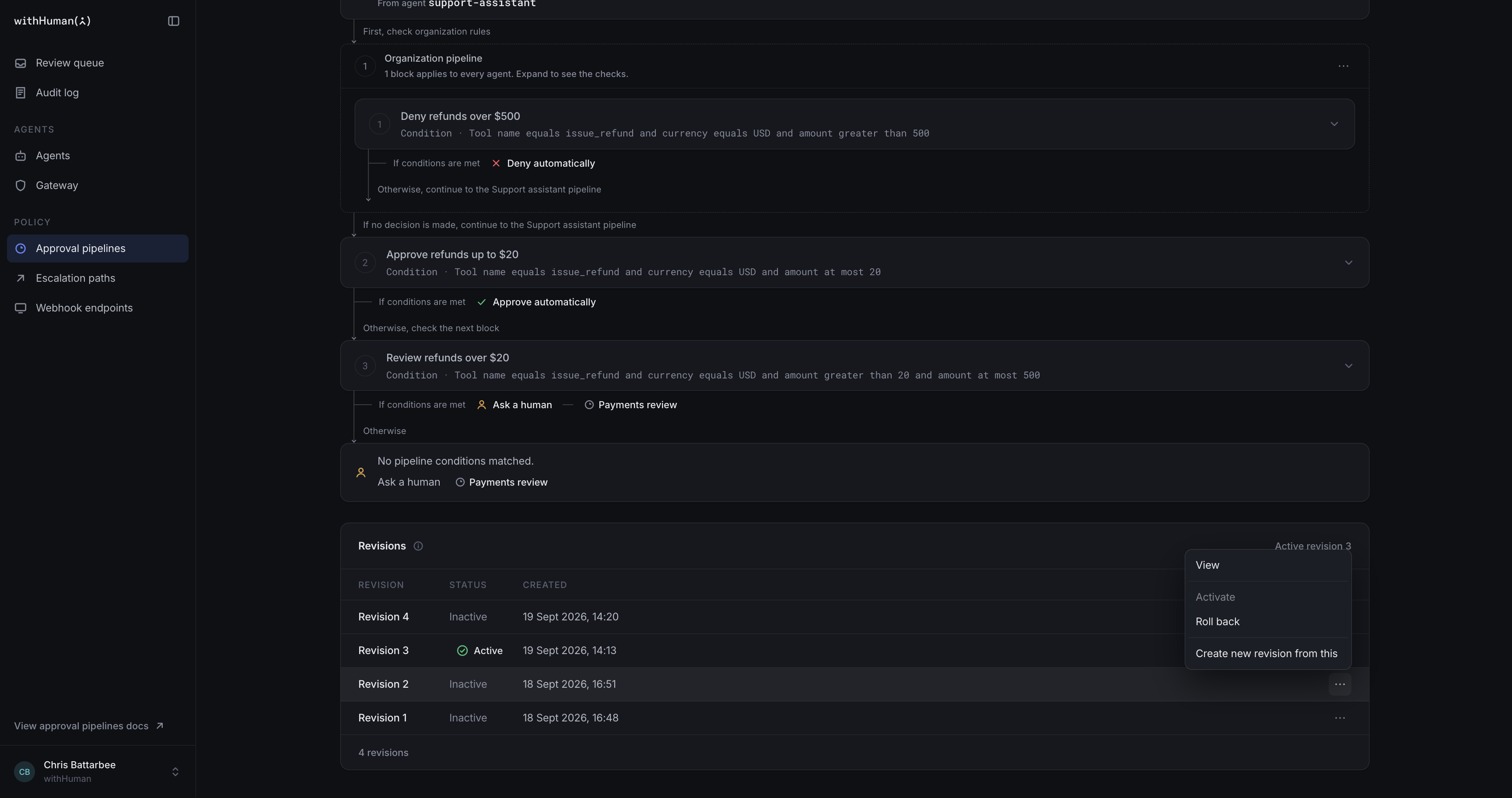
Revisions shows the pipeline's saved history. A revision's action menu lets you View its rules or Create new revision from this to use them as the starting point for an edit.
Use Activate for a newer saved revision or Roll back for an earlier one. Both change which revision handles new requests. Rolling back keeps the newer revisions in the history.
To remove all checks from a pipeline, remove its blocks and activate the empty revision. An empty organization pipeline passes requests to their agents. An empty agent pipeline leaves undecided requests for human review.
For a real request, use the Audit log to see which revisions and blocks ran and what they decided.
Permissions
Permissions can apply to particular agents. Access to one agent's pipeline doesn't necessarily include another agent or the organization pipeline.
| Permission | What it lets you do |
|---|---|
pipeline.read | View pipelines and their revisions. |
pipeline.write | Edit, save and test pipeline revisions. |
pipeline.activate | Activate revisions, including rolling back to an earlier one. |
Viewing escalation paths and webhook endpoints needs access to those resources too. Editing and activation are separate permissions, so someone can save a draft for a colleague to make active.