Conditions blocks
Compare request fields and choose what happens when they match.
A Conditions block compares request fields with values you choose. A match applies the block's outcome; a non-match passes the request to the next block.
To add one, open an approval pipeline, select Edit pipeline, then Add block and Conditions.
Conditions
Give the block a Name and use When to define its conditions. Each condition identifies a field, an operator and, where needed, a value to compare it with.
The field picker includes Tool name, MCP server, Agent slug, Agent name and fields from the tool's arguments. Tool names are the names servers define, so the same tool matches whichever runtime called it; use MCP server to tell apart tools that share a name across servers. Suggestions come from requests and your test sample. Nested argument fields use dotted names, such as customer.email.
Choose an operator that fits the field's type. A numeric comparison needs a number; a text comparison needs text. Text comparisons are case-sensitive. The operator list shows the available choices.
Match outcomes
On match can Approve, Deny or Ask a human. For human review, select an Escalation path or keep Pipeline default. The Reason explains why the rule produced that outcome.
These outcomes stop the pipeline. A request that doesn't match continues automatically.
Loading diagram…
Diagram source
flowchart TD
    request["Request reaches this block"] --> match{"Do the conditions match?"}
    match -->|"No"| next["Continue to the next block"]
    match -->|"Yes"| outcome["Apply On match"]
    outcome --> approve["Approve"]
    outcome --> deny["Deny"]
    outcome --> human["Ask a human"]
Example: A $500 refund limit
Our organization should deny USD refunds over $500, regardless of which agent sends them. We'll add Deny refunds over $500 to the organization pipeline with these conditions.
| Field | Operator | Value |
|---|---|---|
| Tool name | equals | issue_refund |
currency | equals | USD |
amount | greater than | 500 |
We'll use All so every condition must match, and set On match to Deny. A $600 USD refund is denied; a $75 refund continues. Other tools and currencies also continue because they don't match this rule.
Our tool sends amounts in dollars. A tool that sends cents would need a different comparison value.
Condition groups
All requires every condition in a group to match. Any requires at least one. Groups can contain other groups, so one part of a rule can offer alternatives while the rest remains required.
Example: Alternative refund reasons
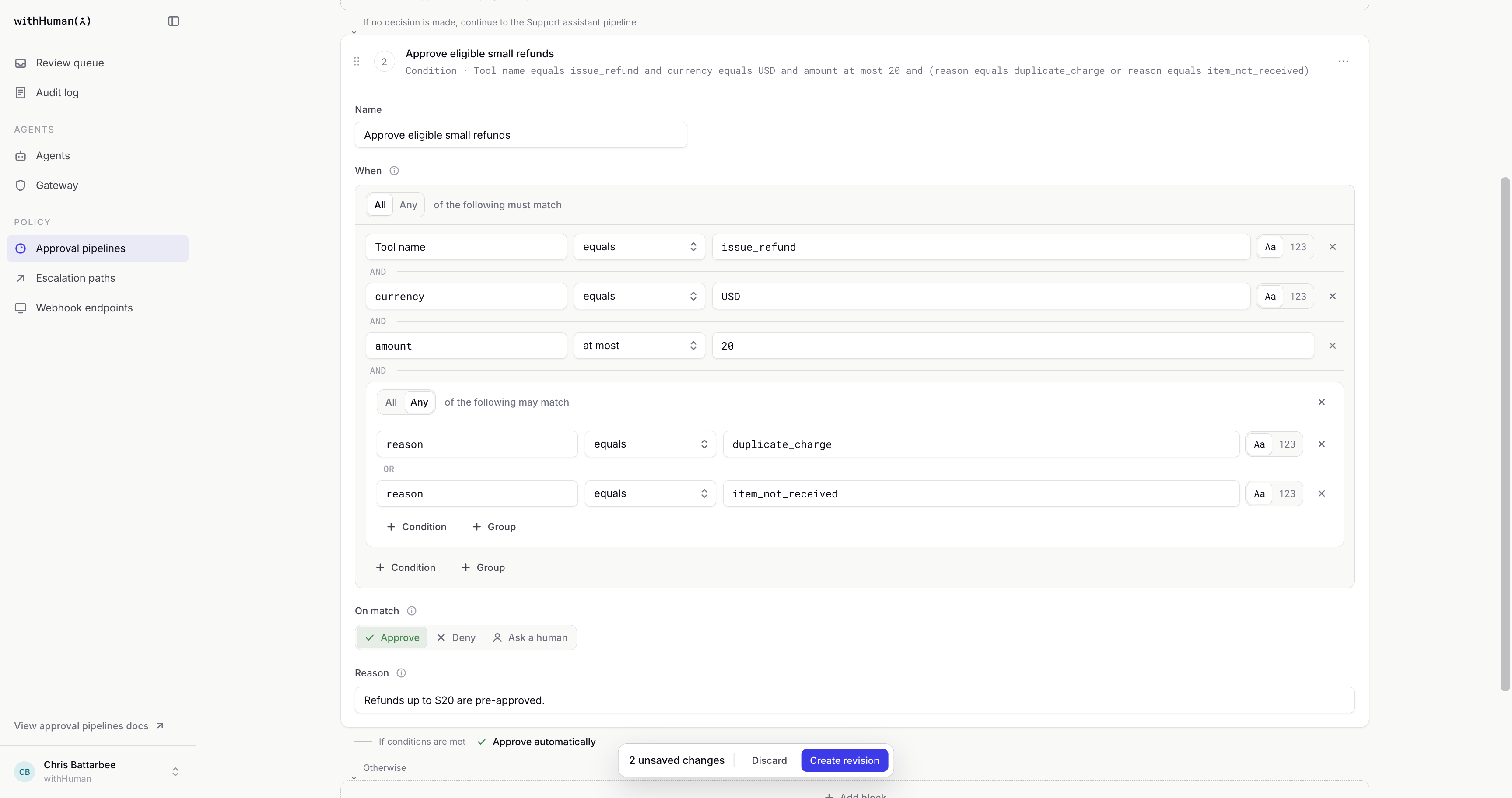
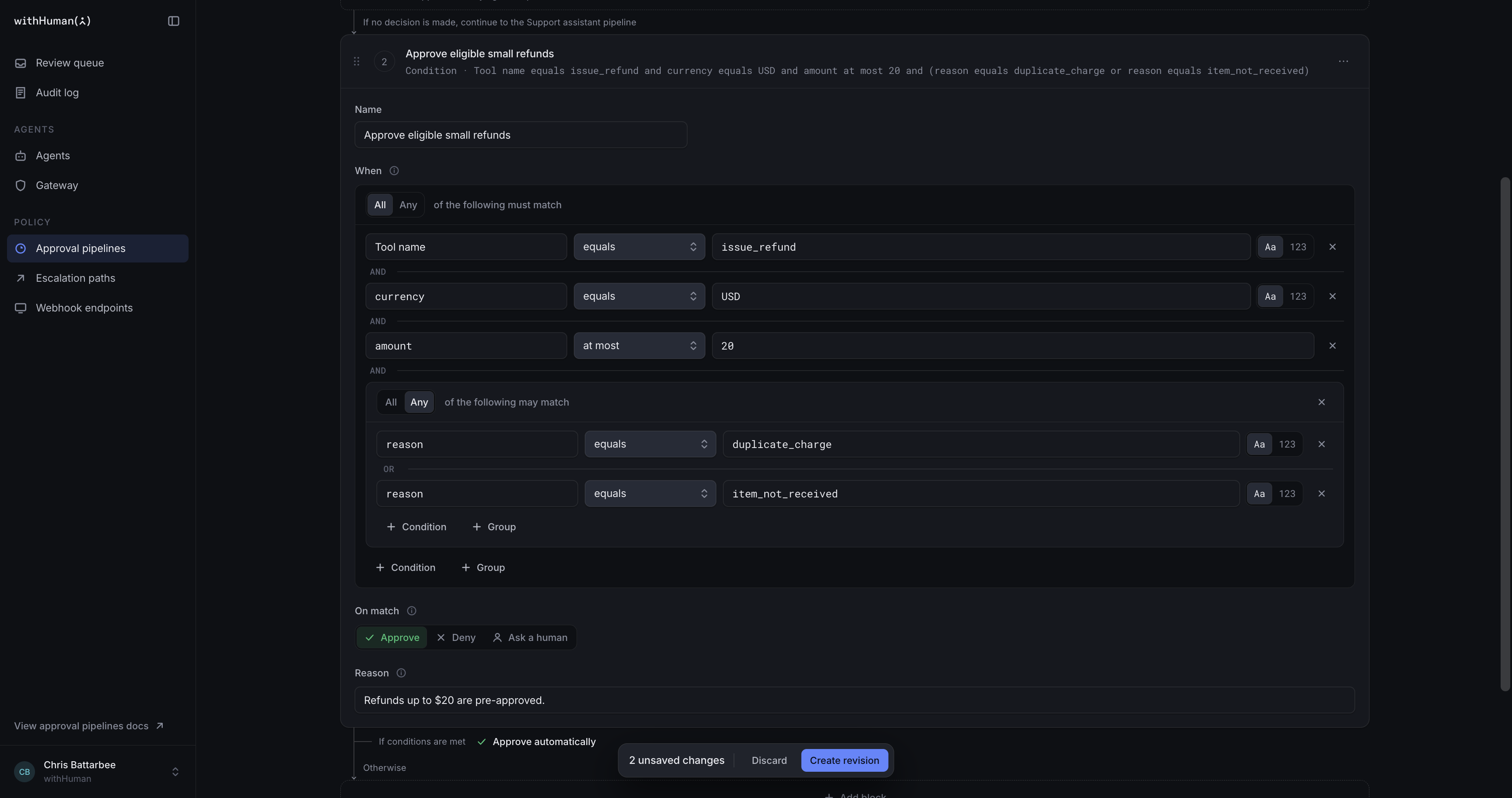
Suppose we only want Support assistant to approve small refunds for duplicate charges or missing items. We'll extend its small-refund rule with this grouping.
- All: the tool is
issue_refund, the currency isUSDand the amount is at most20. - Within that group, Any: the reason is
duplicate_chargeoritem_not_received.
We'll set On match to Approve. Either reason is enough, but the tool, currency and amount checks still apply. This is an extra restriction on the basic amount rule in the main page.
Block testing
Test request, in the pipeline's action menu, shows whether a sample matches each block. Check the block's result as well as the final outcome: a later block can still decide a request that this one passes on.
Changing one field at a time helps show which condition affects the result. If a block reports an error, check the field's type and the operator it uses.
Example: A nested refund rule
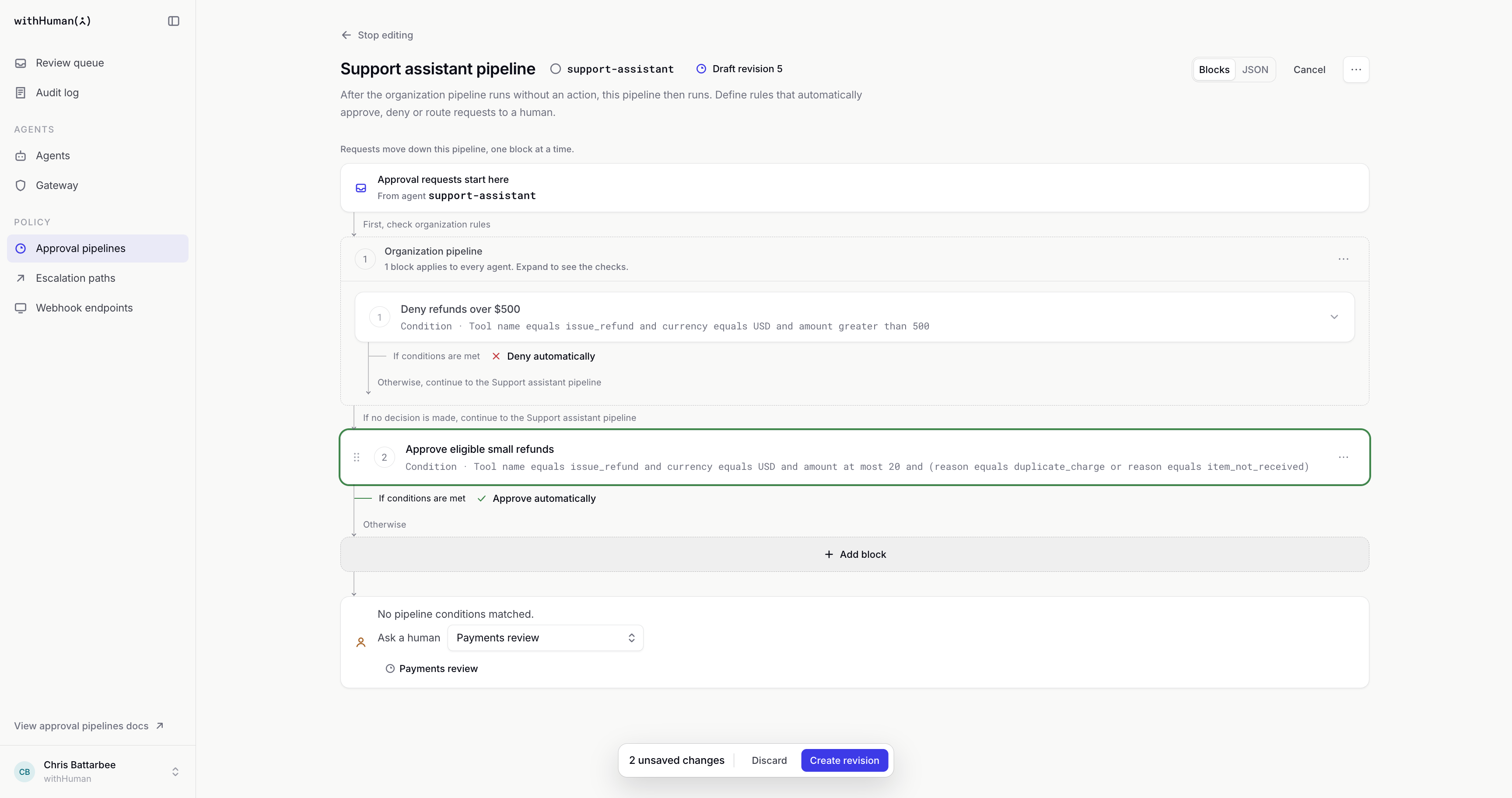
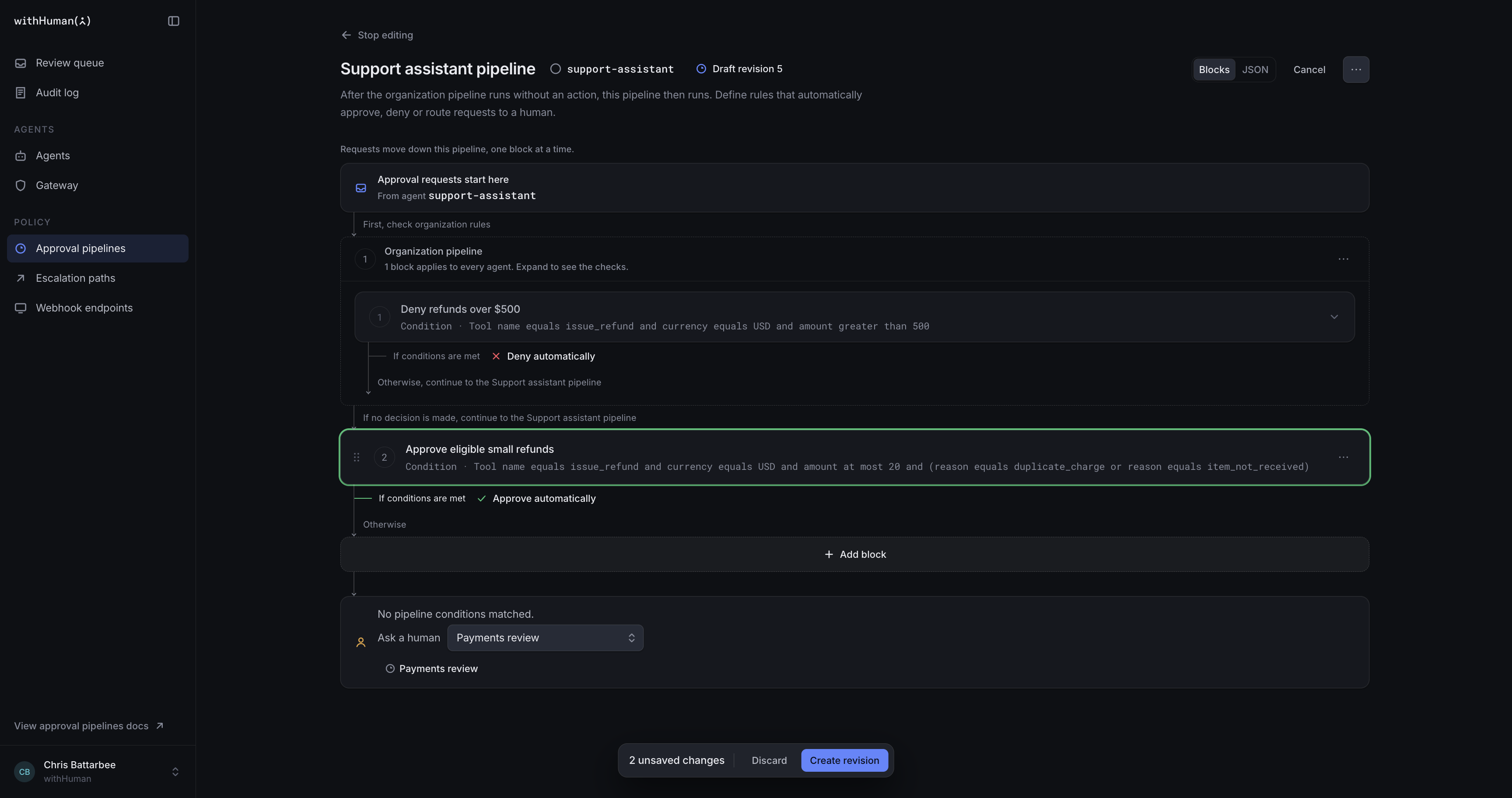
Our $10 USD refund with reason duplicate_charge should be approved. We'll then change the reason to changed_mind, the amount to $75 or the currency to EUR, one change at a time. Each variant should continue past this block instead.
Once the rule behaves as intended, it can be saved and activated.
Operator list
These are the operators available in the visual editor. Check the field's actual type and value when choosing a comparison.
| Operator | What it checks |
|---|---|
| equals | The field equals the value, including its type. |
| does not equal | The field is present and differs from the value. |
| is one of | A text field equals one of the listed text values. |
| is not one of | A text field equals none of the listed text values. |
| less than | A number is below the value. |
| at most | A number is at or below the value. |
| greater than | A number is above the value. |
| at least | A number is at or above the value. |
| contains | Text contains the supplied text, or a list contains that item. |
| does not contain | Text doesn't contain the supplied text, or a list doesn't contain that item. |
| contains any of | Text contains at least one supplied substring, or a list contains at least one supplied item. |
| contains all of | Text contains every supplied substring, or a list contains every supplied item. |
| starts with | Text starts with at least one of the listed prefixes. |
| ends with | Text ends with the supplied suffix. |
| matches regex | Text matches the supplied regular expression. |
| is true | A boolean field is true. |
| is false | A boolean field is false. |
| is empty | A list has no items. |
| is not empty | A list has at least one item. |
| exists | The field is present, including when its value is null. |
| does not exist | The field is missing. |
| is null | The field is present with a null value. |
| is not null | The field is present with a value other than null. |
For a missing field, only does not exist matches. Missing isn't the same as null or an empty list. If a field has the wrong type for an operator, such as text in a numeric comparison, evaluation can fail and send the request to human review.