# Provisioner tokens
Register agent instances automatically and manage provisioner tokens.
A provisioner token lets your deployment platform register agent instances without someone authorizing each one in a browser. If your Support assistant starts a new worker, the platform can register that worker and give it its own credential.
The token belongs to one [agent](/docs/web-app/agents). Every instance it registers belongs to that agent and uses its approval pipeline.
```mermaid
flowchart TD
platform["Deployment platform"] -->|Uses provisioner token| register["Register instances with withHuman"]
subgraph agent["Support assistant"]
first["Worker 1
Its own instance credential"]
second["Worker 2
Its own instance credential"]
pipeline["Support assistant approval pipeline"]
first -->|Approval requests| pipeline
second -->|Approval requests| pipeline
end
register --> first
register --> second
```
Keep the provisioner token with the deployment platform. Give each runtime its own instance credential to send approval requests. The two credentials do different jobs.
## New tokens
Open **Agents**, select **Support assistant**, then open the menu beside **New instance**. Select **Issue provisioner token**. This needs permission to issue credentials for that agent.
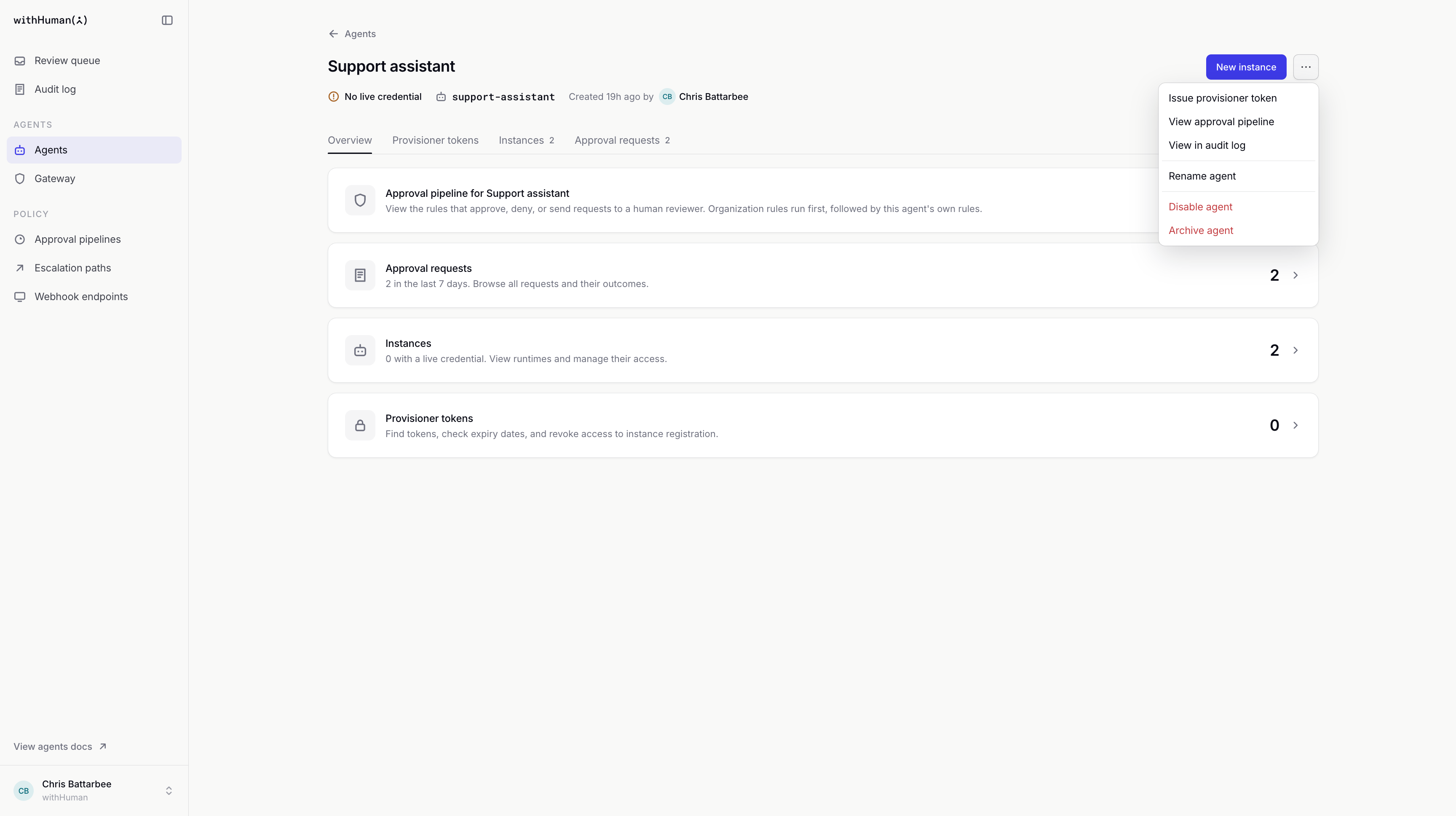
Issue a token for the agent whose instances your platform will register.
The **Provisioner tokens** tab opens with the new token ready to copy. Copy it now; the secret won't be shown again. Save it in your deployment platform's secret storage and supply it to the registration process when needed.
## Instance registration
With the token available in the `WITHHUMAN_PROVISIONER_TOKEN` environment variable, run this request from your deployment platform.
```sh
curl --fail-with-body --silent --show-error \
https://app.withhuman.ai/api/aap/v1/instances \
--header "Authorization: Bearer $WITHHUMAN_PROVISIONER_TOKEN" \
--header 'Content-Type: application/json' \
--data '{"instance_name":"support-worker-01"}'
```
Use a unique name for each new instance. Here we're registering `support-worker-01`; the next worker needs a different name. For a self-hosted deployment, replace `https://app.withhuman.ai` with your deployment's origin.
The response includes the new instance and its credential. Give the value in `credential.token` to that runtime's AAP adapter, along with the AAP base URL. For hosted withHuman, that's `https://app.withhuman.ai/api/aap`. Check `credential.expires_at` for when the instance credential will stop working.
The instance credential is returned only once, so pass it to the runtime before discarding the response. Keep it out of deployment logs. Use this credential for approval requests; keep the provisioner token for registering more instances.
See [Create an agent instance](/docs/reference/agent-approval-protocol#mintAgentInstance) for the API details, including optional instance metadata and requesting a shorter credential lifetime.
## Instances and token activity
Open the agent's **Instances** tab to find `support-worker-01`. Its credential should be **Active**. The [Agents guide](/docs/web-app/agents#connection-status-and-requests) explains checking its requests and managing its access.
Under **Provisioner tokens**, each row shows the token's identifier, **Status**, **Issued**, **Last used** and **Expires**. Last used tells you when the token last registered an instance.
Search by token identifier or filter by **Active**, **Expired** or **Revoked**. Use **Previous** and **Next** for longer lists and **Clear filters** to start again. The list shows identifiers, not the token secrets.
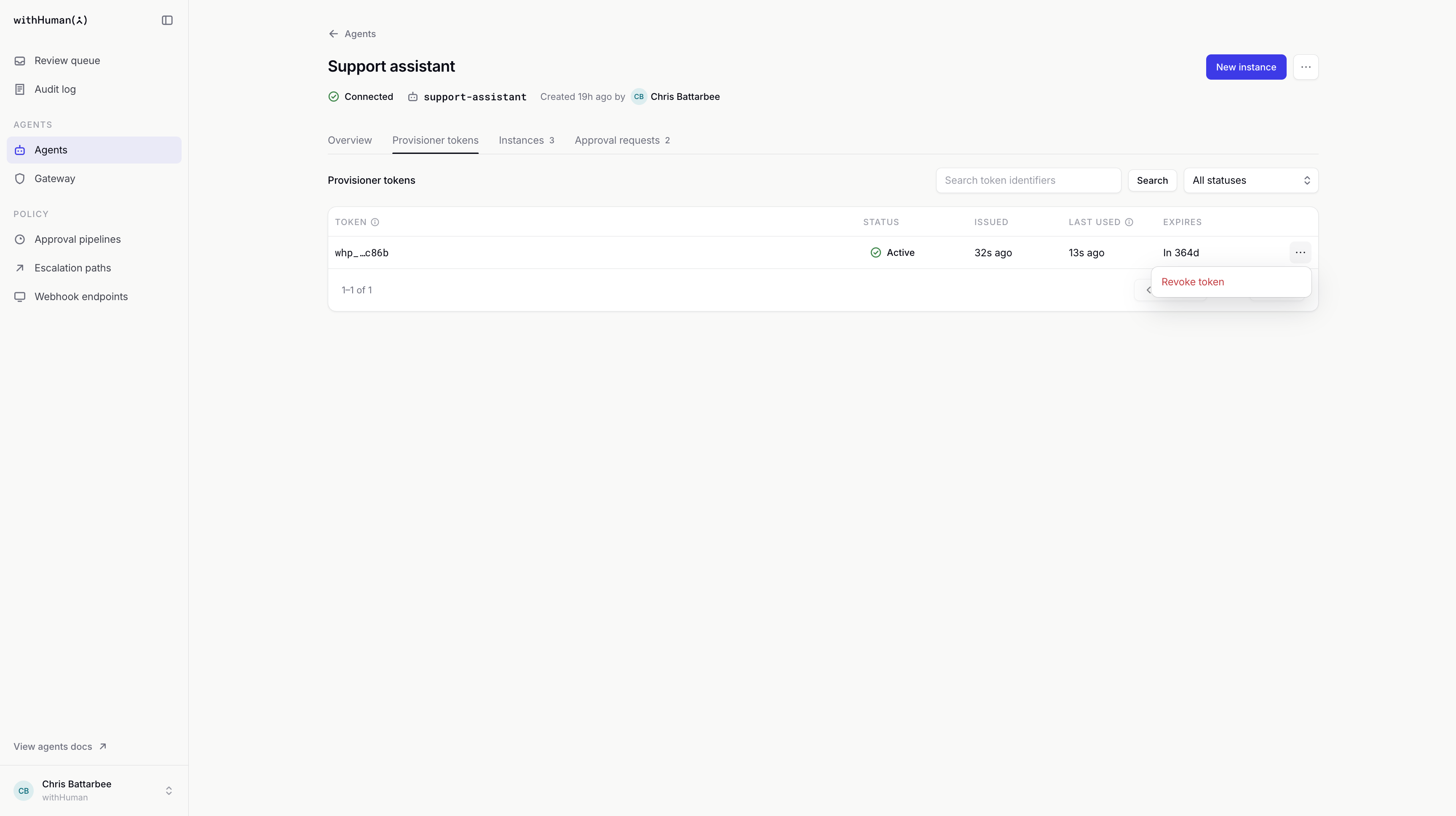
Check when a token was used and when it expires, or revoke it from its row's menu.
## Token replacement and revocation
Use the displayed **Expires** date to plan a replacement. Issue a new token and update your deployment platform to use it before the old one expires. Once the replacement is in use, revoke the old token.
To revoke a token, open its row's action menu, select **Revoke token** and confirm. This needs permission to revoke credentials for the agent. The platform can no longer use that token to register instances.
Instances it already registered keep their own credentials. Their access ends when those credentials expire or are revoked, or when the agent or instance is disabled. To remove an existing instance's access, use its controls in **Instances**.
## Registration problems
| What you see | What to do |
| --- | --- |
| The token is rejected. | Check that you're using a provisioner token for this deployment, rather than an instance credential. Check its expiry and revocation status, and replace it if needed. |
| The agent is disabled or archived. | Enable or restore it before registering instances. Archiving revokes provisioner tokens, so a restored agent needs a new token. |
| The instance name already exists. | Choose a new name for the new worker. Names remain taken even after an instance's credential is revoked. |
| You can't issue or revoke a token. | Ask an administrator for the relevant credential permission on this agent. |
| The newly registered instance can't send requests. | Give its adapter the returned instance credential, check the provider URL and expiry, and confirm that the agent and instance are enabled. |