# Audit log
Explore the record of requests, decisions, and organization activity.
Every event inside of withHuman is recorded and saved. The audit log is your way of viewing those events. If you ever want to know anything that happened inside of withHuman, you should head to the audit log.
The audit log is part of the hosted edition. The open edition keeps every decision on record but no event stream, so its request pages show the request, its routing, its reviewers and its decision without the timeline described here.
[Immutability](/docs/concepts/immutability) preserves the resources and revisions those events refer to, so later changes don't erase their history.
Open **Audit log** in the sidebar. You'll need permission to read your organization's audit log to use this page.
## Recorded events
Every action in withHuman produces an event in the audit log. This includes approvals, denials, webhook calls, pipeline evaluations, changes to agents and teams, and more. These are just a few examples of what you can find there.
Each row is an **event**, which records something that happened. One request can have several events: it arrived, a pipeline checked it, a reviewer claimed it, and someone made a decision. Events also record configuration changes, such as activating an [approval pipeline](/docs/concepts/approval-pipelines) or editing a team's members.
The [Audit event types](/docs/web-app/audit-event-types) reference explains the event names and the useful details recorded with each one.
### Event details
The audit log shows you four things by default.
| Column | What it tells you |
| --- | --- |
| **Time** | When the event happened. Open the event to see its date and time. |
| **Event** | What happened, such as `approval.created` or `approval.decided`. |
| **Actor** | Who or what caused it. This might be a person, an agent, an organization API key or **System**. |
| **Subject** | What the event happened to, by name: an agent, a member, a team, a request's tool. A short id shows when the event recorded no name. |
For example, when the Support assistant submits a refund request, the agent is the actor and the request is the subject. When Chris approves it, Chris is the actor, but the subject is still the same request.
Select a row to open the event. Along with the actor, subject and timestamp, you'll see the event's own ID and its **data**. The data contains the details recorded for that particular event. A decision event, for example, can show the result and the reviewer's note.
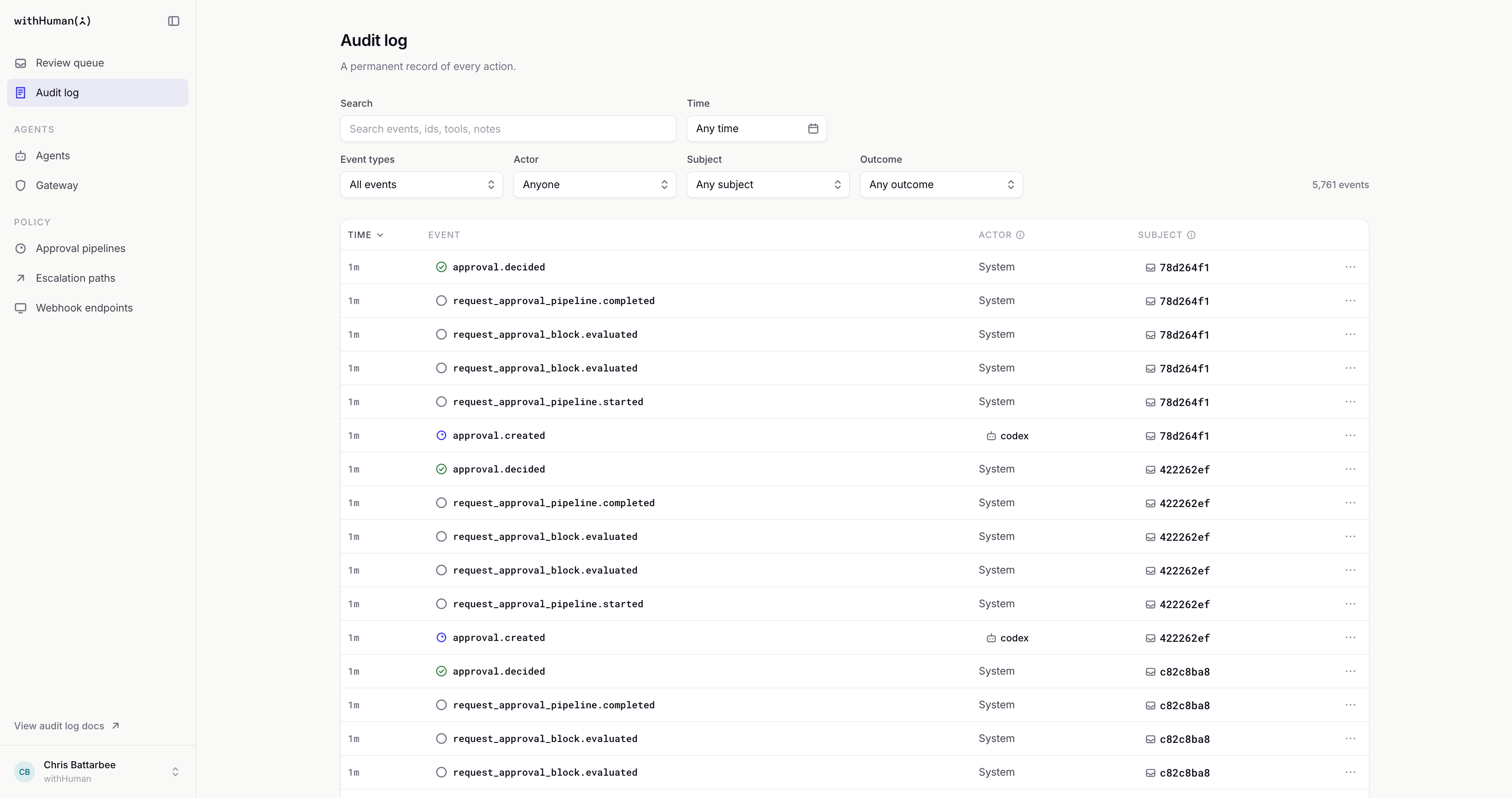
Each row records one event. Select any screenshot to view it full size.
## Event filters
Use the filters above the list to narrow down what you're looking for.
| Filter | How to use it |
| --- | --- |
| **Search** | Search event names, actor names, identifiers and recorded event data. Try a request ID, a tool name such as `issue_refund`, or words from a decision note. Search isn't case-sensitive. |
| **Time** | Choose **Any time**, **Last hour**, **Last 24 hours**, **Last 7 days** or **Last 30 days**. Use **Custom range** to enter a start, an end or both, in your local time. |
| **Event types** | Select one or several event types. Selecting several includes events matching any of them. The picker lists types that have already been recorded in your organization. |
| **Actor** | Choose **Anyone**, **Humans**, **Agents**, **Organization API keys** or **System**. You can also choose an individual person or agent when you have access to their listing. |
| **Subject** | Choose the kind of thing the event happened to. For agents, members and teams, pick one by name to follow it. For other kinds, enter its exact **Subject id**. |
| **Outcome** | Choose **Approved**, **Denied**, **Expired**, **Withdrawn by the agent**, **Sent to a human** or **Tool call blocked**. This shows the events that recorded that outcome. |
Filters work together. Searching for `issue_refund` with **Last 24 hours** selected only shows matching events from that period. Select **Clear** to remove the filters.
The count above the list is the number of events, not the number of requests. The newest events appear first. Select **Time** to reverse the order, or **Event** or **Actor** to sort by those columns. Use **Load more** to see further results when it's available.
Remember that you're filtering events. Selecting an agent as the **Actor** shows events that agent caused, but leaves out pipeline activity recorded by **System** and decisions made by people. Likewise, **Approved** shows approval events, rather than every event leading up to them.
## Request history
Let's follow the Support assistant's **$75 refund** from the [Review queue guide](/docs/web-app/review-queue). It went through the agent's approval pipeline, reached the **Payments review** [escalation path](/docs/concepts/escalation-paths), and was approved by Chris.
This request produced eight events. Other requests can have different histories, depending on their pipelines, reviewers and outcome.
```mermaid
flowchart TD
created["Request received
approval.created"] --> started["Pipeline evaluation started
request_approval_pipeline.started"]
started --> block["Refund rule checked
request_approval_block.evaluated"]
block --> completed["Human review needed
request_approval_pipeline.completed"]
completed --> routed["Payments review selected
routing.evaluated"]
routed --> level["Reviewer stage reached
routing.level_entered"]
level --> claimed["Chris claimed the request
routing.claimed"]
claimed --> decided["Chris approved the refund
approval.decided"]
```
### Events for a request
Start in **Audit log** and enter the request ID in **Search**. If you don't have the ID, search for the tool name, `issue_refund`, and narrow the **Time** window to when the request was made.
Open a matching event and check its **Subject**. You can follow that link to the request to confirm you've found the right one. A tool name can match several requests, so check the amount, agent and other request details before continuing.
On the event page, select **All events for this subject**. This replaces your filters with the subject's type and ID, bringing the request's history together across all actors and outcomes. Select **Time** to put the oldest event first.
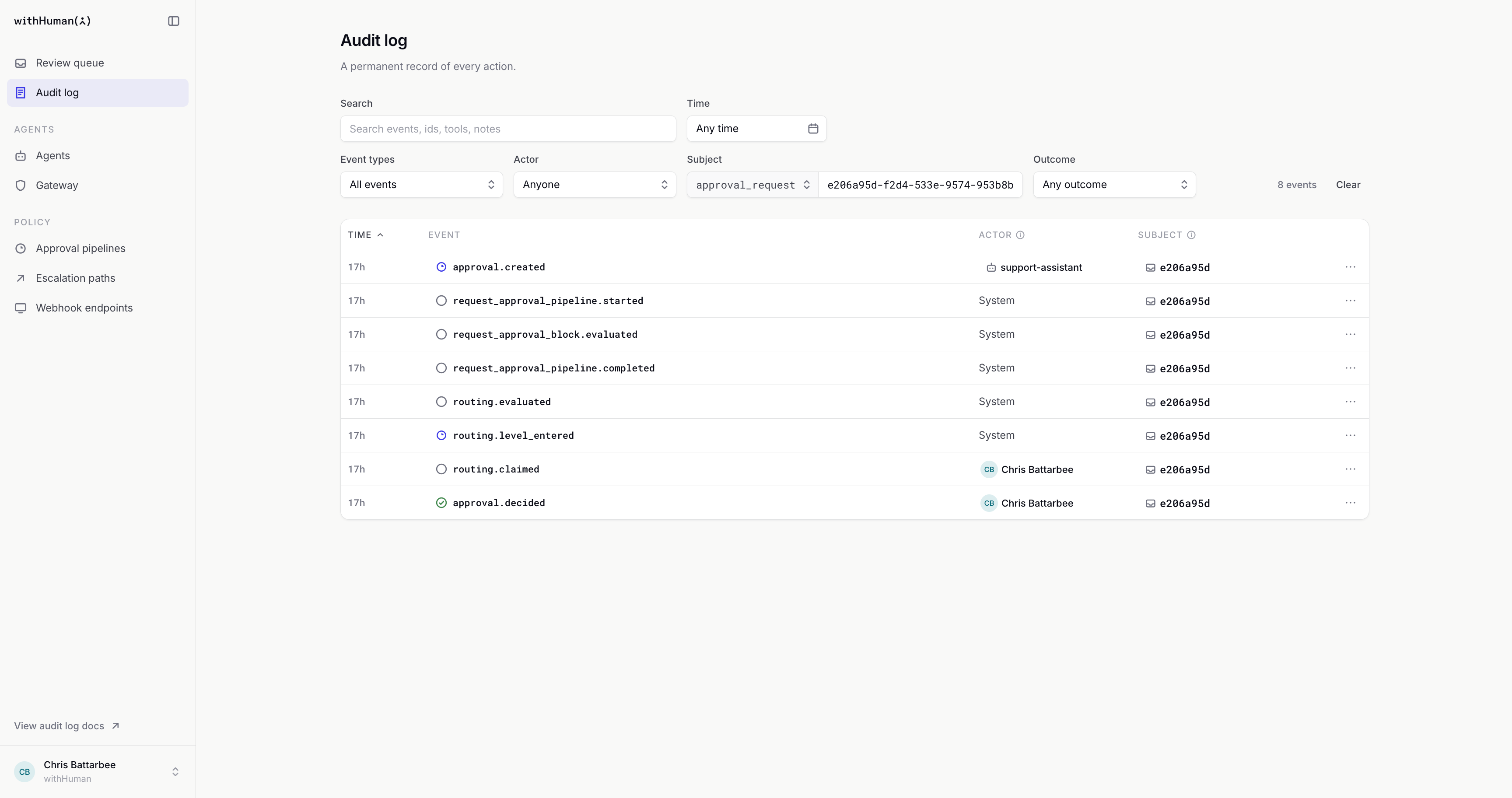
Follow the subject to see the request's history across the agent, System and its reviewer.
### Reasons for human review
Start with `approval.created` to see which agent submitted the request. Its data includes the instance ID, tool name and deadline.
Next, open `request_approval_block.evaluated`. For this refund, three fields explain what happened.
| Field | What this request shows |
| --- | --- |
| `block_name` | **Review refunds over $20**, the rule that checked the request. |
| `reason` | **Refunds over $20 need a human decision.**, the explanation recorded by the block. |
| `outcome` | **human**, meaning this request needed human review. |
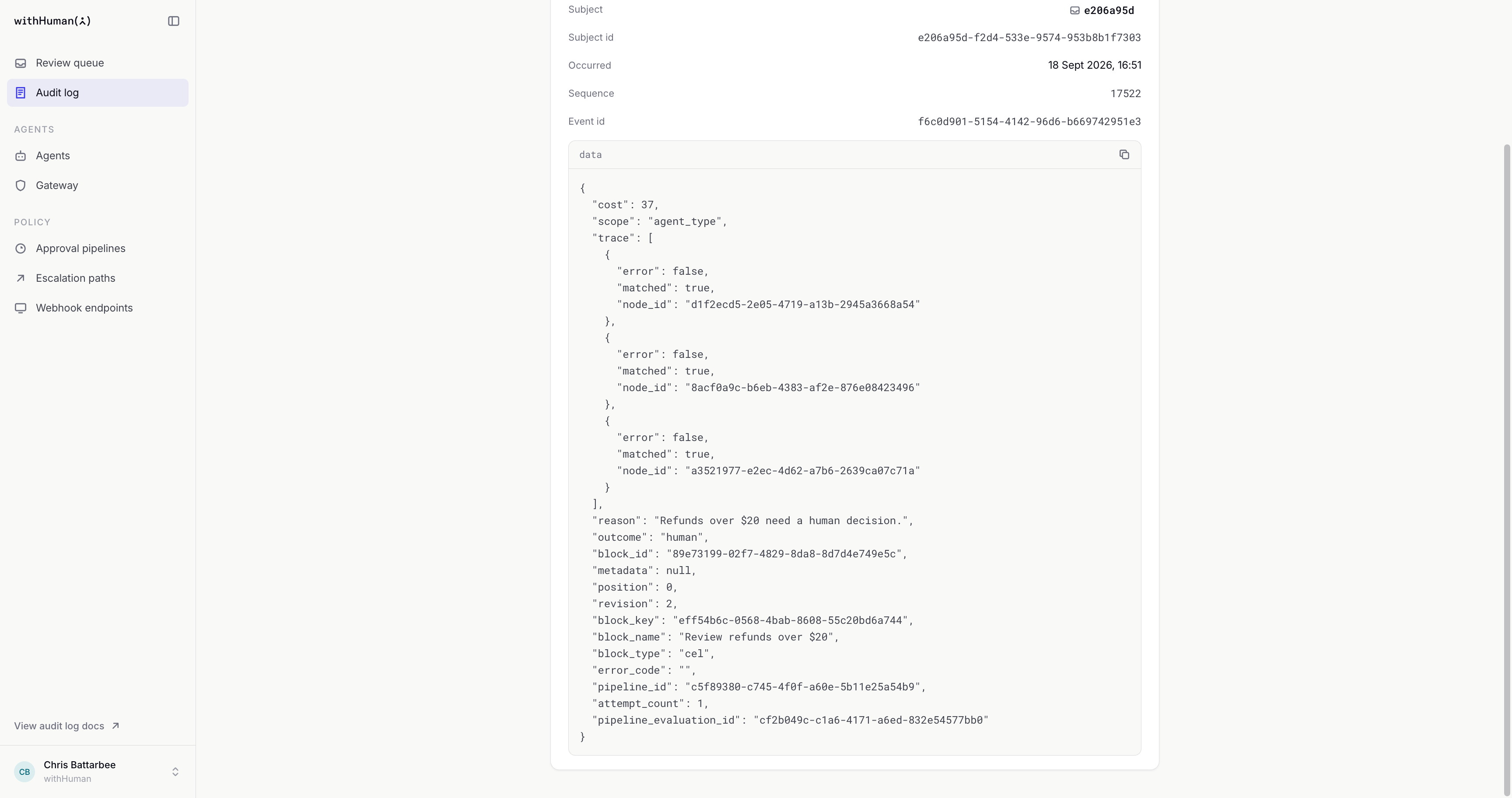
The block's recorded details explain why this refund needed a person to decide.
Back in the history, `request_approval_pipeline.completed` records the pipeline's overall outcome. `routing.evaluated` shows the selected path, and `routing.level_entered` records the reviewer stage it reached. Finally, `routing.claimed` shows when Chris picked up the request.
### Decision details
Open `approval.decided`. The **Actor** is Chris Battarbee, and **Occurred** shows when he made the decision. In **data**, `status` is **approved** and `note` contains **Approved. Refund the duplicate $75 charge.**
An automatic decision also produces `approval.decided`, but its actor is **System** and its data identifies the pipeline as the source. Requests that expire or are withdrawn instead end with `approval.expired` or `approval.cancelled`.
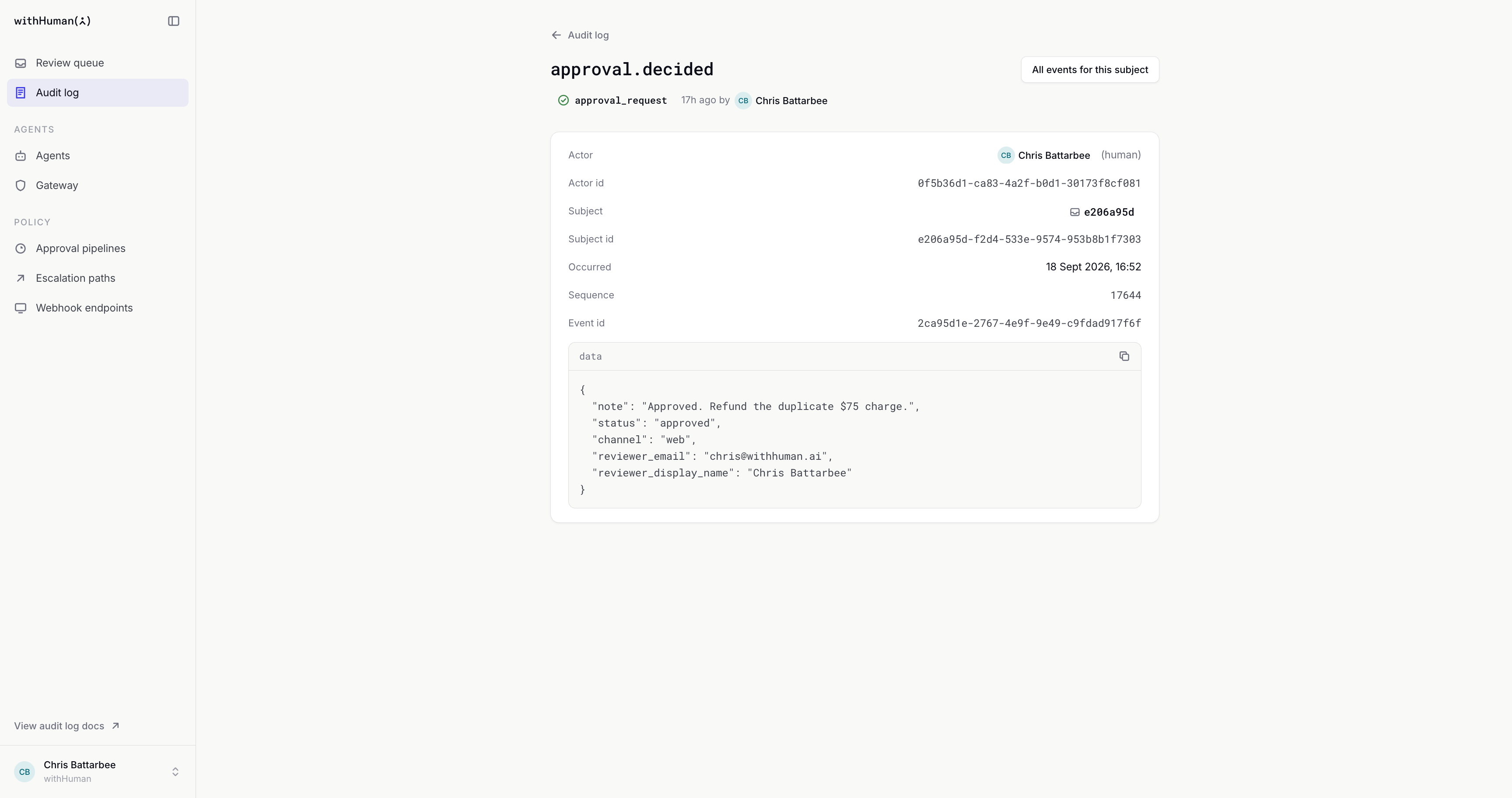
The final decision records who approved the request, when they did it and what they told the agent.
This confirms that Chris approved the action. Select **Subject** to open the related request, or copy the event page's URL to share what you found with someone who has access to your organization's audit log.